Edit php.ini changes PHP settings for one of your domains — for example the maximum upload size, memory limit or time zone — without affecting your other sites.
Where to find it: CWP Settings → Edit php.ini.
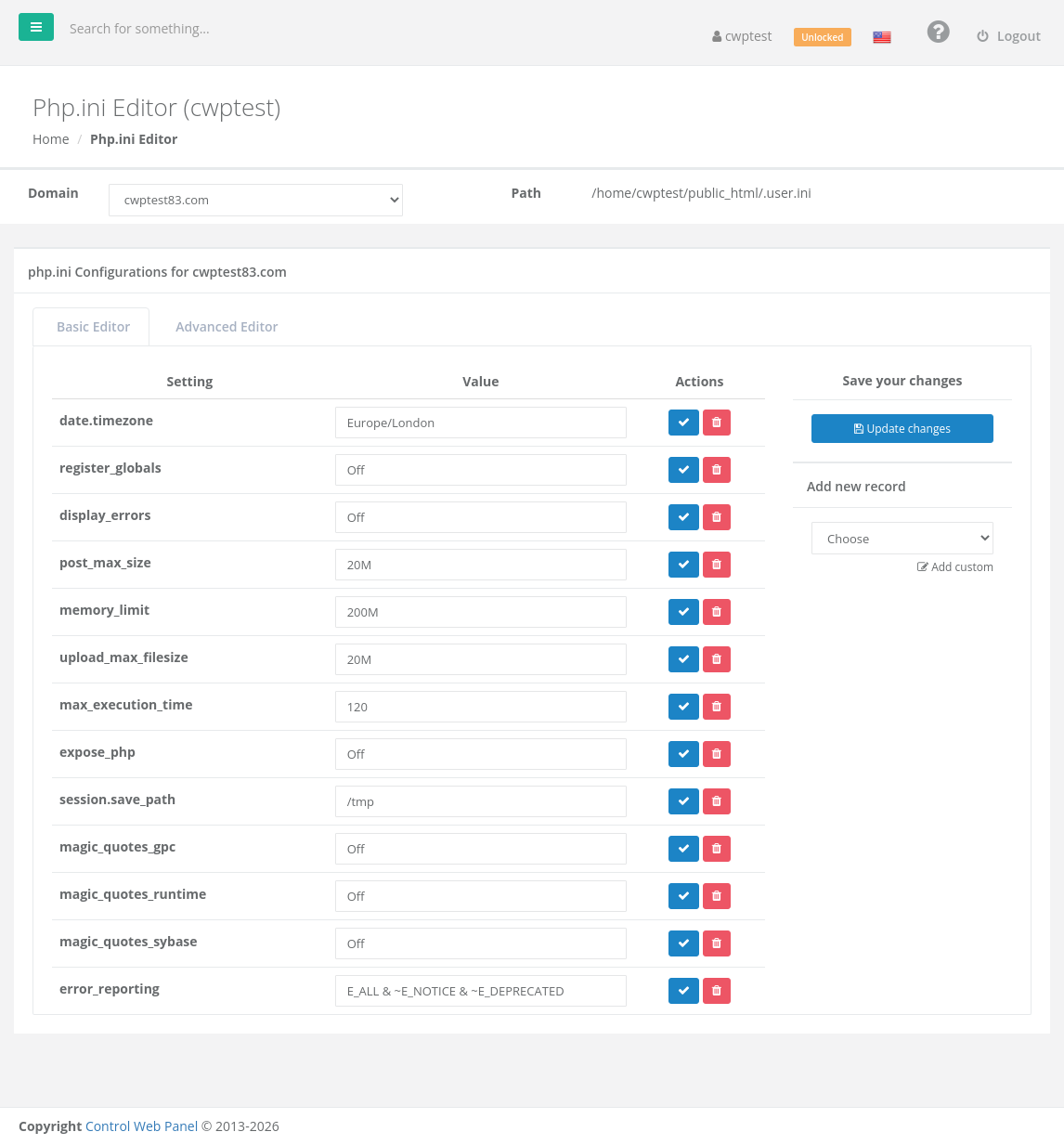
Choose the domain
Select the domain at the top. Path shows the file where the settings are stored, usually /home/youraccount/public_html/.user.ini for the main domain or the .user.ini in the folder of an addon domain or subdomain.
Basic Editor
The Basic Editor tab lists the current settings.
- Change a value in the Value column.
- Click Update changes to save all changes.
Each row has two buttons: the blue tick enables or disables a setting (a disabled setting is kept in the file but ignored), and the red bin deletes it.
Add a setting
Under Add new record, choose a setting from the list, enter its value and add it. Choose Add custom to type the name of any PHP setting that is not in the list.
Advanced Editor
The Advanced Editor tab shows the whole file as text, for experienced users. Use the format setting = value, one per line, and save.
Commonly changed settings
| Setting | What it does | Example |
|---|---|---|
upload_max_filesize | Largest file that can be uploaded through a website | 64M |
post_max_size | Largest form submission; must be at least upload_max_filesize | 64M |
memory_limit | Memory one PHP script may use | 256M |
max_execution_time | Seconds a script may run before it is stopped | 120 |
max_input_vars | Number of form fields accepted (raise for big menus or WooCommerce) | 3000 |
date.timezone | Time zone used by PHP | Europe/London |
display_errors | Show PHP errors in the page. Keep Off on live sites; use the Log Viewer instead. | Off |
error_reporting | Which errors are reported | E_ALL & ~E_NOTICE & ~E_DEPRECATED |
Note: Your hosting provider may limit how high some values can be set. Settings such as register_globals and magic_quotes_* no longer exist in current PHP versions and are ignored. Changes can take up to a few minutes to apply, because PHP re-reads .user.ini periodically.
Common problems
| Problem | Solution |
|---|---|
| The change has no effect | Wait a few minutes, check you edited the correct domain, and confirm with a phpinfo() page. A value set in .htaccess or by the application itself can override it. |
| Site breaks after a change | A value has a wrong format (for example 64 MB instead of 64M). Fix or delete the setting. |
| Invalid input value | The value is not accepted for that setting. Check the format in the examples above. |
| An error occurred while trying to write to your php.ini file | The File System Lock is on, or the file is owned by another user. Unlock it or run Fix Account Issues. |