Two-factor authentication (2FA) protects your panel even if someone learns your password. After you switch it on, logging in needs your password and a 6-digit code from an app on your phone. The code changes every 30 seconds.
CWP uses the standard TOTP method, so any authenticator app works: Google Authenticator, Microsoft Authenticator, Authy, 1Password, Bitwarden and others.
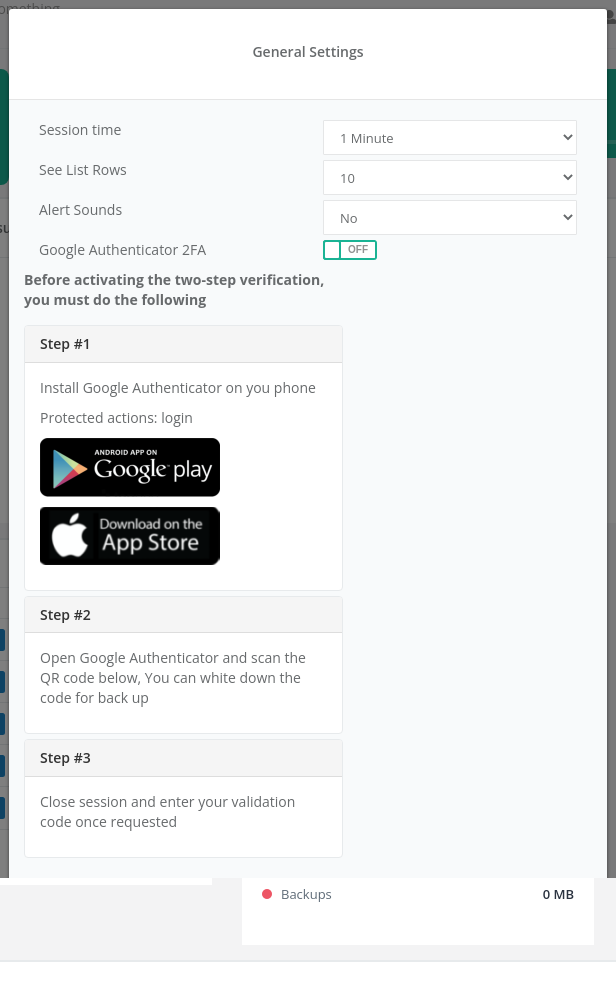
Where to find it: click your username in the top bar → Configurations → Google Authenticator 2FA.
Switch on 2FA
- Install an authenticator app on your phone (Google Authenticator is available on Google Play and the App Store).
- In the panel open your username → Configurations.
- Switch Google Authenticator 2FA to ON. A QR code and a text secret code appear.
- In the authenticator app tap Add / + and scan the QR code. If you cannot scan it, choose Enter a setup key and type the secret code shown under the QR code.
- Write down the secret code and keep it somewhere safe. You need it to set up 2FA again on a new phone.
- Click Update.
When 2FA is on, the top bar shows a green 2FA label next to your username.
Log in with 2FA
- Enter your username and password as usual and click Login.
- The panel asks for the Authentication code. Open the app and type the 6-digit code shown for your account.
- Click Validate.
Switch off 2FA
Open your username → Configurations, switch Google Authenticator 2FA to OFF and click Update.
New phone or lost phone
- New phone: scan the QR code again or add the account in the new app with the secret code you wrote down. You can also switch 2FA off and on again to get a new QR code, while you are still logged in.
- Lost phone and no secret code: you cannot log in by yourself. Contact your hosting provider; they can switch off 2FA for your account so you can log in and set it up again.
Common problems
| Problem | Solution |
|---|---|
| The code is always rejected | The time on your phone is wrong. Turn on automatic date and time in the phone settings and try again with a fresh code. |
| The code expired while typing | Codes change every 30 seconds. Wait for a new code and type it straight away. |
| The QR code does not scan | Increase screen brightness, or add the account manually with the secret code. |
| No access to the authenticator app | Contact your hosting provider to switch off 2FA. |