Email Filters sort incoming mail automatically on the server: move newsletters to a folder, delete messages from certain senders, forward invoices to your accountant, and more. Filters work no matter which email app you use, because they run before the message reaches your mailbox.
Where to find it: Email Accounts → Email Filters.
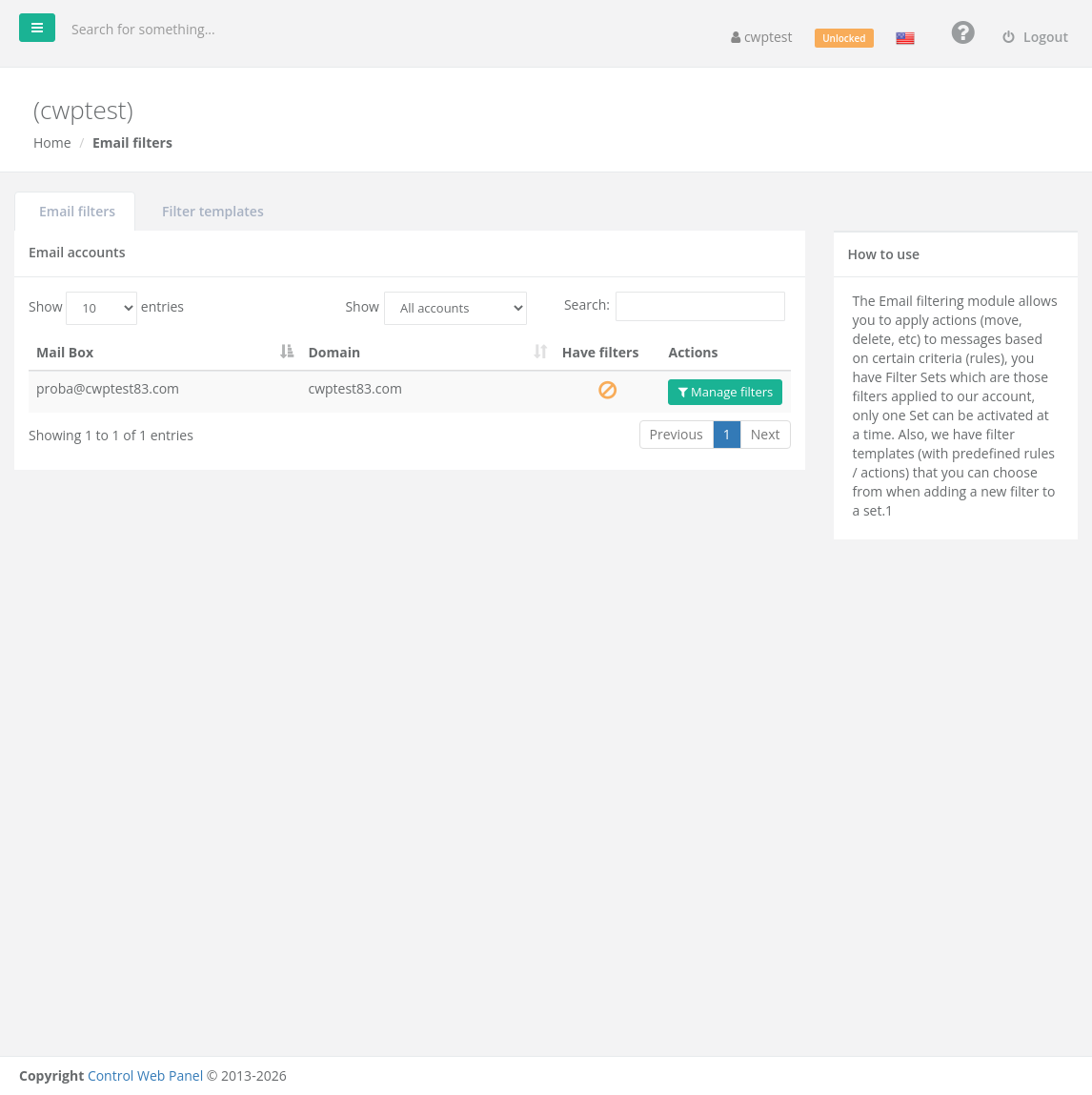
How filters are organised
- Each mailbox has its own filter sets. A set is a group of filters.
- Only one set can be active per mailbox at a time.
- Each filter has rules (conditions) and actions (what to do with matching messages).
- Filter templates are ready-made filters you can reuse for several mailboxes.
Create a filter
- In the Email filters tab, find the mailbox and click Manage filters. Use Show to list only accounts with or without filters.
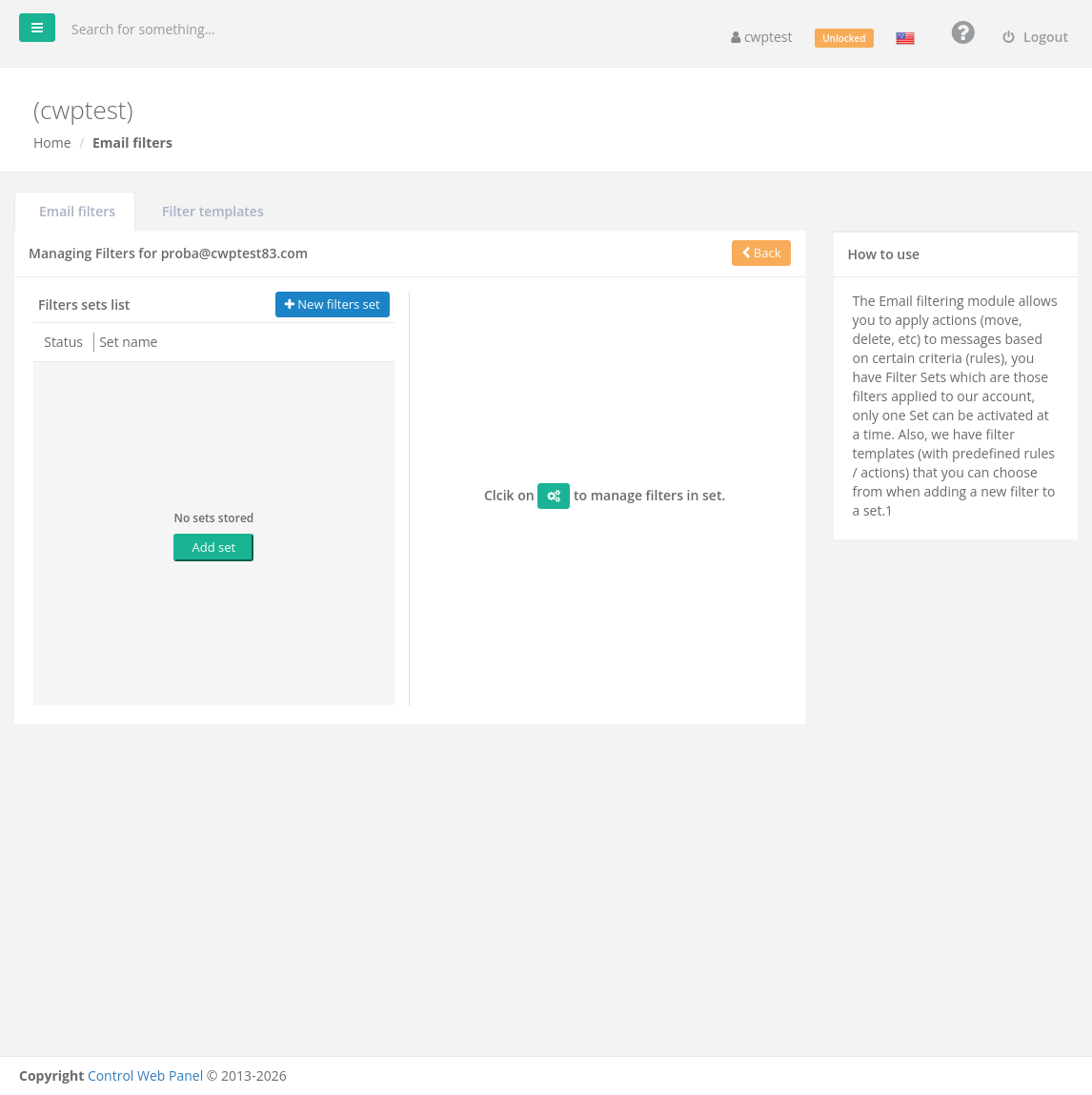
- Click New filters set (or Add set), give the set a name and save it.
- Click the gear button of the set to manage its filters, then Add filter (or Apply from template).
- Enter a Filter name.
- Choose For incoming mail: matching all of the following rules, matching any of the following rules, or all messages.
- Add the rules: choose a field (Subject, From, To, Body, Size, Date …), a comparison (contains, is equal to, matches regular expression, over, under …) and a value.
- Add the actions under execute the following actions.
- Save the filter and make sure the set is active.
Available actions
| Action | Effect |
|---|---|
| Move message to | Put the message in a folder (Inbox, Drafts, Sent, Trash, Spam or your own folder) |
| Copy message to | Keep it in the Inbox and put a copy in a folder |
| Redirect message to | Send it on to another address instead of delivering it |
| Send message copy to | Deliver it and send a copy to another address |
| Reply with message | Send an automatic reply |
| Discard with message | Reject the message and tell the sender why |
| Delete message | Throw the message away silently |
| Set / Add / Remove flags | Mark it as Read, Answered, Flagged, Deleted or Draft |
| Send notification | Send a short notice to an address about the message |
| Keep message in Inbox | Deliver normally (useful together with other actions) |
| Stop evaluating rules | Do not run the remaining filters for this message |
Examples
| Goal | Rule | Action |
|---|---|---|
| Newsletters to a folder | From contains newsletter@ | Move message to Newsletters |
| Block a sender | From is equal to spammer@example.net | Delete message |
| Invoices to accounting | Subject contains Invoice | Send message copy to accounting@example.com |
| Large attachments | Size over 10M | Move message to Large |
Filter templates
In the Filter templates tab, click Add new filter template to save a filter you want to reuse. When saving you can choose Just save, Save and apply to a domain (email accounts) or Save and select accounts to apply.
Common problems
| Problem | Solution |
|---|---|
| The filter does nothing | Check that its set is active, that rules use the right field, and that an earlier filter does not Stop evaluating rules. |
| Set filter name already exists | Use another name for the set. |
| Forbiden characters were found! | Remove special characters such as quotes from names and values. |
| Messages moved to a folder you cannot see | Subscribe to the folder in your email app (folder settings) or in webmail. |