Email Routing tells the server whether it should deliver mail for a domain locally (to mailboxes on this server) or treat it as remote (handled by another mail service, such as Google Workspace or Microsoft 365).
Where to find it: Email Accounts → Email Routing.
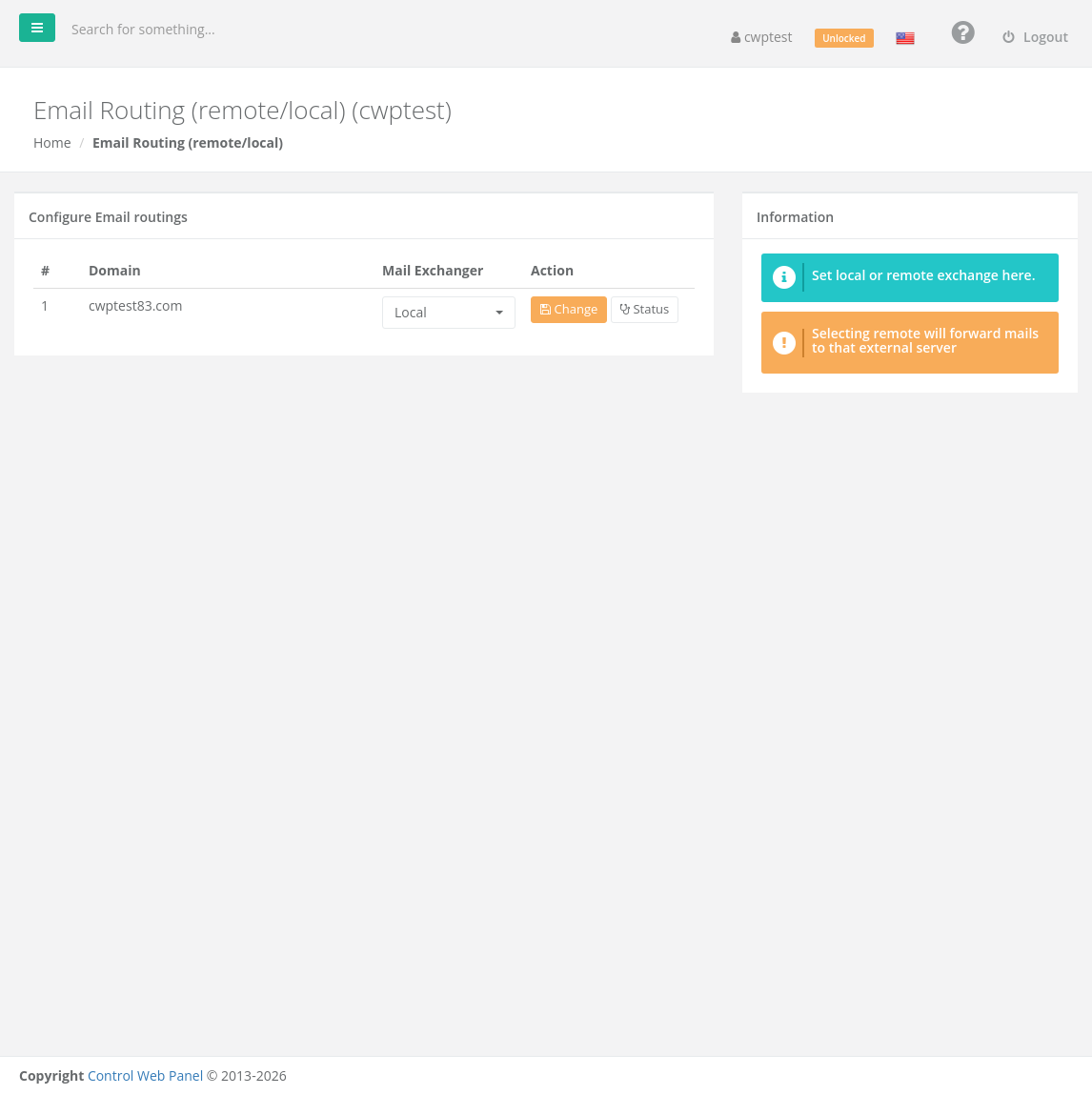
Local or Remote?
| Setting | Use it when | What happens |
|---|---|---|
| Local | Your email is hosted on this server (mailboxes created in Email Accounts) | Incoming mail is delivered to the local mailboxes. |
| Remote | Your email is hosted somewhere else (Google Workspace, Microsoft 365, another server) | The server does not accept mail for this domain locally; mail sent from your websites or other accounts on this server to your domain is passed on to the domain’s MX servers. |
Change the routing
- Find the domain in the list.
- Choose Local or Remote under Mail Exchanger.
- Click Change.
Click Status to see the current mail exchanger configuration of the domain.
Warning: Choosing the wrong option can stop email from arriving. A common mistake: email is hosted at Google/Microsoft but routing is still Local — then contact forms on your website deliver to an empty mailbox on this server instead of to Google/Microsoft. If you are not sure, ask your hosting provider.
Moving email to an external provider
- Create the mailboxes at the new provider.
- Change the MX records of the domain to the values the provider gives you, in the DNS Zone Editor (or at your DNS host).
- Set Email Routing for the domain to Remote.
- Add the provider’s SPF include to your SPF record.