Custom SSL (SSL Wizard) is for SSL certificates you buy from a certificate authority, such as Sectigo, DigiCert or GlobalSign — for example wildcard, organisation-validated (OV) or extended-validation (EV) certificates. For free certificates use AutoSSL instead.
Where to find it: Domains → Custom SSL.
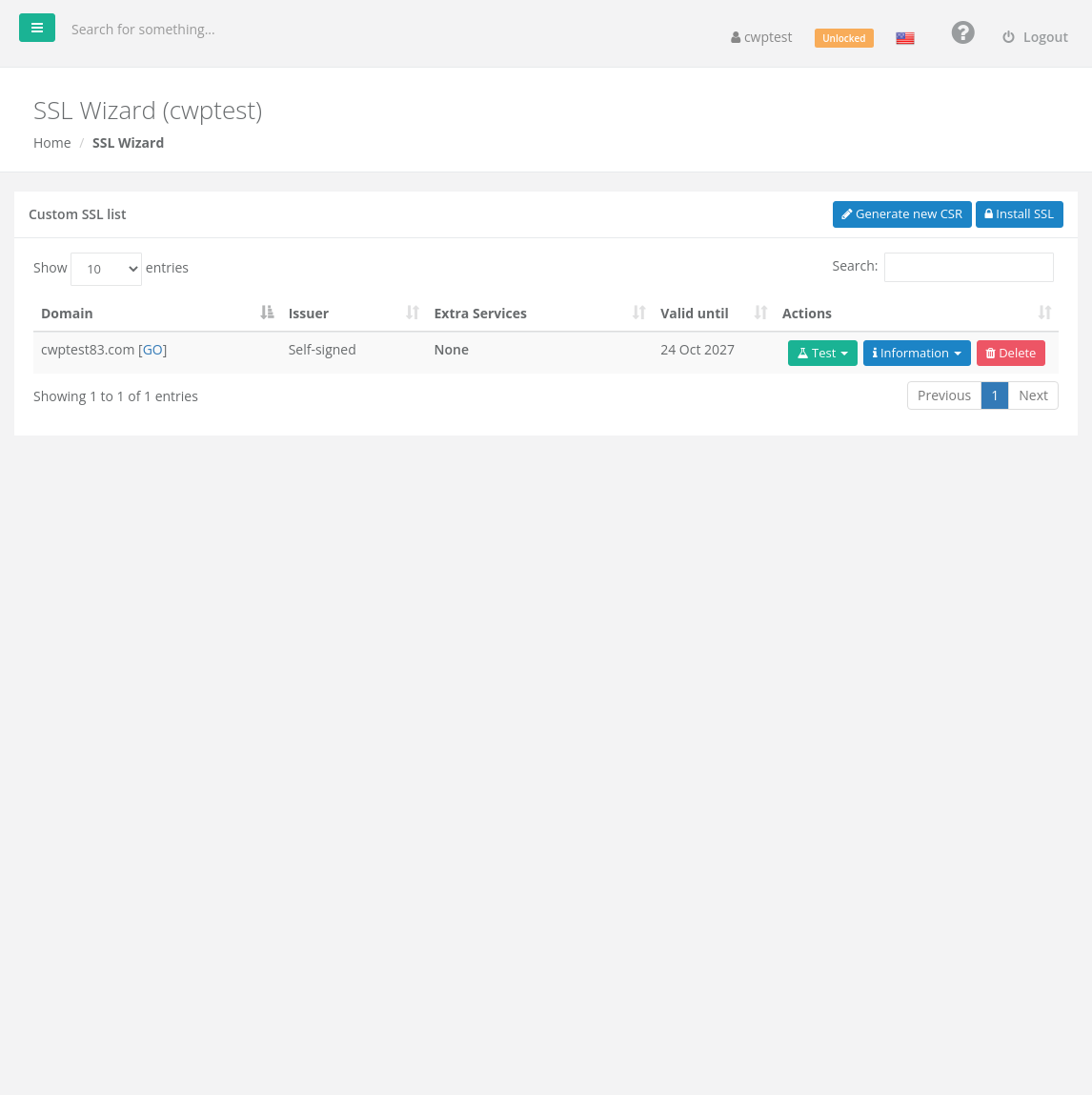
The Custom SSL list shows installed certificates with their issuer, extra services, expiry date and Test, Information and Delete buttons.
Step 1: Generate a CSR
A CSR (Certificate Signing Request) is the file your certificate provider asks for when you order a certificate.
- Click Generate new CSR.
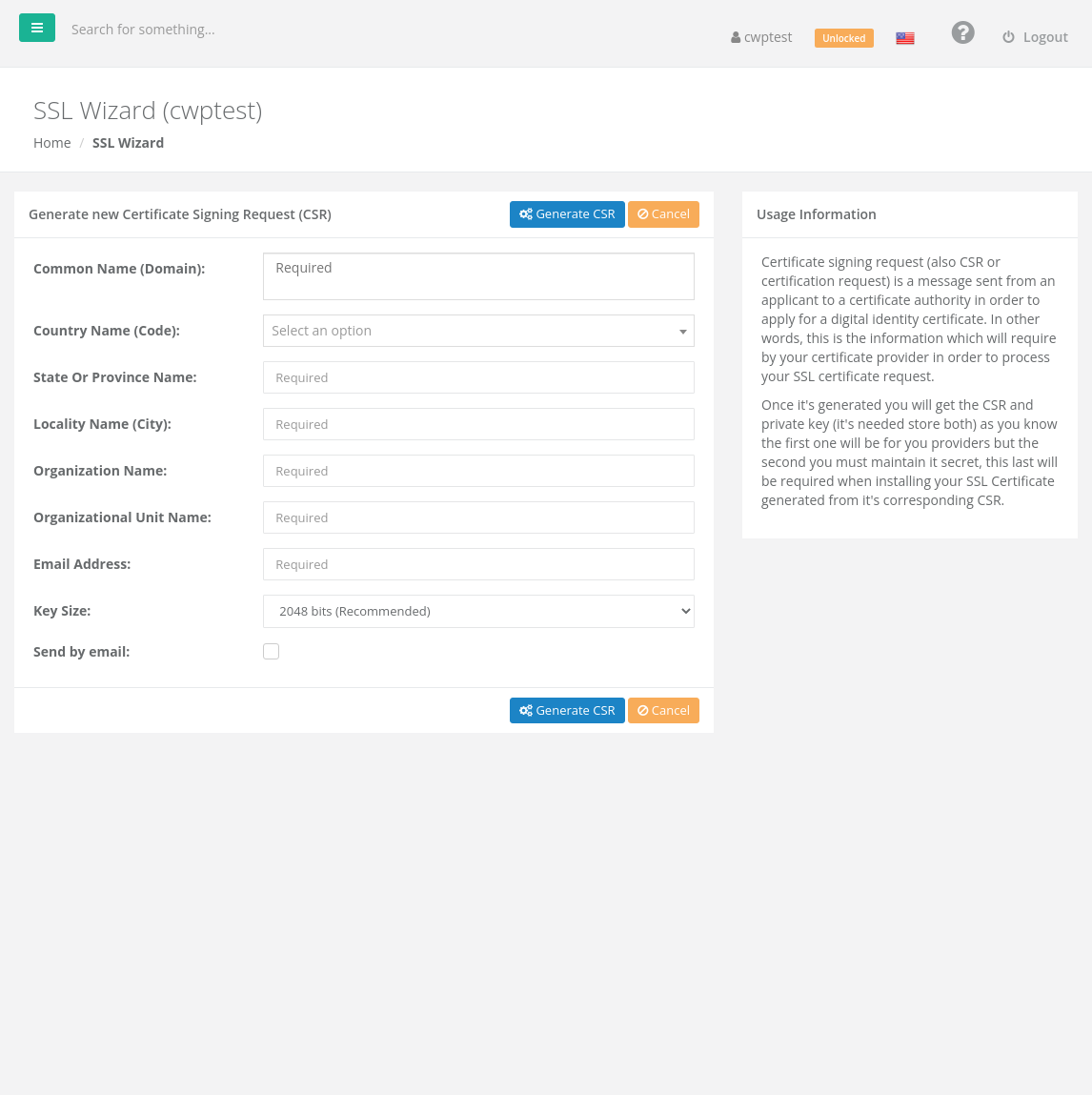
- Fill in the form:
• Common Name (Domain) — the exact domain for the certificate, for examplewww.example.com, or*.example.comfor a wildcard.
• Country Name (Code), State Or Province Name, Locality Name (City) — your organisation’s address.
• Organization Name and Organizational Unit Name — your company and department.
• Email Address — your contact address.
• Key Size — keep 2048 bits (Recommended).
• Optional: Send by email to receive the CSR and key by email. - Click Generate CSR.
You get two blocks of text: the CSR and the private key. Send the CSR to your certificate provider. Keep the private key safe and secret — you need it to install the certificate, and it cannot be recovered.
Step 2: Install the certificate
When the provider has issued the certificate:
- Click Install SSL.
- Paste the Certificate (the text starting with
-----BEGIN CERTIFICATE-----). - Paste the Private Key from step 1.
- Paste the Certificate Authority Bundle (also called intermediate or chain certificates) if your provider supplied one. It is optional but strongly recommended; without it some browsers and phones show a warning.
- Click Install certificate.
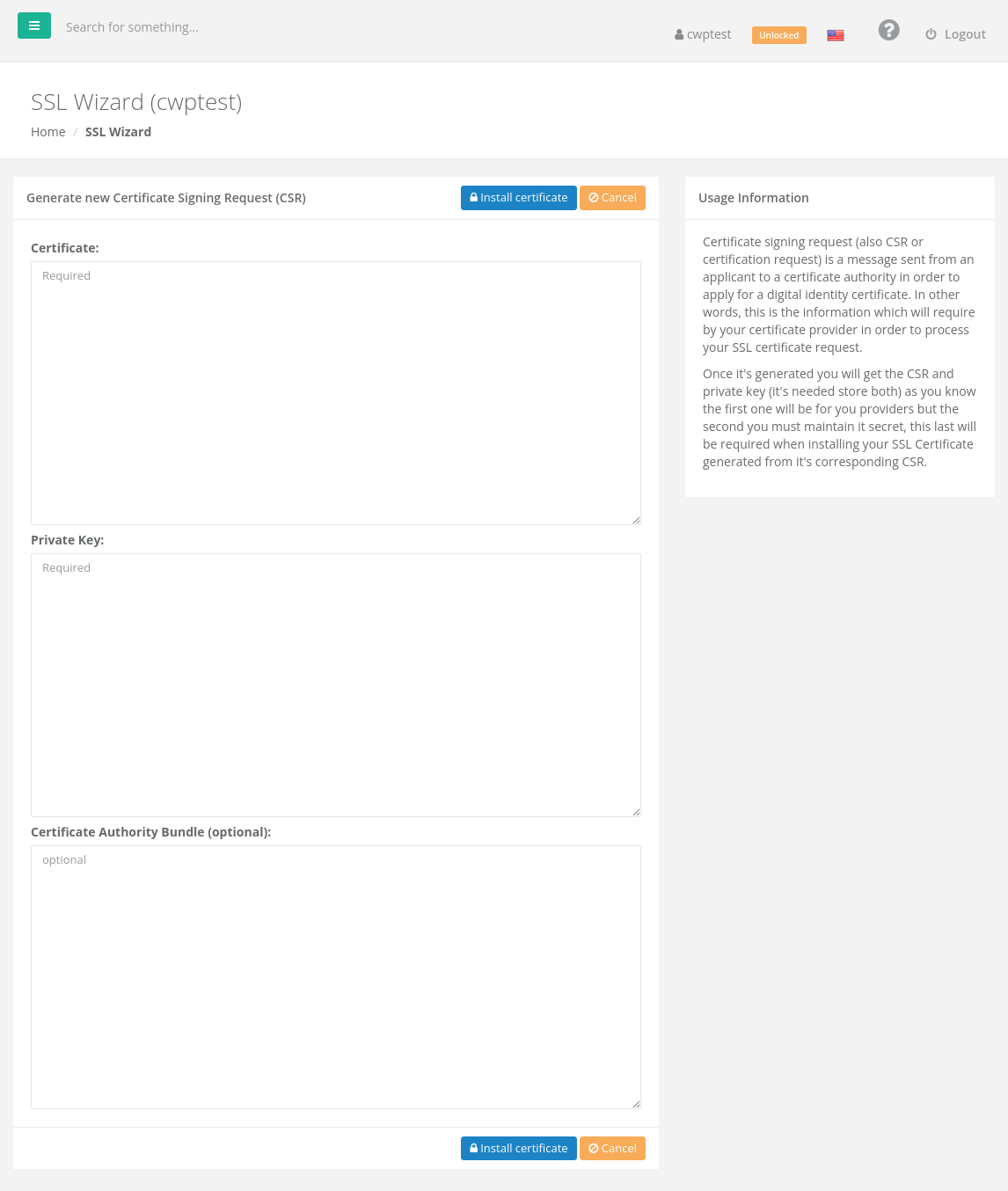
You can also use this form for a certificate and key you already have, for example one moved from another server.
Common problems
| Problem | Solution |
|---|---|
| Certificate and key do not match | The private key belongs to a different CSR. Use the key generated together with the CSR you sent to the provider. |
| Browsers show incomplete chain or some phones show a warning | Install the CA bundle (intermediate certificates) from your provider. |
The certificate works for www.example.com but not example.com (or the reverse) | The certificate covers only the name in its Common Name/SAN. Ask the provider to include both names. |
| Shown as Self-signed | That certificate was not issued by a trusted authority. Install the real certificate or use AutoSSL. |