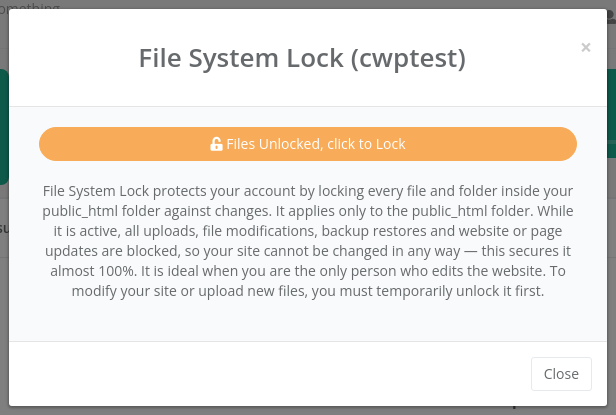
File System Lock freezes your website files so nobody — not even malware or a hacked plugin — can change them. While the lock is on, every file and folder inside public_html is read-only.
Where to find it: File Management → File System Lock, or click the Locked / Unlocked label in the top bar.
When to use it
The lock is ideal for websites that rarely change and are edited by one person. It blocks the most common way sites get infected: attackers uploading or modifying PHP files through a vulnerable plugin or form.
While the lock is on, all changes inside public_html are blocked, including:
- uploads through the File Manager, FTP or your website (images, attachments),
- CMS, plugin and theme updates (WordPress, Joomla, PrestaShop…),
- caches that write files,
- backup restores.
Your website still works normally for visitors, and databases and email are not affected.
Lock or unlock
- Open File System Lock (or click the label in the top bar).
- Click Files Unlocked, click to Lock to lock, or Files Locked, click to Unlock to unlock.
The top bar label changes to Locked or Unlocked. Locking a large site can take a moment.
Warning: Remember to unlock before you update your CMS, install a plugin, upload files or restore a backup, and to lock again afterwards. A site that writes cache or session files into public_html may show errors while locked.
Common problems
| Problem | Solution |
|---|---|
| Updates fail with permission denied / could not create directory | The lock is on. Unlock, update, then lock again. |
| Image uploads in WordPress fail | Uploads go to public_html/wp-content/uploads, which is locked. Unlock while you upload. |
| Many panel pages show The file system is locked, this can cause several tasks to not work correctly | This is a reminder that the lock is on. Unlock it if you need to change files. |
| Cannot unlock | Contact your hosting provider; they can remove the lock from the server side. |