Antivirus Scan checks your account for malware, trojans and infected files with ClamAV. Run it if your website behaves strangely, sends spam, redirects visitors to other sites, or if your provider reports infected files.
Where to find it: File Management → Antivirus Scan.
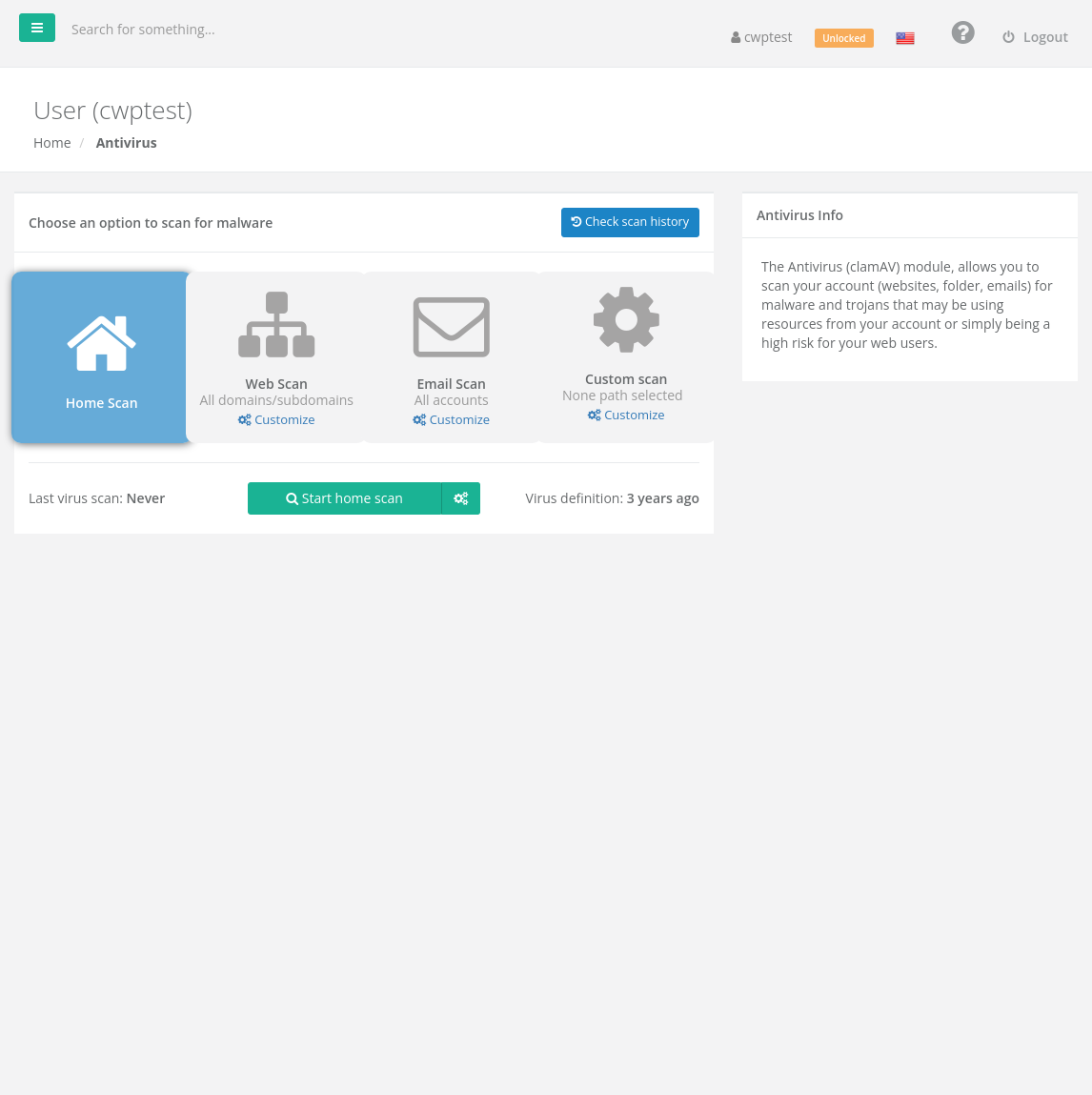
Scan types
Click a tile to choose what to scan:
| Scan | What is scanned |
|---|---|
| Home Scan | Your whole home folder: all websites, files and email |
| Web Scan | Your domains and subdomains. Click Customize to choose which ones. |
| Email Scan | Your mailboxes. Click Customize to choose the domains whose email is scanned. |
| Custom scan | One folder you choose. Click Customize and select the suspicious folder. |
Run a scan
- Choose a scan type.
- Optional: click the gear next to the Start button for general options — Notify by email when the scan finishes and Advanced options.
- Click Start … scan.
The scan runs on the server; you can leave the page. Big accounts can take a long time. Only one scan can run at a time (Antivirus already running!).
The bottom line shows when the Last virus scan ran and how old the Virus definition database is.
Results and infected files
When the scan finishes, the results list every infected File and the Virus found. For each file choose an action:
| Action | Effect |
|---|---|
| Quarantine | Moves the file to a safe place where it cannot run. Choose this if you are not sure. |
| Delete | Removes the file permanently |
| skip | Leaves the file as it is (for example a false positive) |
Use All to apply the same action to every file, then confirm.
Warning: Deleting or quarantining a file that your website needs can break the site. If an infected file is part of WordPress or a plugin, it is usually better to reinstall a clean copy of that software. Always take a backup before you remove files.
Scan history
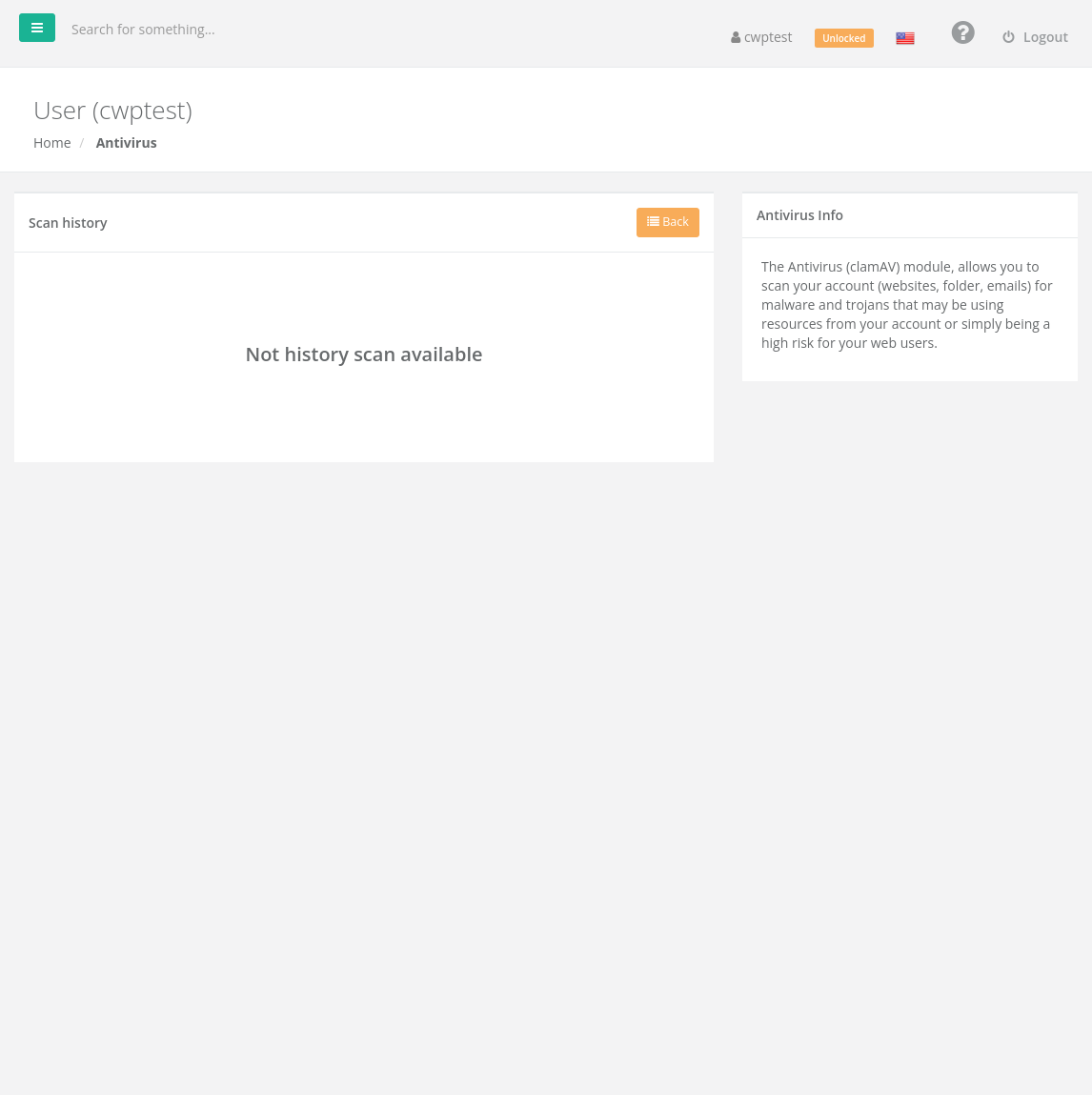
Click Check scan history to see earlier scans with their date, type, number of scanned and infected files and elapsed time. View details shows the full report and log file.
After an infection
- Clean or replace the infected files.
- Update your CMS, themes and plugins, and remove the ones you do not use.
- Change your panel, FTP, database and CMS admin passwords.
- Consider the File System Lock to prevent new infections.
Common problems
| Message | Solution |
|---|---|
| Clam not installed / Contact system administrator | ClamAV is not installed on the server. Ask your hosting provider to install it. |
| Antivirus already running! | Wait until the current scan finishes. |
| Virus definition is very old | The ClamAV database on the server is not updated. Tell your hosting provider. |
| The same files are found again | They are re-created by an infected script elsewhere in the account. Run a Home Scan and update your software. |