Process List shows the programs currently running under your account, and Show MySQL Processes shows the database queries running for your databases. Use them when your site is slow or your provider reports high resource use.
Process List
Where to find it: CWP Settings → Process List (also on the Dashboard).
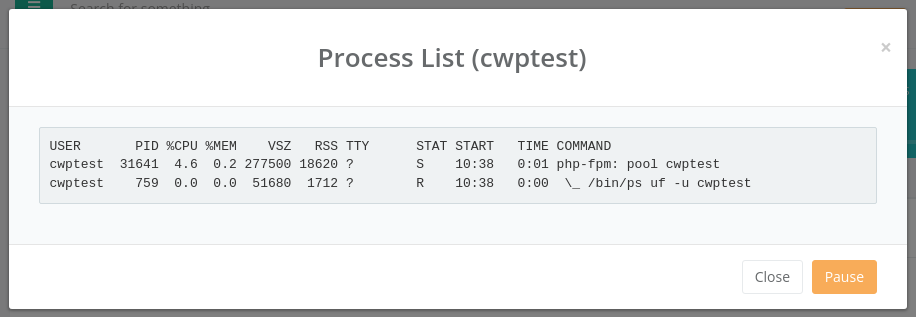
The list shows, for each process, the USER, process ID (PID), CPU (%CPU) and memory (%MEM) use, start time and the COMMAND — for example php-fpm: pool youraccount (your PHP websites), cron jobs or scripts you started.
Click Auto loader to refresh the list every few seconds; click Pause to stop refreshing.
What to look for:
- Many PHP processes with high %CPU — your site is busy or a script is stuck. Check the Log Viewer and Statistics for unusual traffic (bots, attacks).
- A cron job that runs for a long time — check its command in Cron Jobs so runs do not overlap.
Show MySQL Processes
Where to find it: left menu → More → Show MySQL Processes.
The window lists the active database connections and queries for your databases, with the time each query has been running. Long-running queries usually mean a missing index, a slow plugin or a very large table. Optimize the database in MySQL Manager or ask the plugin/application developer.