FTP lets you upload and download website files with a program such as FileZilla. Your account always has one main FTP login; on this page you can create extra FTP accounts limited to one folder — for example for a web designer who should only see one website.
Where to find it: File Management → FTP Accounts.
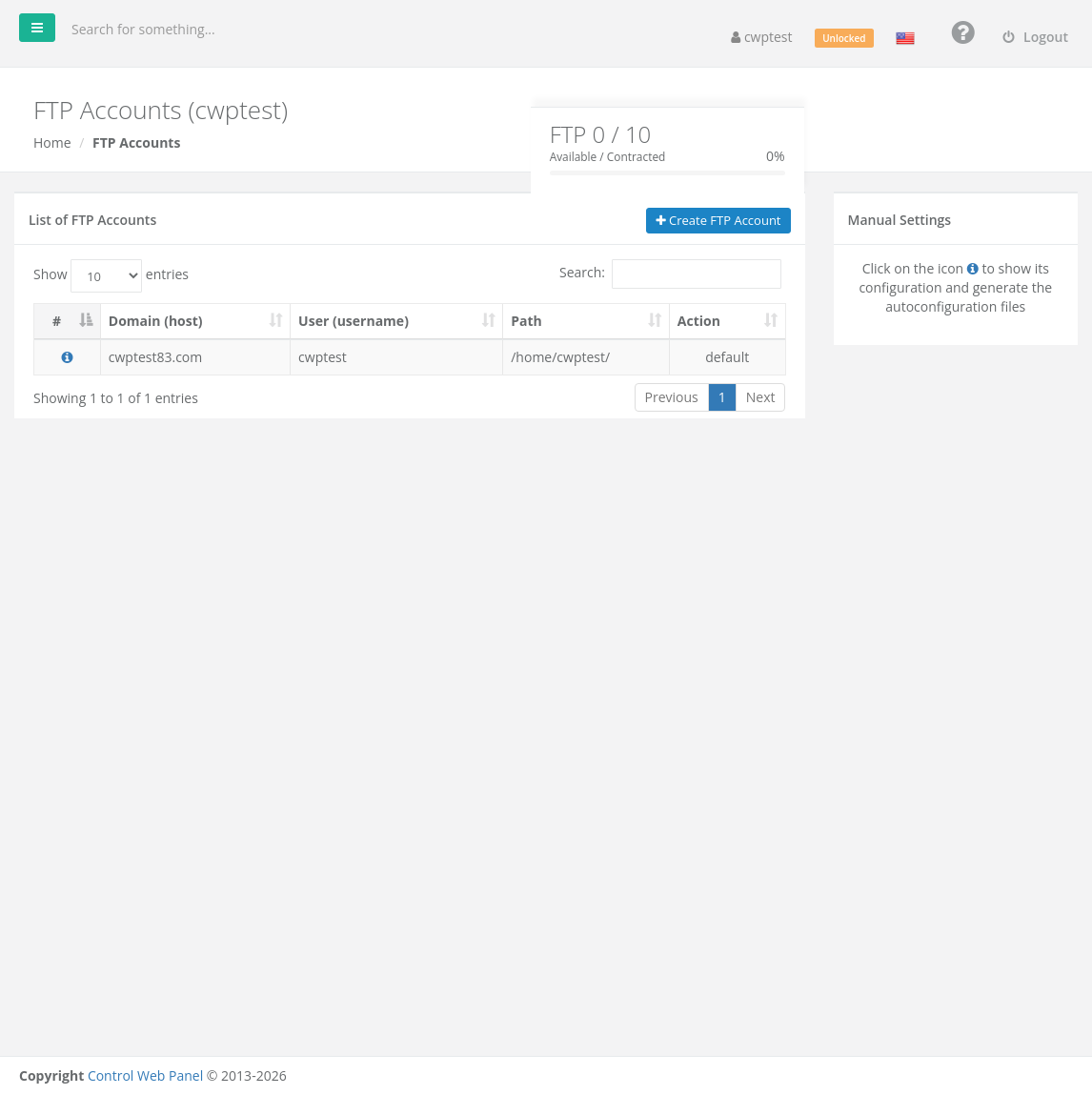
The main FTP account
The first row, marked default, is your main login. It uses your hosting account username and panel password and has access to your whole home folder (/home/youraccount/). It cannot be deleted here; its password changes when you change your panel password.
The box at the top shows how many extra FTP accounts you have and how many your package allows, for example FTP 0 / 10.
Create an FTP account
- Click Create FTP Account.
- Login: the username, for example
designer. - Directory: the folder the account may access, relative to your home folder. The field starts at
/public_html/; add a sub-folder such asshopto limit the account to/home/youraccount/public_html/shop/. The folder is created if it does not exist. - Password: type a password or click the key to generate one. Use Encrypted to choose the length and character types. Passwords must have at least 7 characters.
- Type it again in Password (Again).
- Click Save.
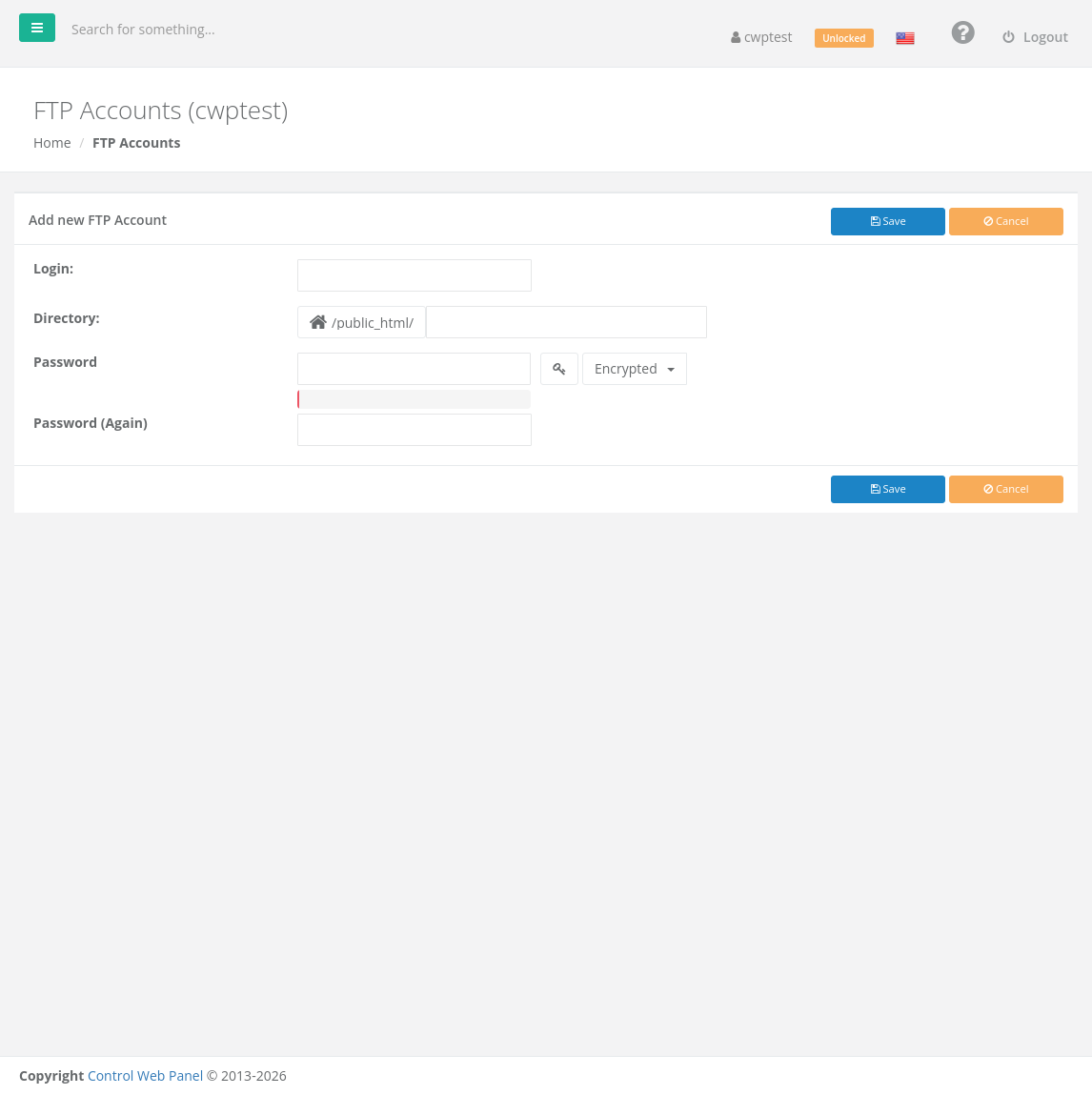
The new user logs in with the full name shown in the User (username) column, which includes your domain, for example designer@example.com.
Connection settings
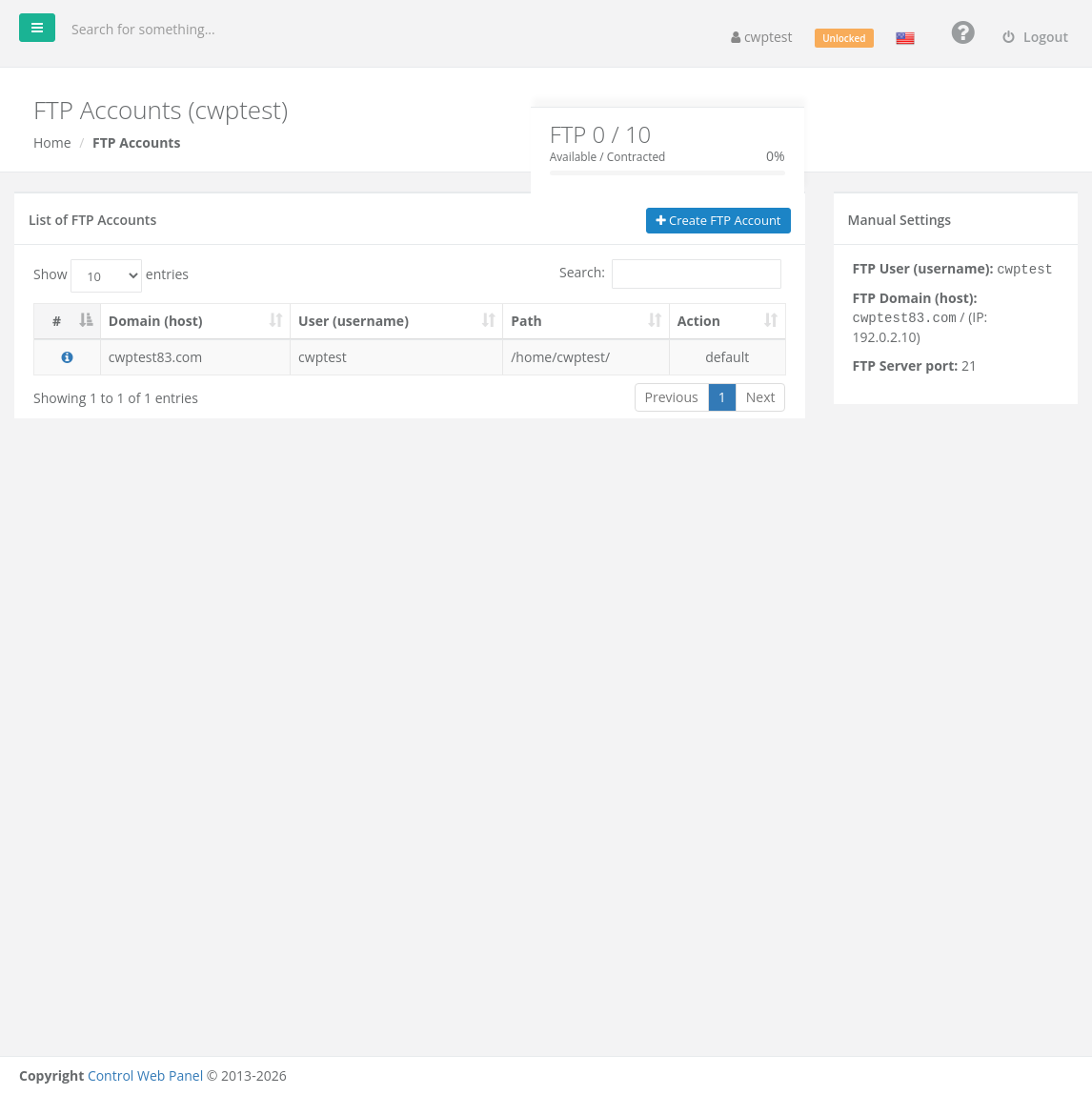
Click the ⓘ icon in a row to show the settings for that account under Manual Settings.
| Setting | Value |
|---|---|
| Host | Your domain or the server IP shown in Manual Settings |
| Username | As shown in the User (username) column |
| Password | The password you set |
| Port | 21 (FTP) |
| Encryption | Choose Use explicit FTP over TLS if available in FileZilla |
For extra FTP accounts, Configure FTP Client also offers ready-made configuration files: choose FileZilla, Transmit or Cyberduck under Select client and import the downloaded file into that program.
Note: Plain FTP sends your password unencrypted unless TLS is used. Always select explicit TLS in your FTP program when it is offered. If your provider allows SSH access, your main account can also use SFTP (port 22 or the SSH port given by your provider).
Change the password or delete an account
Use the buttons in the Action column of an extra FTP account:
- Change of password — set a new password for that FTP user.
- Delete user — removes the FTP login. The files in its folder are not deleted.
Common problems
| Message or problem | Solution |
|---|---|
| The username already exists | Choose another login name. |
| Your password does not meet the security criteria | Use at least 7 characters. |
| Passwords are different | Type the same password in both fields. |
| Characters Not Allowed | Use only letters, numbers, dots, dashes and underscores in the login. |
| Login fails in FileZilla | Use the full username including @yourdomain, check the password and use port 21. |
| Directory listing fails or times out | Switch the transfer mode to Passive in your FTP program. |
| Uploads fail with permission denied | The folder is locked by the File System Lock or owned by another user. Run Fix Account Issues. |
| The Create button is disabled | You reached the FTP account limit of your package. |