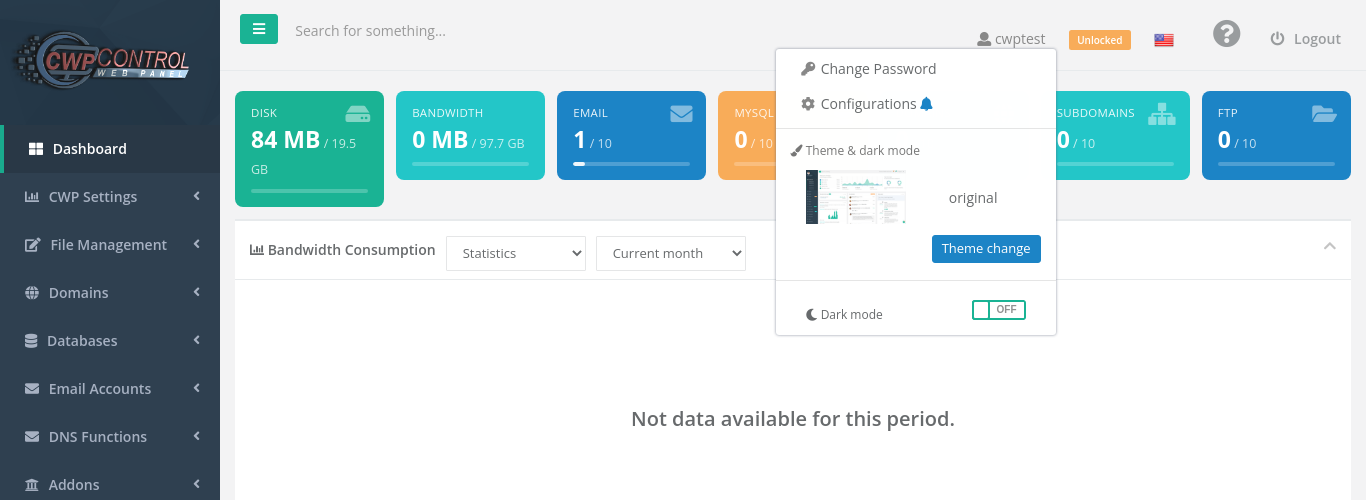
The account menu lets you change your panel password, adjust a few panel preferences and choose the look of the panel.
Where to find it: click your username in the top bar.
Change your panel password
- Click your username, then Change Password.
- Type a new password in New Password, or click the key button to generate a strong one. The Encrypted menu sets the length and character types of generated passwords.
- Type the same password in Confirm New Password.
- Click Save changes.
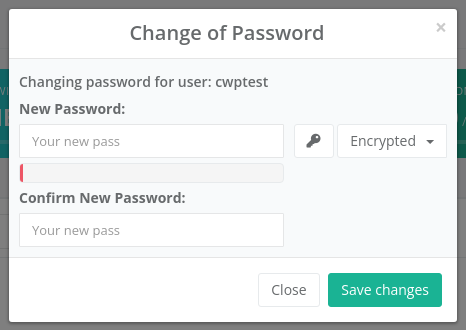
The coloured bar under the password shows its strength. Use a long password that you do not use anywhere else.
Warning: The new password is used for the panel, the main SSH/FTP login of your account and your main MySQL user (the one named like your account, used by phpMyAdmin). If a website connects to its database with that main MySQL user, update the password in the website’s configuration file too, or the site will show a database connection error. Websites that use their own database users are not affected.
Mailbox, extra FTP account and database user passwords are separate: change them in Email Accounts, FTP Accounts and MySQL Manager.
Configurations
Click your username, then Configurations. Change the options and click Update.
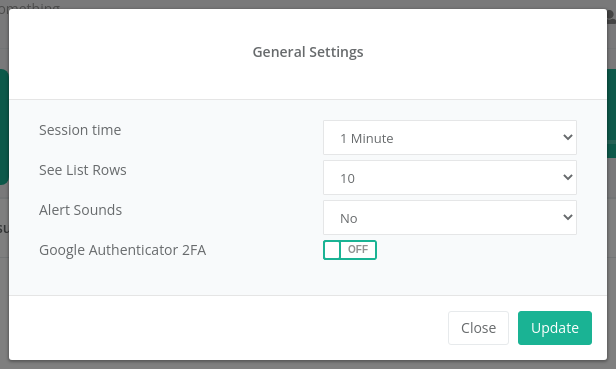
| Option | What it does |
|---|---|
| Session time | How long you can stay inactive before the panel logs you out. Choose a shorter time on shared computers. |
| See List Rows | How many rows tables show per page by default (10, 25, 50 or 100) |
| Alert Sounds | Plays a sound when a notification appears |
| Google Authenticator 2FA | Switches two-factor authentication on or off. See Two-factor authentication. |
Theme and dark mode
In the account menu, under Theme & dark mode:
- Theme change switches to another panel design, if your provider has installed more than one.
- Dark mode switches the panel to dark colours. The choice is remembered in your browser.
Language
Click the flag in the top bar and choose a language. You can also choose the language on the login page.