The Backup page lets you make copies of your website files, databases, email and SSL certificates, download them, schedule automatic backups and restore your account from a backup.
Where to find it: File Management → Backup.
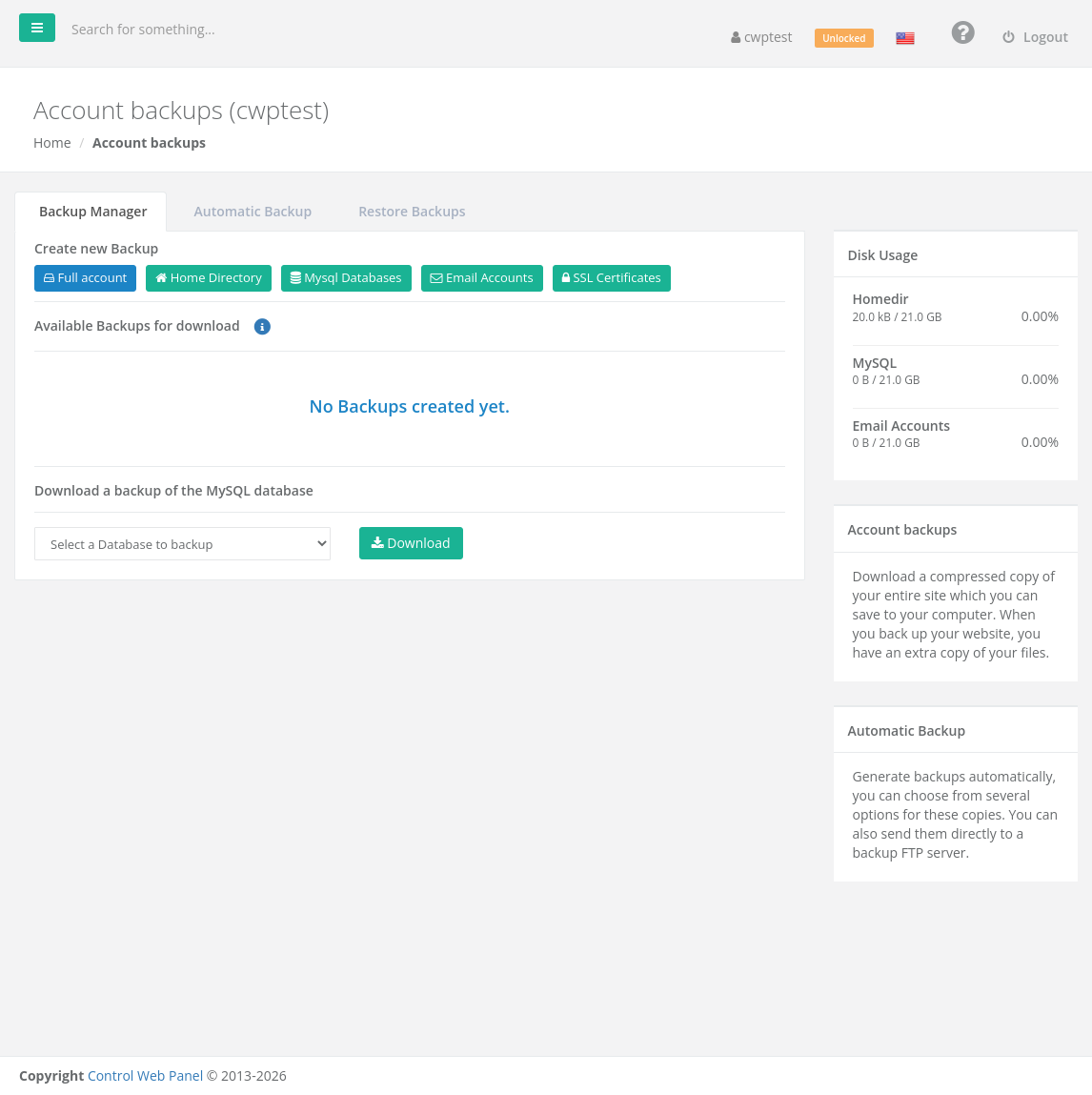
Note: Backups you create here are stored inside your own account, in /home/youraccount/backupcwp/, and count towards your disk quota. For real safety, download important backups to your computer or send them to a remote FTP server. Your hosting provider may also keep separate server backups.
Create a backup now
In the Backup Manager tab, under Create new Backup, click what you want to back up:
| Button | What is included |
|---|---|
| Full account | Everything below in one archive |
| Home Directory | All files in your home folder, including your websites |
| Mysql Databases | All your MySQL databases |
| Email Accounts | All mailboxes and their messages |
| SSL Certificates | The SSL certificates of your domains |
The backup runs in the background. Large accounts can take several minutes. When it is ready it appears under Available Backups for download; you can also ask to be notified by email.
Download or delete a backup
Under Available Backups for download, click a backup to download it to your computer, or use Delete to remove it and free disk space.
Download a single database
Under Download a backup of the MySQL database, choose a database in the list and click Download. You get a .sql file that you can import with phpMyAdmin on any server.
Automatic backups
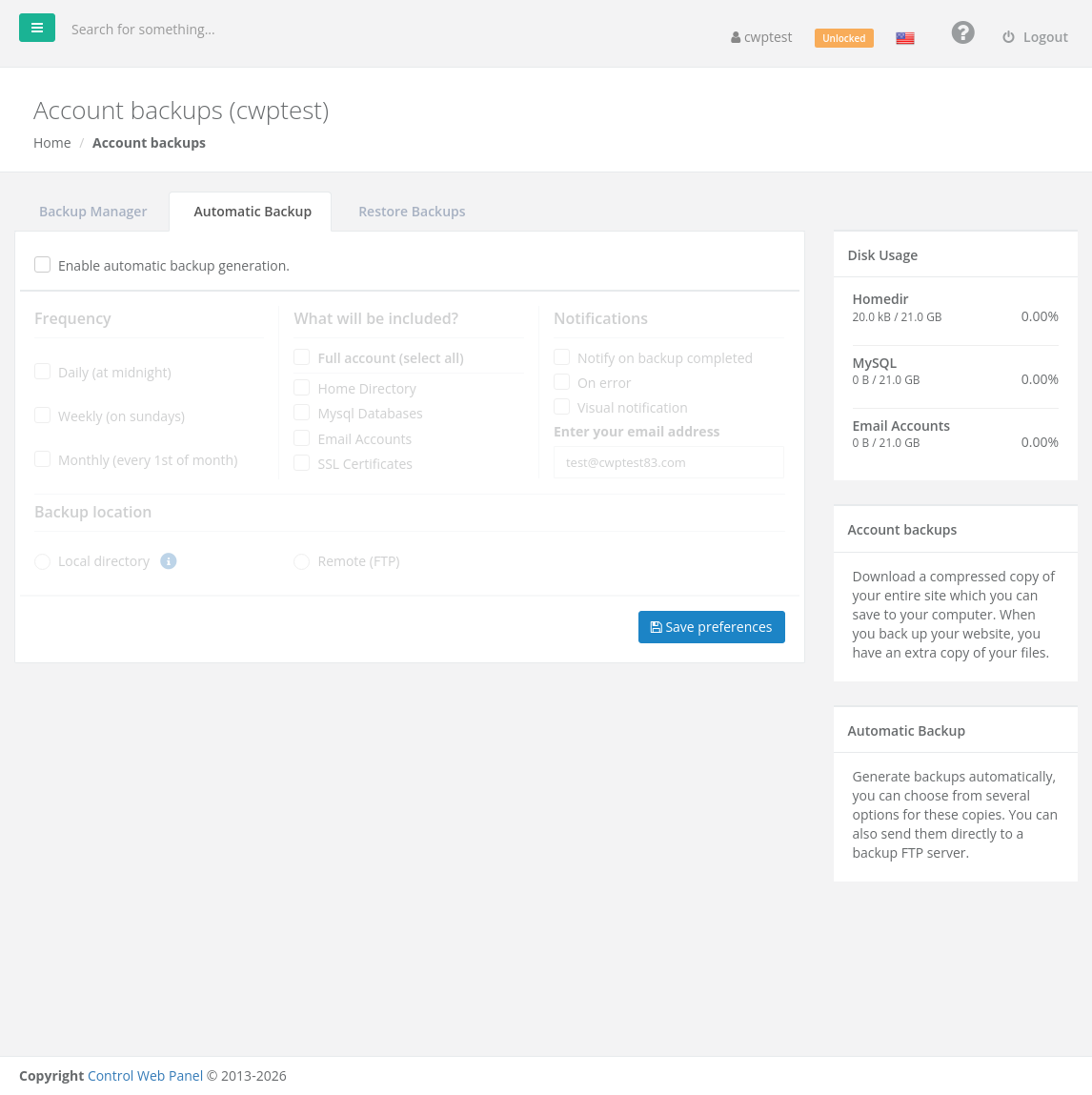
Open the Automatic Backup tab and tick Enable automatic backup generation.
| Section | Options |
|---|---|
| Frequency | Daily (at midnight), Weekly (on Sundays) or Monthly (every 1st of month) |
| What will be included? | Full account, or any of Home Directory, Mysql Databases, Email Accounts, SSL Certificates |
| Notifications | Email when a backup completes or fails, and/or a visual notification in the panel, sent to the address you enter |
| Backup location | Local directory (stored in your account and counted in your quota) or Remote (FTP) |
For Remote (FTP) enter the FTP user, password, server IP address, port, protocol and remote directory of your backup storage, then click Test connection. If the remote server cannot be reached when a backup runs, the backup is saved locally instead and you are told by email.
Click Save preferences when you are done.
Note: If the tab says automatic backups are unavailable, your hosting provider has not enabled this feature. Ask them, or create backups manually.
Restore a backup
Warning: Restoring replaces the current content with the content of the backup. Files and databases created after the backup was made are lost. This cannot be undone — download a fresh backup first if you are not sure.
- Open the Restore Backups tab.
- Under Select a file to Restore, choose a backup.
- Choose the type of restore: All Content (Home and Database) restores all files and databases from the backup; Custom Content lets you choose exactly which parts (home files, specific databases) to restore.
- Click Restore and wait until the restore finishes. You can follow its progress in the log window.
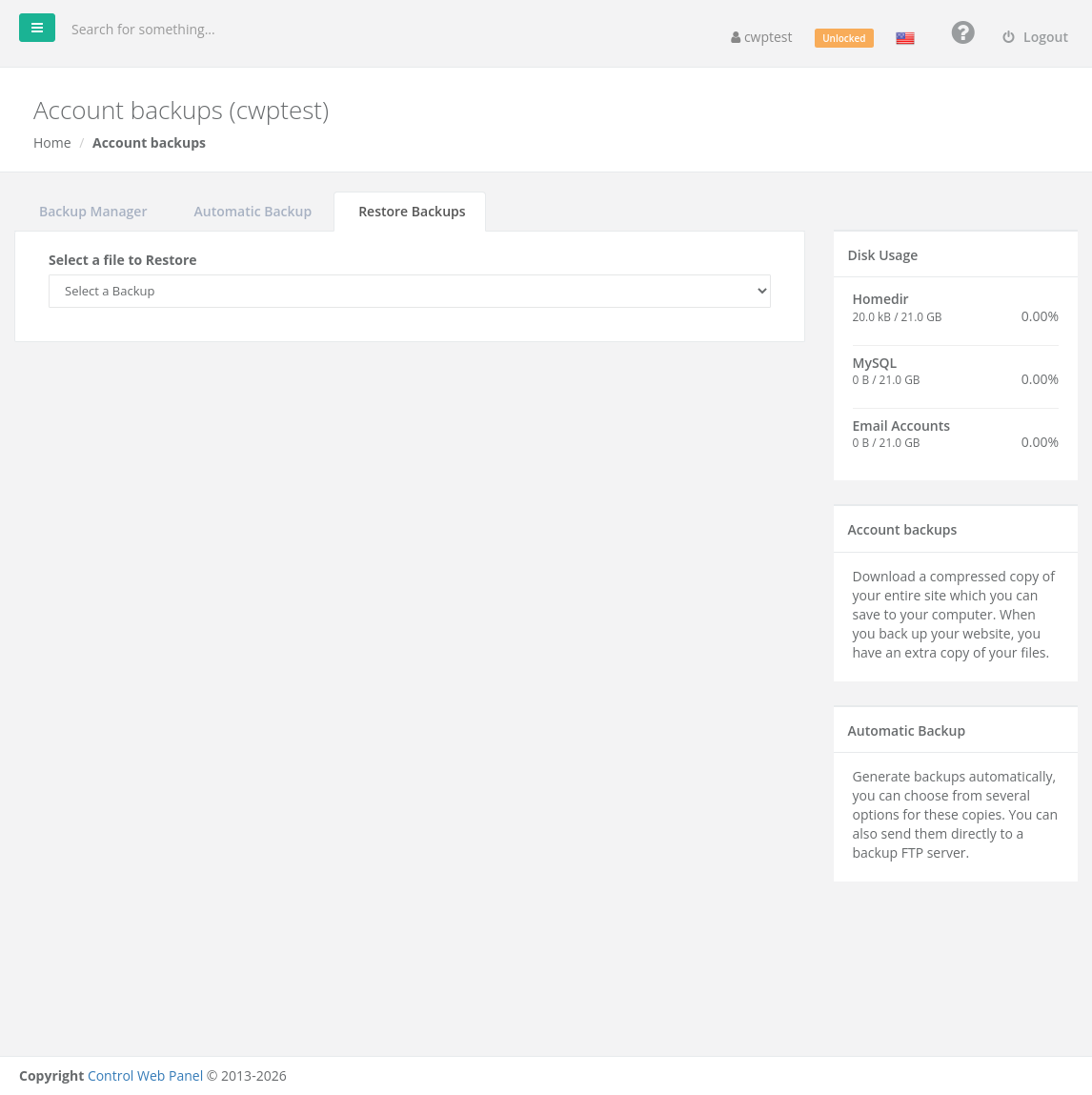
Only full backups created by this page, in .tar.gz format, can be restored here. To restore a single database from a .sql file, use phpMyAdmin.
Common problems
| Problem | Solution |
|---|---|
| The backup never appears in the list | Large accounts take time. Refresh the page after a few minutes. If your disk quota is full, the backup cannot be written — free space first. |
| Disk quota fills up quickly | Old local backups are counted in your quota. Download and delete them, or switch automatic backups to Remote (FTP). |
| An error occurred trying to connect to FTP server | Check the FTP details and that the remote server allows connections from this server. Use Test connection. |
| Restore fails | Make sure the file is a CWP backup in .tar.gz format and that you have enough free disk space for it. |
| Restore did not change files | The File System Lock blocks restores. Unlock it first. |