Cron jobs run commands or scripts automatically on a schedule — for example a WordPress or shop maintenance task every 15 minutes, a nightly report, or a cleanup script once a week.
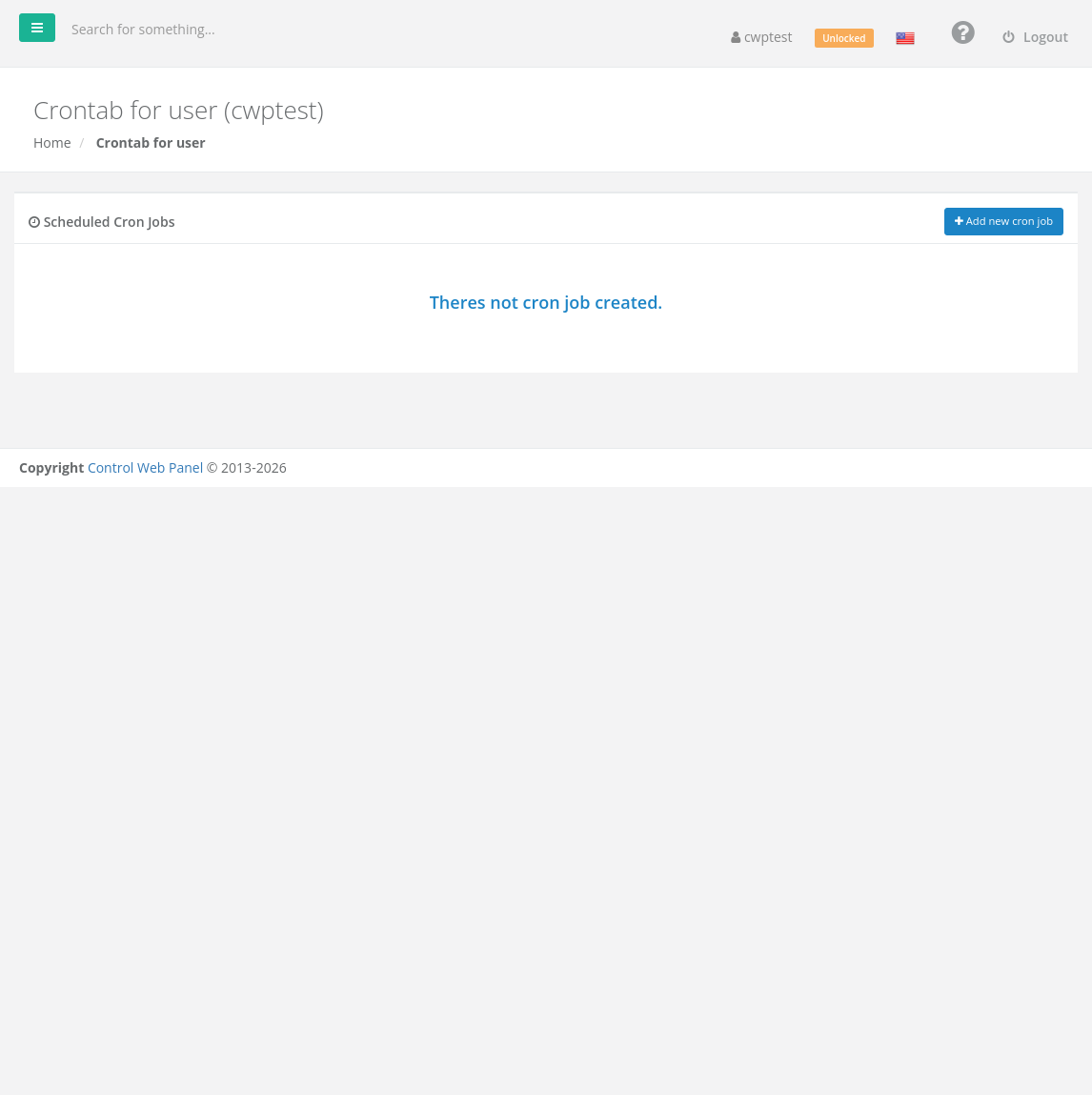
Where to find it: CWP Settings → Crontab.
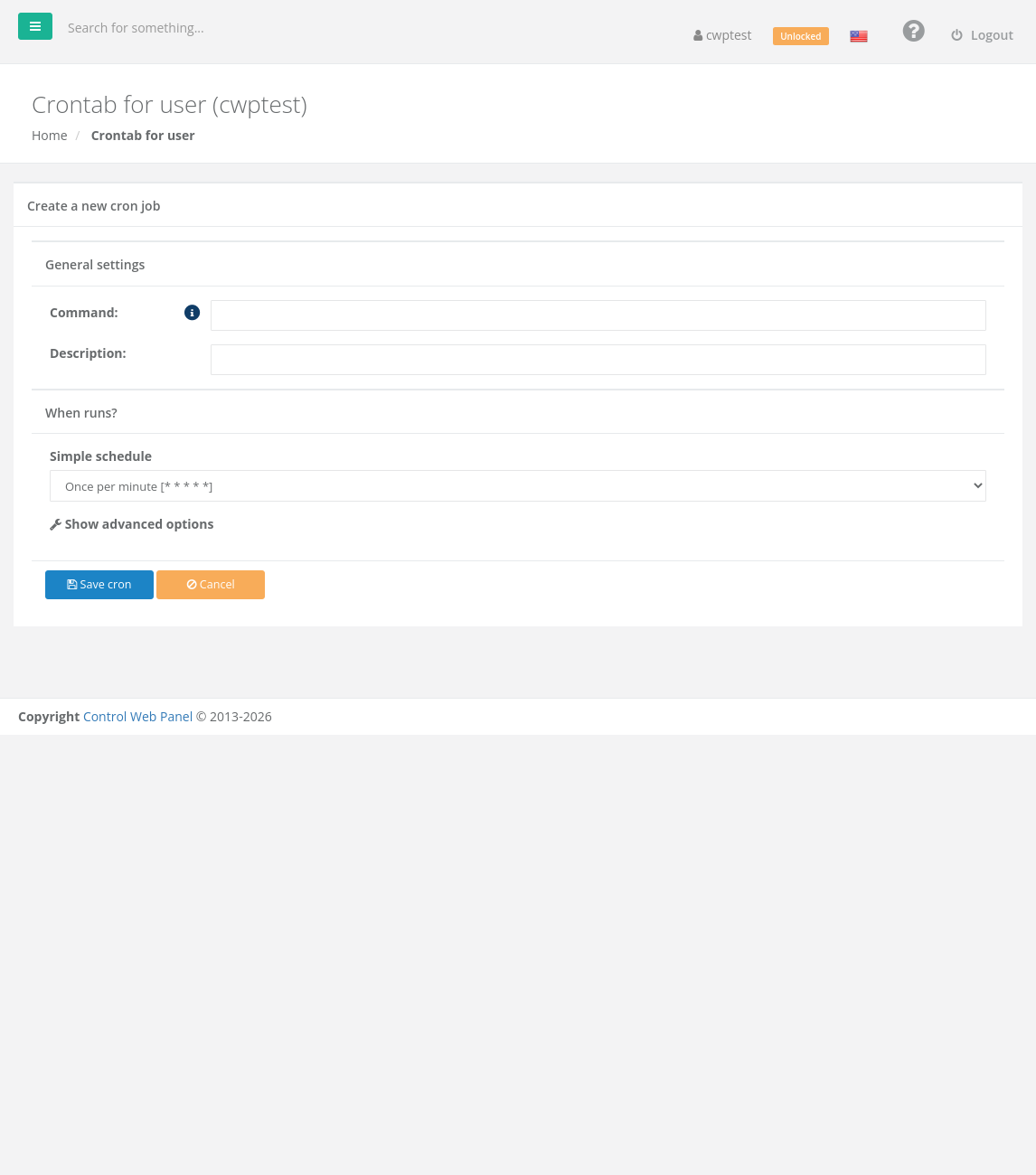
Create a cron job
- Click Add new cron job.
- Command: the full command to run (see examples below). Always use full paths.
- Description: a note so you remember what the job does.
- When runs?: choose a Simple schedule such as Once per minute, Once an hour, Once a day or Once a week, or click Show advanced options to pick exact minutes, hours, days, months and weekdays.
- Click Save cron.
The job appears under Scheduled Cron Jobs, where you can Run it once now (to test it), Edit, Disable or Delete it.
Command examples
| Goal | Command |
|---|---|
| Run a PHP script with the default PHP | /usr/local/bin/php /home/youraccount/public_html/cron.php |
| Run a PHP script with a specific PHP version | /opt/alt/php-fpm83/usr/bin/php /home/youraccount/public_html/cron.php (use a version installed on your server — see the PHP Selector) |
| Call a URL (for example WordPress wp-cron) | /usr/bin/curl -s https://example.com/wp-cron.php?doing_wp_cron > /dev/null 2>&1 |
| Run a shell script | /bin/bash /home/youraccount/scripts/backup.sh |
| Laravel scheduler (every minute) | cd /home/youraccount/app && /usr/local/bin/php artisan schedule:run > /dev/null 2>&1 |
Note: Add > /dev/null 2>&1 at the end of a command to discard its output. Without it, the output may be emailed to you every time the job runs. To keep a log instead, use >> /home/youraccount/cron.log 2>&1.
The schedule format
In advanced mode, the schedule has five fields: minute (0–59), hour (0–23), day of month (1–31), month (1–12) and weekday (0–6, Sunday = 0). * means “every”. Examples:
| Schedule | Meaning |
|---|---|
*/15 * * * * | Every 15 minutes |
0 3 * * * | Every day at 03:00 |
30 2 * * 1 | Every Monday at 02:30 |
0 0 1 * * | At midnight on the 1st of every month |
Times use the server time, shown on the Dashboard.
Warning: Do not run heavy jobs every minute. Your hosting provider may limit resource use, and overlapping runs can slow your sites down.
Common problems
| Problem | Solution |
|---|---|
| The job does not seem to run | Use Run to test it. Check that every path is absolute (/home/youraccount/...) and that the script works when run by hand. |
| Apparently this task has some problem! | The cron entry has a syntax error. Edit or delete it — other jobs cannot run until it is fixed. |
| The script runs but fails | Cron runs with a minimal environment. Use full paths to programs and files, and cd to the script’s folder first if it uses relative paths. |
| Wrong PHP version | Use the full path of the PHP version you need instead of php. |