A redirect sends visitors from one address to another, for example from an old domain to a new one, from example.com/old-page to example.com/new-page, or from a whole domain to your social media page.
Where to find it: Domains → Redirect.
Note: This module needs a CWP Pro license on the server. If you see You need a CWPPRO license to use this module, contact your hosting provider.
Add a redirect
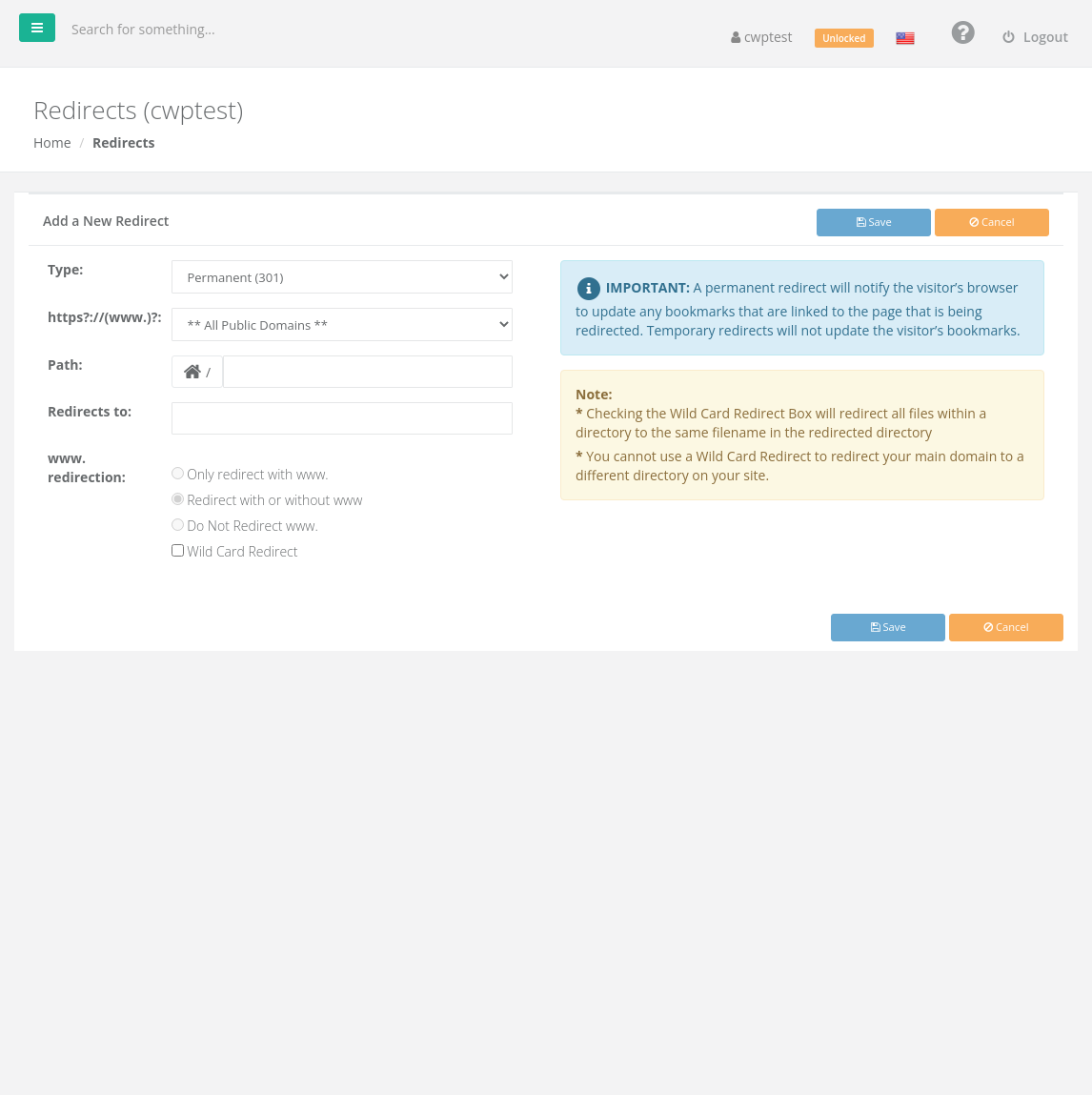
- Click Add a New Redirect.
- Type: Permanent (301) tells browsers and search engines the move is final — use it when content has moved for good. Temporary (302) is for short-term redirects; browsers keep the old address.
- https?://(www.)?: choose the domain to redirect from, or All Public Domains.
- Path: optional page or folder to redirect, for example
old-page.htmlorshop. Leave empty to redirect the whole domain. - Redirects to: the full destination address, including
https://. - www. redirection: Only redirect with www., Redirect with or without www (most common) or Do Not Redirect www.
- Optional: Wild Card Redirect — redirect every file in the folder to the same file name at the destination (for example
/shop/item.html→https://new.com/item.html). - Click Save.
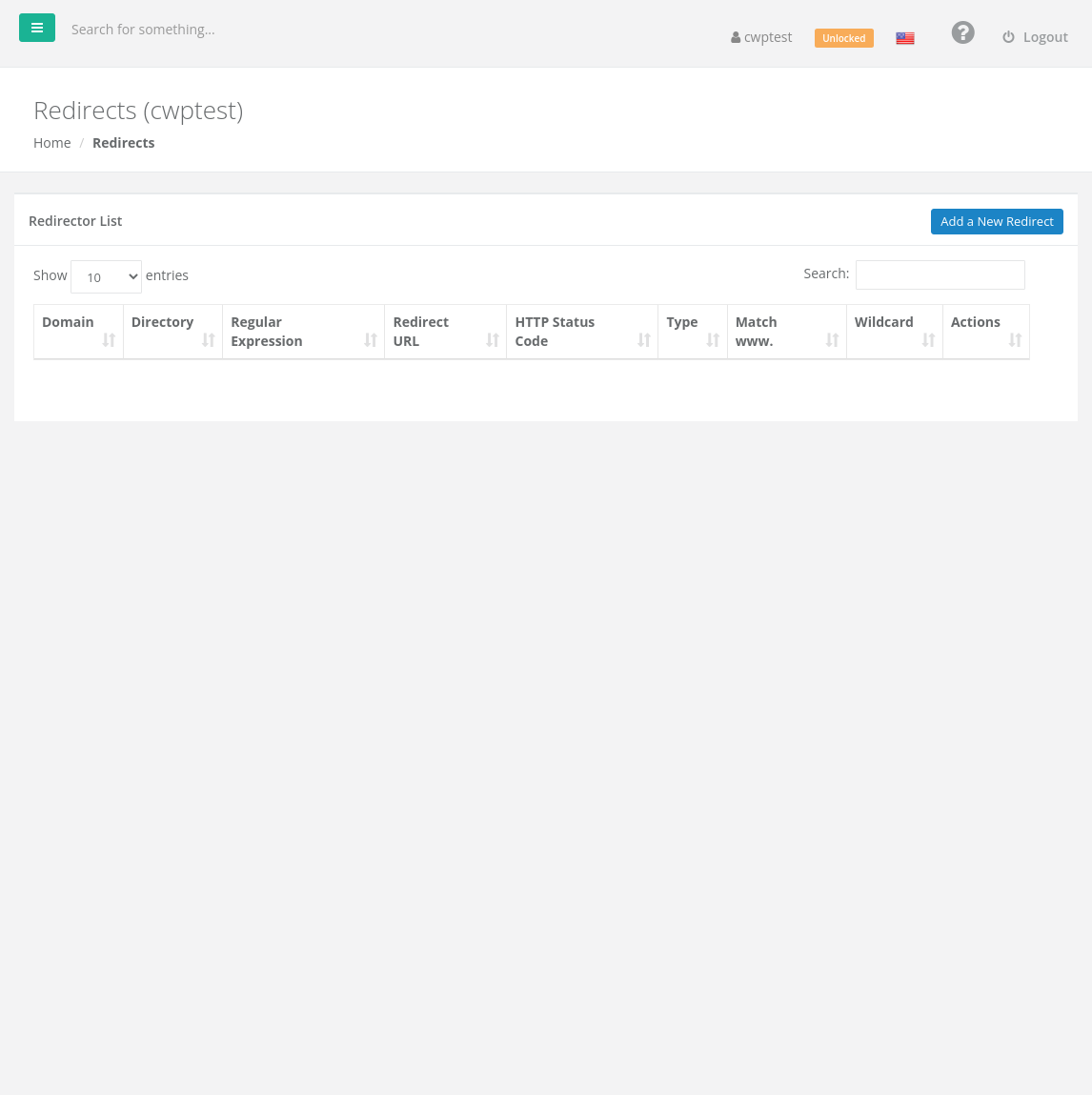
The redirect list shows the domain, directory, regular expression, destination, status code, type and www/wildcard settings. Click the magnifying glass to see the .htaccess rule that was written, or Delete to remove the redirect.
Warning: You cannot use a wildcard redirect to send your main domain to a different folder of the same site — it creates a redirect loop. Redirects are written to the .htaccess file of the domain; editing that file by hand can break them.
Common problems
| Problem | Solution |
|---|---|
| Too many redirects in the browser | The destination redirects back to the source, often through another rule or a CMS setting. Check the redirect list and your CMS address settings. |
| Redirect does not work | Your browser cached an old response. Test in a private window. Also check that no other rule in .htaccess runs first. |
| HTTP → HTTPS redirect | Install an SSL certificate first (AutoSSL), then redirect to the https:// address. |