The WordPress Manager lets you install, secure, update, back up and clone WordPress sites from your control panel — without logging into each site’s wp-admin or using FTP. It discovers every WordPress install under your account automatically and gives each one a single dashboard.
Where to find it
In the user panel, open the left menu and choose WordPress Manager (under Apps & Addons). If you don’t see it, your hosting package may not have the feature enabled — ask your provider.
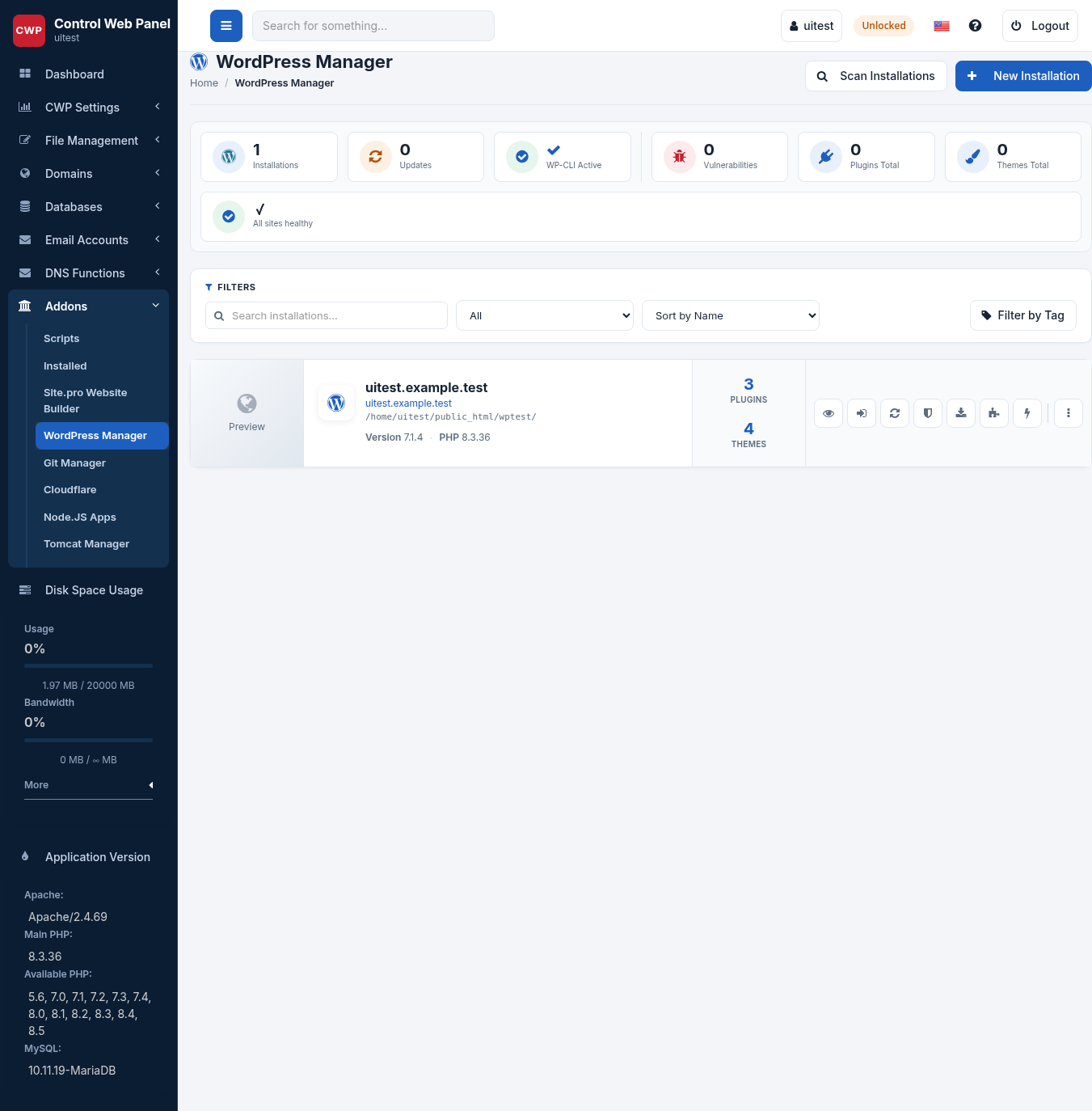
Add a site: install new or scan existing
- Install WordPress — pick the domain/subdomain, a folder (optional), site title, admin username, password and e-mail, then install. A fresh, ready-to-use WordPress appears in seconds.
- Scan — already have WordPress somewhere in your account? The manager finds every
wp-config.phpand adds those sites to the list automatically, so you can manage sites you installed by hand too.
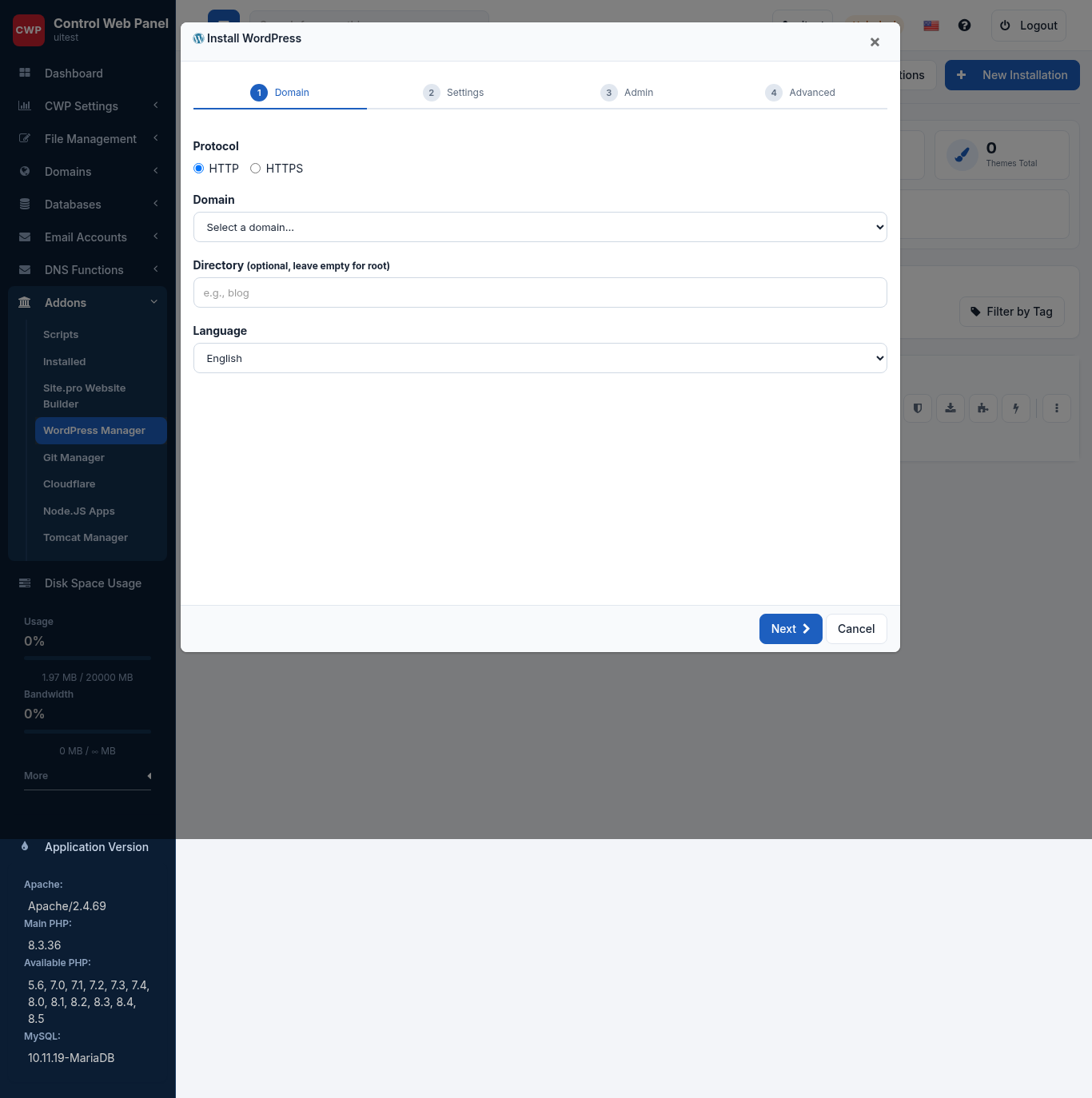
The site dashboard
Each site has a card/dashboard showing its WordPress version, PHP version, SSL status, whether updates or vulnerabilities are pending, and quick actions. From here you can:
- Log in to wp-admin with one click (no password needed — secure single sign-on).
- Update core, plugins and themes.
- Toggle maintenance mode, debug mode and search-engine visibility.
- Open Manage, Security, Backups, Clone/Staging and more.
Manage plugins, themes, users and the database
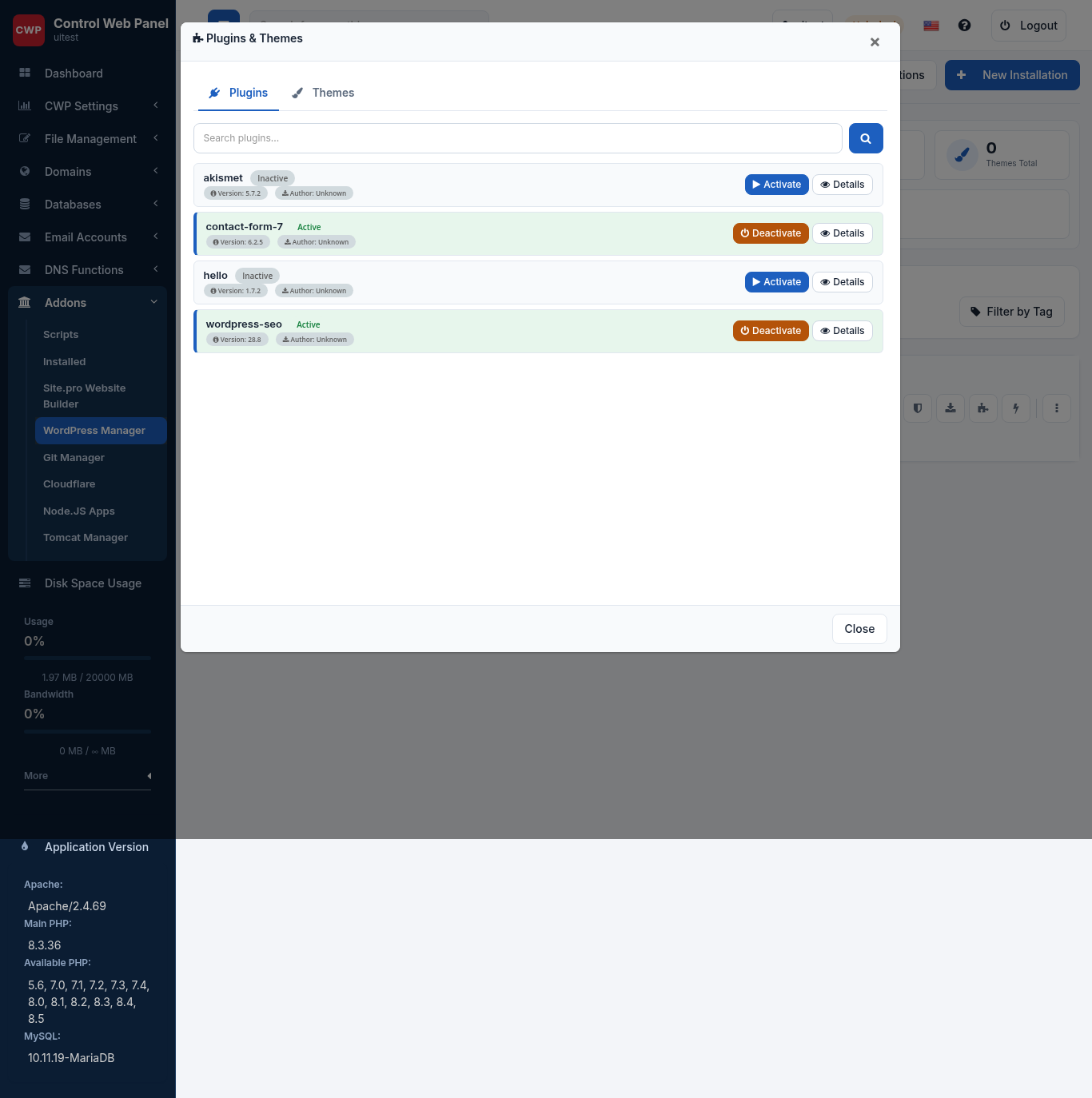
- Plugins / Themes — see what’s installed, activate/deactivate, update, or delete. Vulnerable items are flagged.
- Plugin & Theme Sets — save a group of plugins/themes once and install the whole set on a new site with one click.
- Users — list WordPress admins, reset a password, create a new admin.
- Database — run quick checks / search-and-replace URLs (for example after moving a site to a new domain) without touching phpMyAdmin.
Smart Update — safe updates with a test clone
Updating a live site can break it if a theme or plugin isn’t compatible. Smart Update avoids that: it makes a temporary copy (staging) of your site, runs the updates there first, checks that the site still loads correctly (no PHP errors, no white screen, admin still works) and compares the home page before/after. Only if everything is healthy are the same, tested versions applied to your live site — with a backup taken first. If anything looks wrong, the update is held back and your live site is left untouched for you to review.
Clone & Staging
Make a full copy of a site — to the same account on another domain/subdomain, or as a staging copy for testing. The files and the database are copied and the URLs updated automatically, so the clone works immediately. Test changes on the copy, and when you’re happy, apply them to production.
Multisite
Turn a single site into a WordPress Multisite network (subdirectory or subdomain), and see network info for sites that are already multisite. Subdomain networks need a wildcard DNS record — the manager reminds you.
Free SSL (AutoSSL) in one click
Issue a free Let’s Encrypt certificate for the site and switch it to https:// in one click. The manager installs the certificate, updates the site URLs from http to https and adds a force-SSL rule, with a safe rollback if anything fails.
Cache & speed
Enable page caching and purge it with one click. The manager works together with the server’s LSAPI-Cache and the standard LiteSpeed Cache WordPress plugin, so cached pages are served extremely fast; the cache is purged automatically when you update or change the site.
Security & vulnerability protection
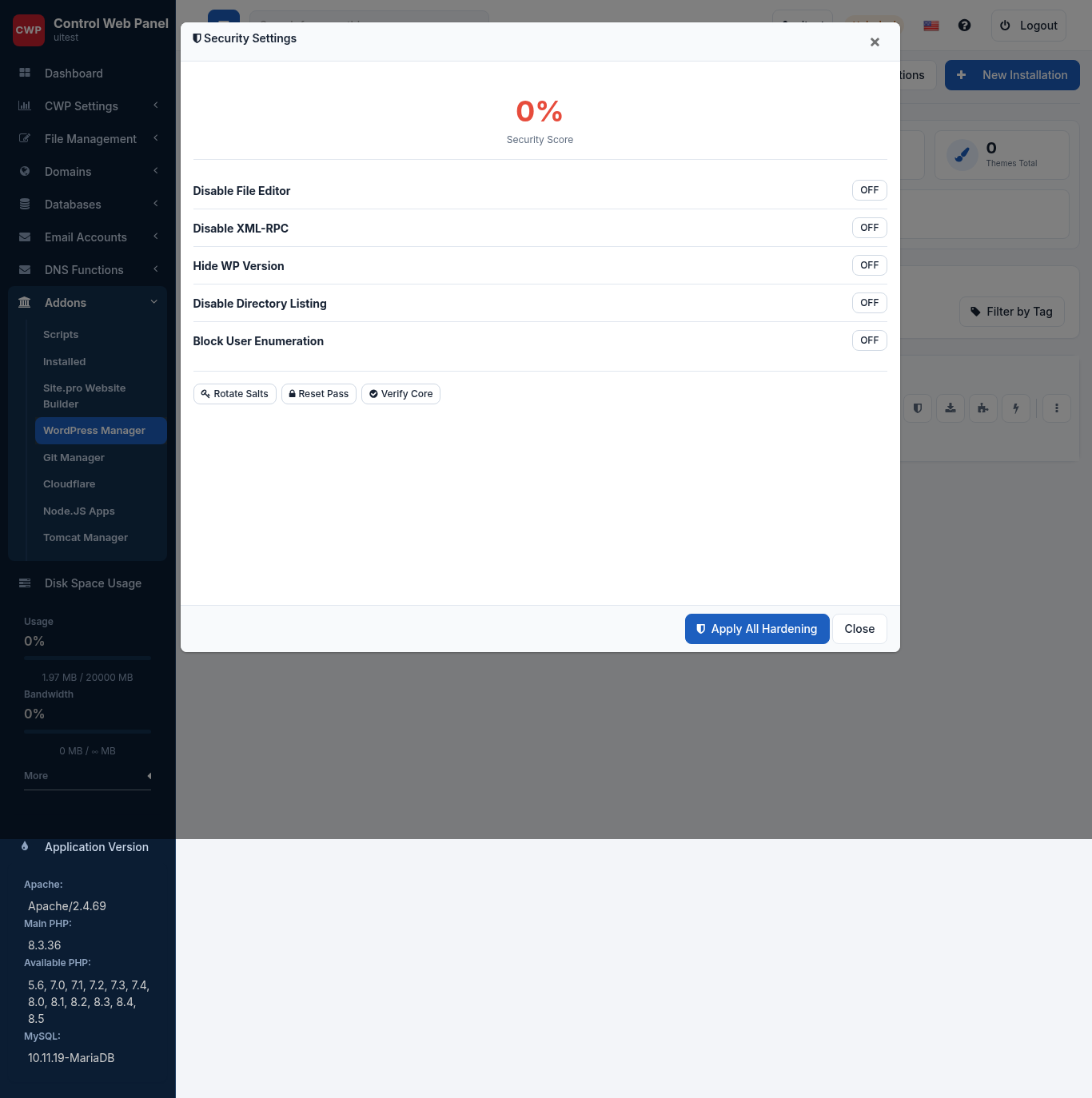
- Hardening — switch on common protections: block XML-RPC abuse, disable the file editor, protect
wp-config.php, refresh security keys, limit login exposure. - Vulnerability scan — the manager checks your plugins/themes/core against a vulnerability feed and flags anything at risk.
- One-click patch — update just the vulnerable items to a safe version, with a snapshot taken first and an automatic rollback if the update breaks the site.
- Virtual patching — the server can block known WordPress attacks at the web-server edge (a WAF layer), protecting a site even before a plugin is updated.
Backups — local and offsite
Take a full backup (files + database) of a site, on demand or on a schedule. Besides local backups you can send them offsite to SFTP, S3 or an rclone remote, so you always have a copy away from the server. A backup is also taken automatically before risky actions like updates. Restore any backup with one click.
Git deployment
Deploy a site (or a theme/plugin) straight from a Git repository: clone from an https or ssh repo URL, pull the latest changes, or switch branch — all from the panel. Deployments run safely as your account, with protections against malicious repository hooks.
Isolation & resources
If your provider runs CWP Cage, each site’s PHP runs isolated from other accounts, with its own CPU and memory limits. The manager shows the site’s live resource usage. (Isolation is managed by the administrator for safety.)
Custom themes and ThemeForest sites — will updates break them?
No, not on their own. The manager only updates themes and plugins that have an official source (the WordPress.org repository or a licensed source). A custom theme with its own name is seen as “Custom” and skipped. For sites with heavy themes (e.g. ThemeForest bundles with Elementor/WPBakery/Slider Revolution), the safest approach is:
- Turn off auto-update for the theme’s bundled plugins (per-item switch) and update them manually when the theme author releases a new version.
- Use a child theme so your edits survive parent-theme updates.
- Use Smart Update (test clone + health/visual check) so a broken update is caught and held back.
- Rely on the automatic backup before update — if something slips through, roll back in one click, then deactivate the offending plugin from the panel until a fix is available.
Common problems
| Problem | What to do |
|---|---|
| WordPress Manager not in the menu | The feature isn’t enabled for your package — ask your provider to enable it. |
| Site shows a white screen after an update | Open the site → restore the automatic pre-update backup (one click), then deactivate the plugin shown in the logs. |
| A custom theme got overwritten | Use a child theme; the manager only updates repository/licensed themes, so a truly custom one is skipped. |
| HTTPS not applied after AutoSSL | Check the domain points to this server (A record) and re-run AutoSSL; the manager switches URLs to https automatically. |
| Cache not refreshing | Use “Purge cache”; the cache is also cleared automatically on update/change. |
Related
- LSAPI PHP (lsphp / cwpsapi)
- WordPress & LSAPI-Cache
- AutoSSL (Free SSL Certificates)
- Scripts (Application Installer)