WordPress Manager installs WordPress in a few clicks and lets you manage all your WordPress sites from one place: updates, security hardening, backups, cloning, plugins and themes, and one-click login to the WordPress admin.
Where to find it: Addons → WordPress Manager.
Note: WordPress Manager uses WP-CLI on the server. If installations or actions fail with a WP-CLI message, ask your hosting provider to install or enable WP-CLI.
Overview
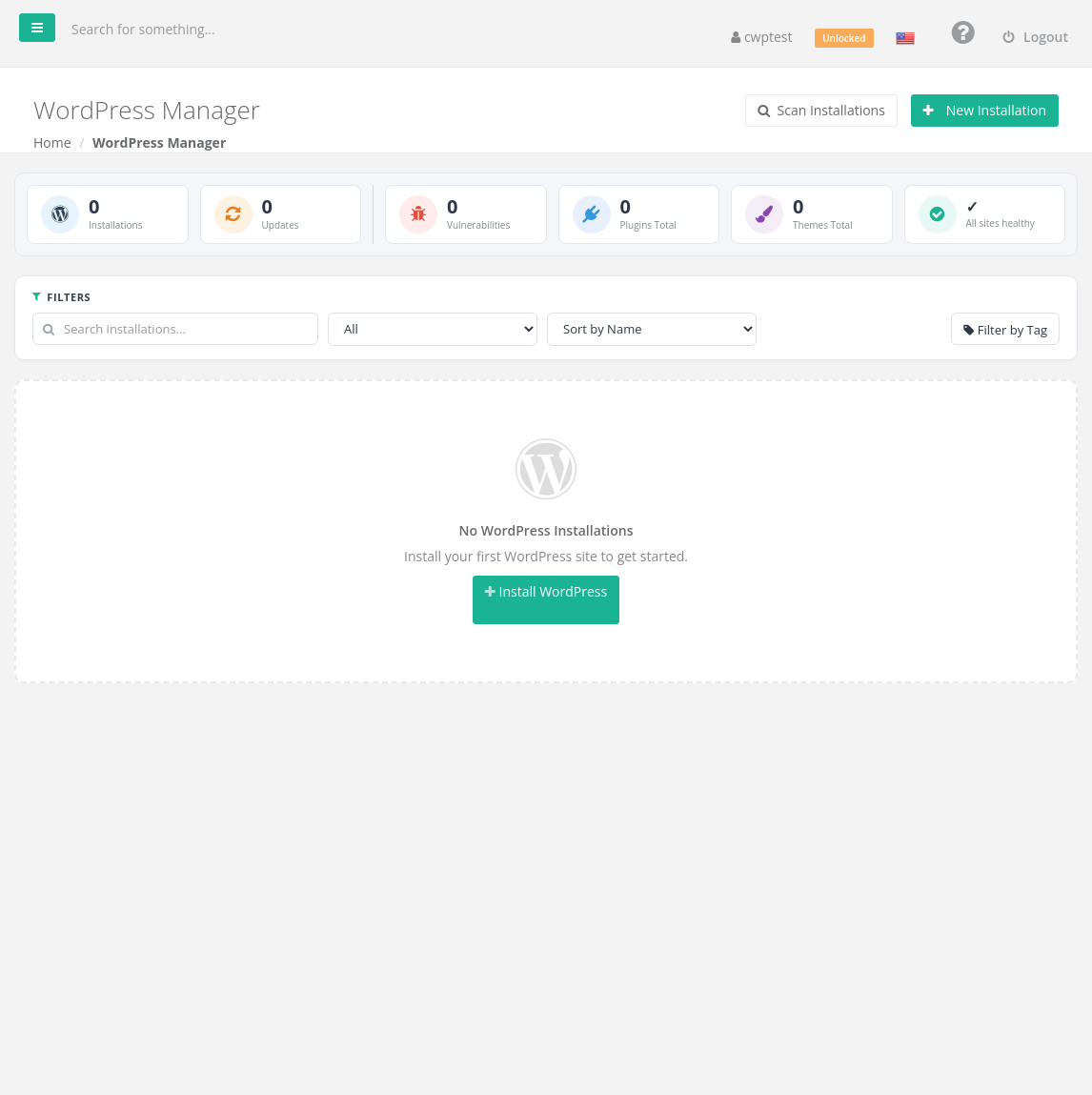
The tiles at the top show the number of Installations, available Updates, known Vulnerabilities and the total number of plugins and themes. Use Filters to search installations, show only Active, Vulnerable or With Updates sites, sort them, filter by tag, and switch between grid, list and compact views.
Click Scan Installations to find WordPress sites that were installed manually or with another tool, so you can manage them here too.
Install WordPress
- Click New Installation (or Install WordPress).
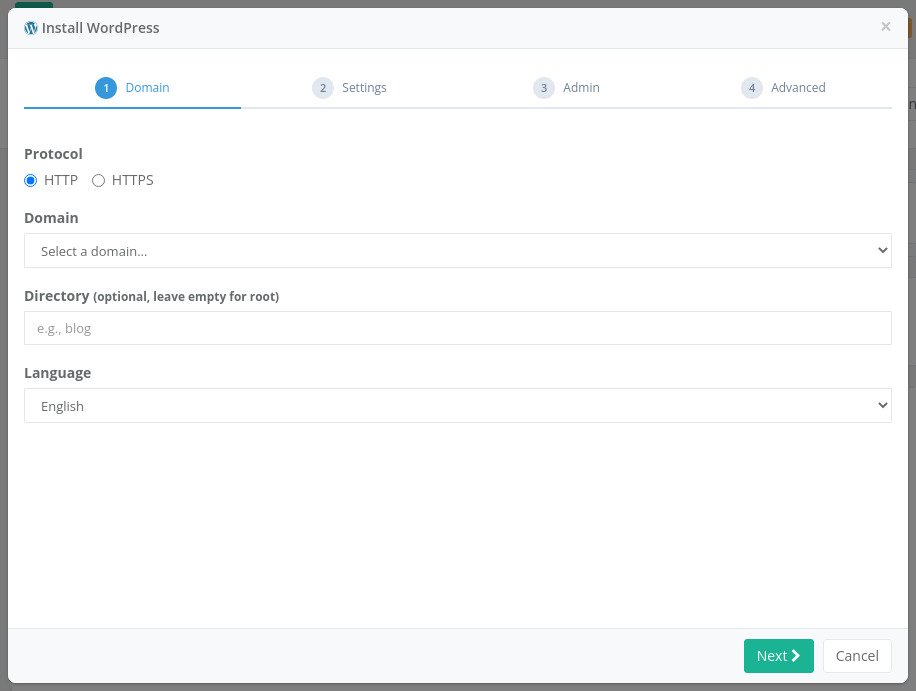
- Domain step: choose HTTP or HTTPS (choose HTTPS if the domain has an SSL certificate — see AutoSSL), the Domain, an optional Directory (leave empty to install in the root of the domain, or type for example
blog) and the Language. - Settings step: the Site Title.
- Admin step: Admin Username, Admin Password and Admin Email. Do not use
adminas the username. - Advanced step (optional): Database Name, Database User and Database Password (generated automatically if left empty), the Table Prefix, and Enable Multisite.
- Click Next through the steps and install. Installing WordPress… This may take a few minutes.
Manage a site
Each installation card shows the WordPress version, PHP version, number of plugins and themes, and buttons for the most common tasks:
| Button | What it does |
|---|---|
| Login | Opens the WordPress admin already logged in (SSO) — no password needed |
| Update | Updates WordPress core, plugins and themes |
| Security | Opens the security settings (see below) |
| Backup | Creates, restores and schedules backups of the site |
| Clone | Copies the site to another domain or directory, for example a staging copy |
| Remove | Deletes the installation |
More Actions opens further tools:
- Plugins & Themes — search, install, activate, deactivate, update and uninstall plugins and themes.
- Cache — flush the object and page cache.
- Database — Optimize and Repair tables, and Search & Replace (useful after moving a site to a new domain: replace
old-domain.comwithnew-domain.com). - Protection — protect
wp-login.phpwith an extra password (HTTP Basic Auth) to stop brute-force attacks. - WordPress Users — list users and Reset Admin Password.
- Files — open the File Manager, edit
wp-config.phpand.htaccess(a backup is made first) and view the error log. - Maintenance Mode — show visitors a maintenance page while you work.
- Verify Core Files — check whether WordPress core files were modified (a sign of infection).
- Tags — label sites (for example client, staging) to filter them.
Security settings
The Security window shows a Security Score and these options; Apply All Hardening switches them all on:
| Option | Effect |
|---|---|
| Disable File Editor | Stops theme/plugin file editing from the WordPress admin |
| Disable XML-RPC | Blocks a common brute-force and DDoS entry point. Leave it on unless you use the WordPress mobile app or Jetpack. |
| Hide WP Version | Removes the version number from the page source |
| Disable Directory Listing | Stops visitors from browsing folders without an index file |
| Block User Enumeration | Hides usernames that attackers could find with ?author= URLs |
| Rotate Salt Keys | Logs everyone out by changing the security keys — useful after a suspected break-in |
Backups and clones
- Backup → Create Backup saves files and database. Restore overwrites the current site with a backup. Schedule creates automatic backups and shows their logs.
- Clone copies the site to a Target Domain and optional Target Directory (for example
staging). A new database is created and the URLs are updated automatically.
Remove WordPress
Click Remove and confirm. This deletes all WordPress files of that installation; tick Also delete the database to remove the database too. This cannot be undone — make a backup first.
Common problems
| Problem | Solution |
|---|---|
| Installation failed | The target directory must be empty, the domain must belong to your account, and you need free databases in your package. Check also that the File System Lock is off. |
| Broken label on a site | The site’s files or database are damaged or missing. Check the error log under Files, or restore a backup. |
| Login (SSO) does not work | Make sure the site URL in WordPress matches the domain, then try again. |
| Site shows Error establishing a database connection after a move | Check the database details in wp-config.php and use Search & Replace for the new domain. |
| Updates fail | Unlock the File System Lock and check disk space. |