The Email Importer creates many mailboxes or forwarders at once from a CSV or Excel (XLS) file — useful when you move a company to the server or set up dozens of addresses.
Where to find it: Email Accounts → Email Importer.
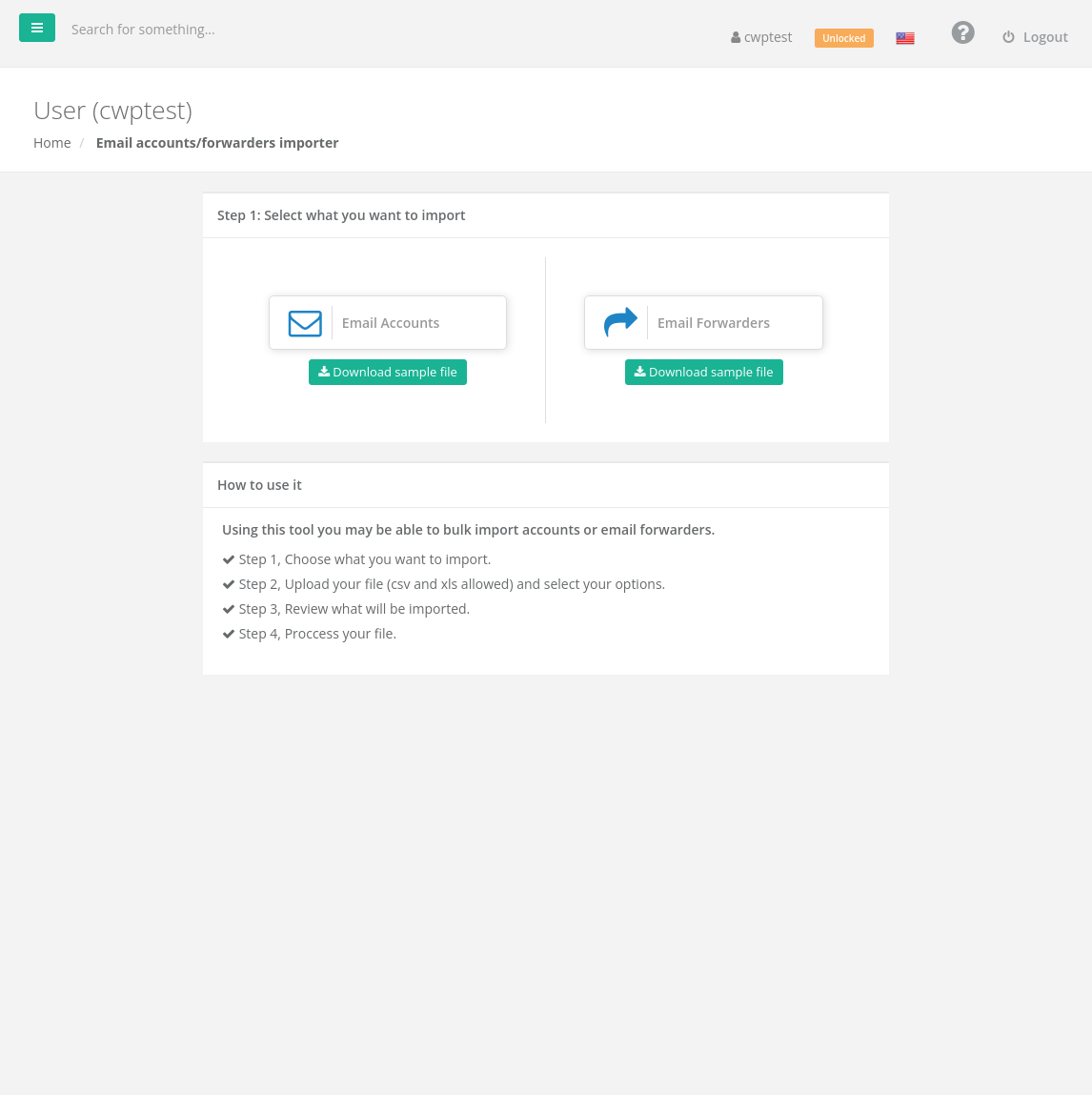
Prepare the file
Click Download sample file under the type you want and fill it in. The first row can be a header.
Email accounts:
| Address | Password | Quota (MB) |
|---|---|---|
| myname@example.com | VERYSECUR3! | 100 |
| otheraddress@example.com | 40 |
Email forwarders:
| Alias | Redirect |
|---|---|
| sales@example.com | ceo@example.com |
| contact@example.com | ceo@example.com |
All domains in the file must belong to your account. An empty password can be generated automatically (see below).
Import
- Step 1 — choose Email Accounts or Email Forwarders.
- Step 2 — drag your file into the window or click browse, then set the options:
• The first row is the column header? — Yes if the first row contains column names.
• Select column delimiter — Comma, Space, Semicolon, Tab or Other (for CSV files).
• Autogenerate password — generate passwords for Empty password fields only, or for All records. Click the options to set length and character types.
• Append domain to username — rows with only a name (for exampleanna) get the domain you select.
• For forwarders: Append to existing alias adds the destinations to aliases that already exist instead of rejecting them. - Click Next.
- Step 3 — review the list of valid and invalid records and the reason for each invalid one (for example Account already exists or Invalid domain).
- Click Import.
Warning: If passwords were generated automatically, click Download log file after the import. It is the only place where the generated passwords are shown.
If your package does not have enough free mailboxes or forwarders for all valid records, only the first ones that fit are imported; the importer warns you before you continue.
Common problems
| Message | Solution |
|---|---|
| Just csv and xls are allowed | Save the file as .csv or .xls (Excel 97–2003). |
| Invalid domain | The domain is not in your account. Add it first in Domains. |
| Account already exists / Alias already exists | The address exists already. Remove it from the file, or for aliases use Append to existing alias. |
| Invalid empty password | Fill in the password or switch on Autogenerate password. |
| Duplicate record on file | The same address appears twice in the file. |
| Bad news! Not valid entries were found | Check the delimiter and header settings. |