MySQL Manager is where you create MySQL/MariaDB databases and database users for your websites — for example for WordPress, Joomla, PrestaShop or your own application.
Where to find it: Databases → MySQL Manager.
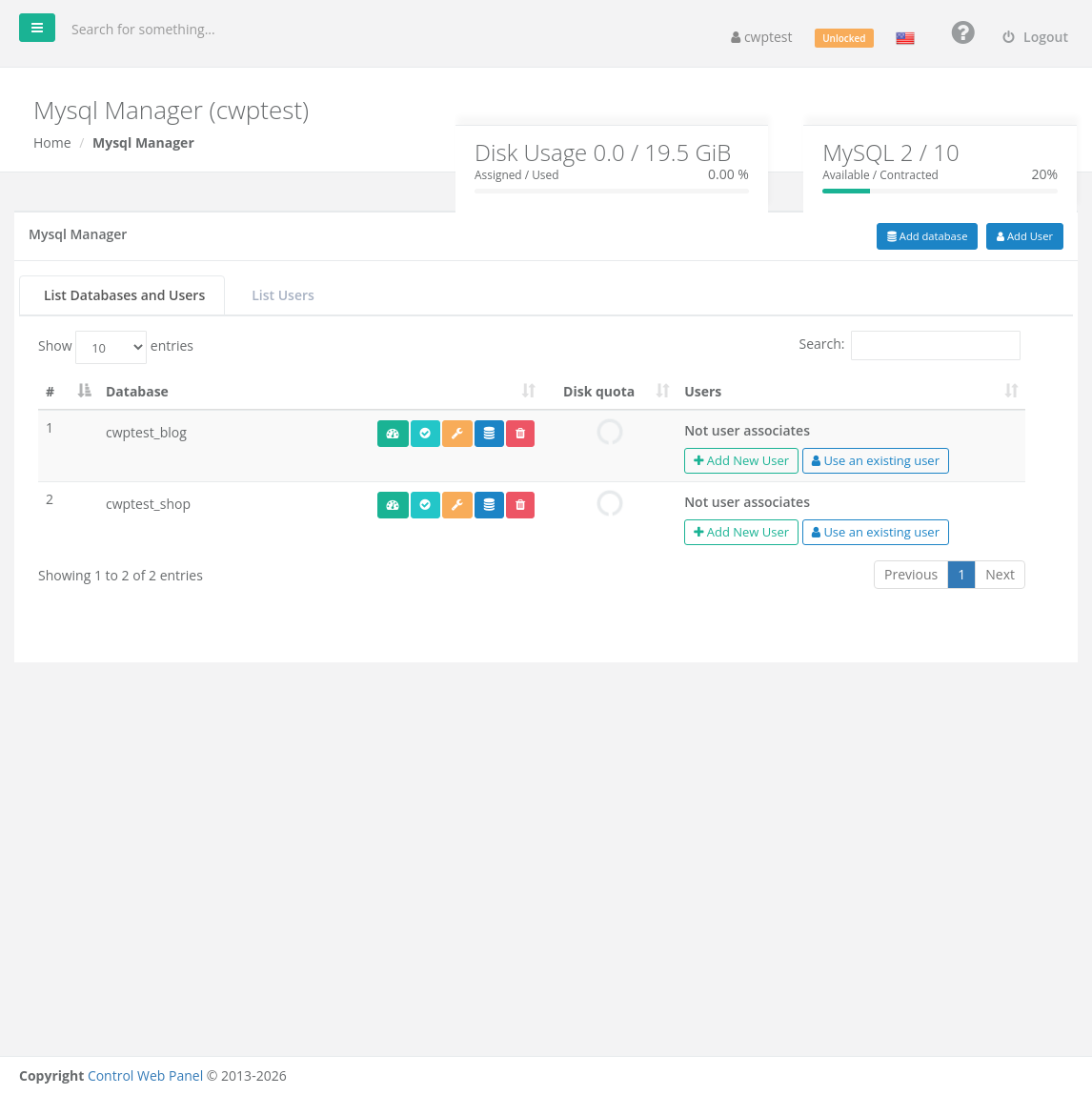
The boxes at the top show the disk space used by your databases and how many databases you have compared with your package limit, for example MySQL 2 / 10.
Names have a prefix
Every database and database user name automatically starts with your account name and an underscore, for example youraccount_shop. You only type the part after the underscore. Always use the full name (with the prefix) in your website’s configuration.
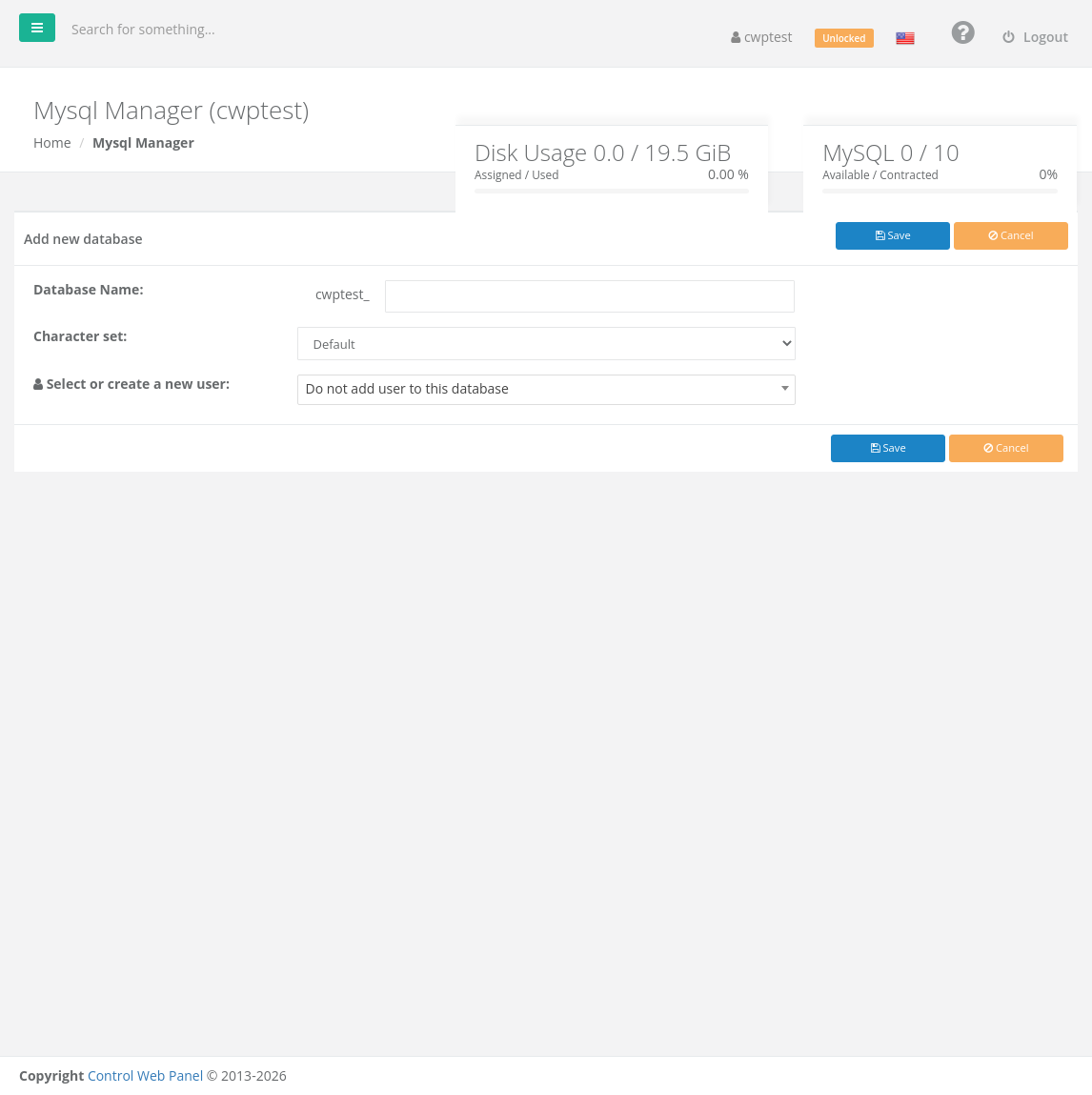
Create a database
- Click Add database.
- Database Name: type the name after the prefix, for example
shop. Use letters, numbers and underscores only. - Character set: leave Default unless your application needs a specific one (
utf8mb4is the modern choice). - Select or create a new user: choose an existing user, create a new one, or Do not add user to this database.
- Click Save.
Create a database user
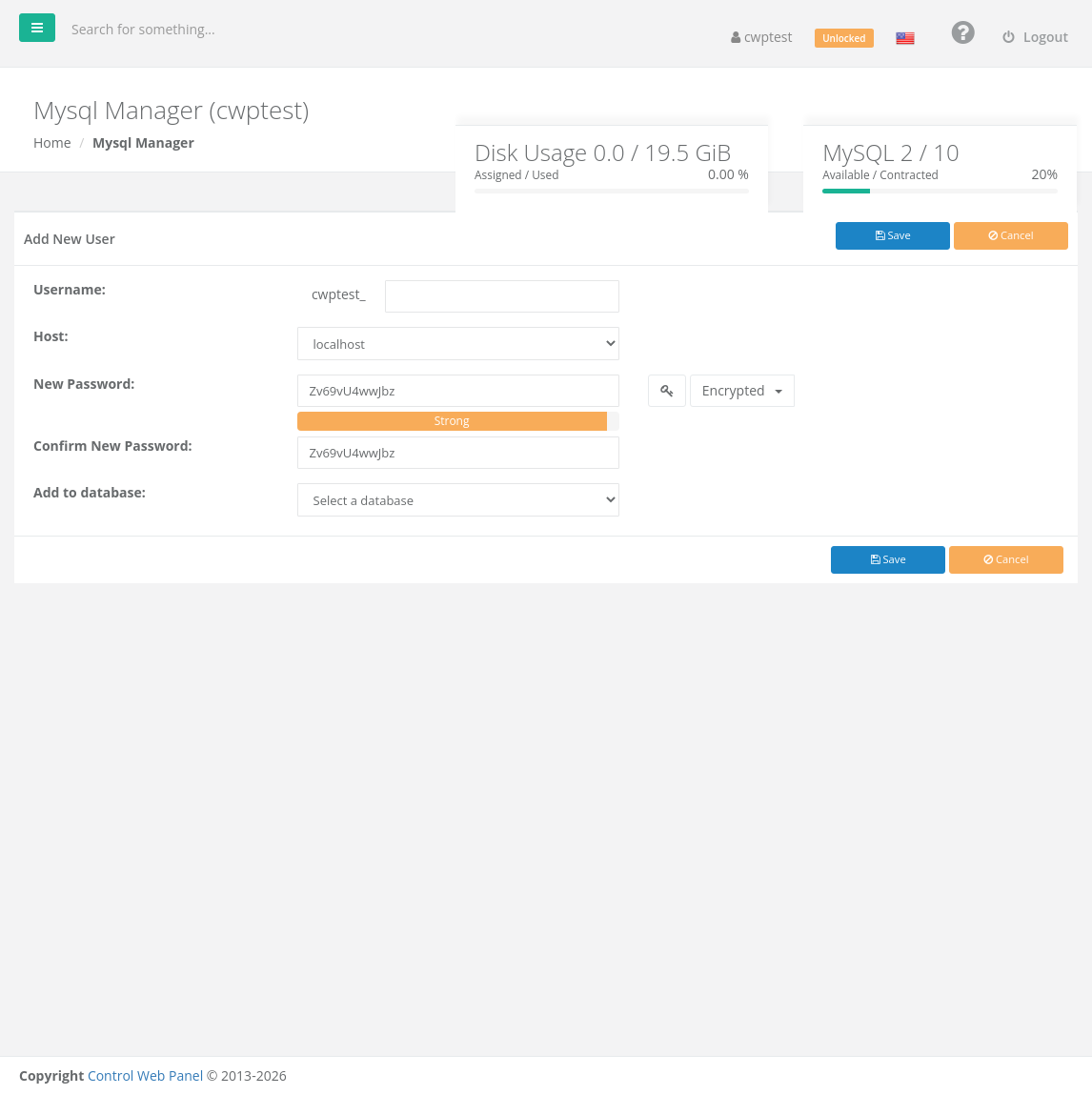
- Click Add User.
- Username: the part after the prefix.
- Host: where the user may connect from:
• localhost — only from this server. Correct for websites hosted here (recommended).
• % (Any Host) — from anywhere on the internet.
• Specify IP — only from one IP address, for example your office, for remote tools. - New Password / Confirm New Password: a strong password is suggested; click the key to generate another one.
- Add to database: choose the database this user gets full access to.
- Click Save.
Note: Remote access (% (Any Host) or a specific IP) also needs the MySQL port (3306) to be open in the server firewall. Ask your provider if remote connections do not work.
Manage databases
In List Databases and Users, each database has these buttons:
| Button | Action |
|---|---|
| Speedometer | Optimize the database (reclaims space and speeds up tables) |
| Tick | Check the database for errors |
| Wrench | Repair damaged tables |
| Database | Create a backup of the database |
| Bin | Delete the database |
The Users column lists the users who can access the database. Use Add New User to create a user for it, or Use an existing user to give an existing user access. Click a user to edit its privileges, host and resource limits (max queries, updates and connections per hour; 0 = no limit).
Warning: Deleting a database permanently removes all its data. Download a backup first if you might need it.
Manage users
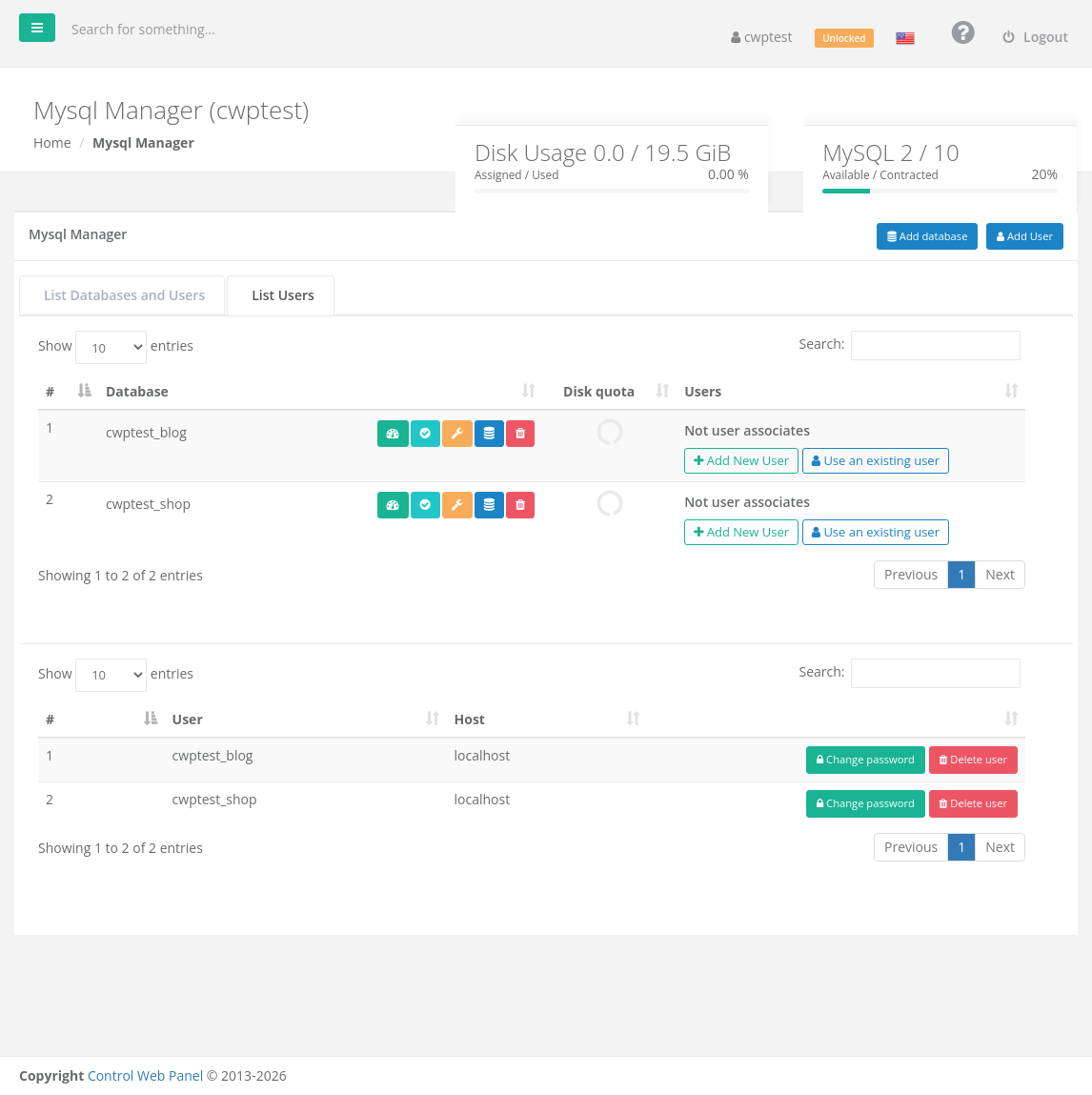
The List Users tab lists all database users with their host. Use Change password or Delete user. After changing a password, update it in your website’s configuration file (for example wp-config.php for WordPress).
Connection details for your website
| Setting | Value |
|---|---|
| Database host | localhost |
| Database name | The full name, for example youraccount_shop |
| Username | The full user name, for example youraccount_shop |
| Password | The user’s password |
| Port | 3306 (default, usually not needed) |
You can also log in with your main account username and panel password: that main MySQL user has access to all your databases, and it is what phpMyAdmin uses.
Common problems
| Message or problem | Solution |
|---|---|
| Duplicate database name / User already exists | Choose another name. |
| Mysql Package Exhausted | You reached the database limit of your package. |
| Invalid characters / Incorrect format | Use letters, numbers and underscores only. |
| Website shows Error establishing a database connection | Check database name, user (both with prefix), password and host localhost in the site’s configuration, and that the user is assigned to the database. |
| Access denied for user | Wrong password or the user has no access to that database. Reset the password or add the user to the database. |