The PHP Selector lets you choose which PHP version runs each of your websites. Use it when an application needs a newer PHP version (most current software does) or still needs an older one.
Where to find it: CWP Settings → PHP Selector.
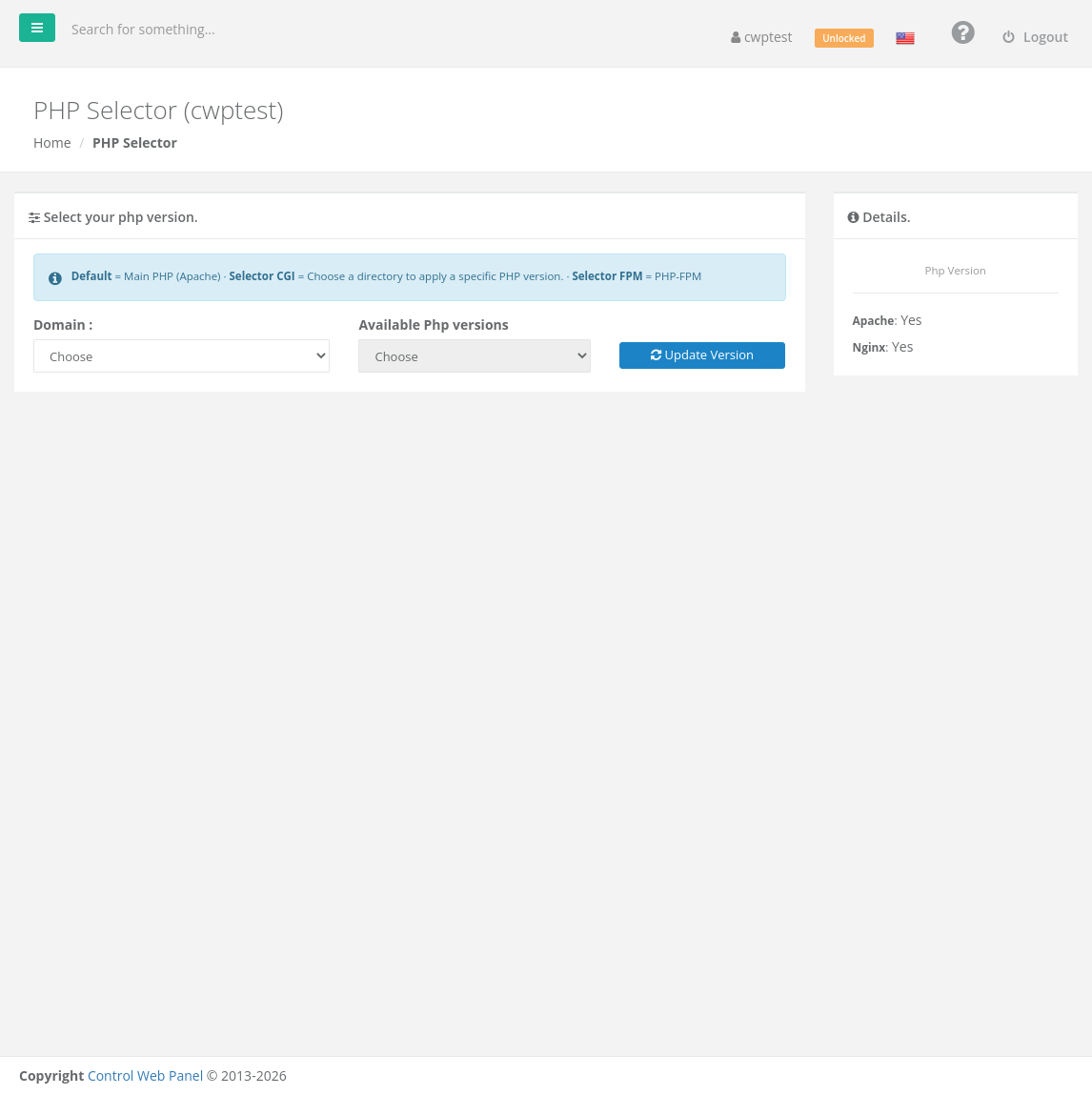
Note: This module needs a CWP Pro license on the server, and only the PHP versions your hosting provider has installed are offered. If you see You need a CWPPRO license to use this module, or the version you need is missing, contact your provider.
Version types
The Available Php versions list can contain three kinds of entries:
| Entry | Meaning |
|---|---|
| Default | The main PHP version of the server (shown in the left menu under Application Version → Main PHP) |
| x.y (Selector FPM) | PHP-FPM — runs the whole domain with that version. Fast and recommended for most sites. |
| x.y (Selector CGI) | CGI — applies the version to one folder of the domain that you choose. Useful when only part of a site (for example an old script in a sub-folder) needs a different version. |
Change the PHP version of a domain
- In Domain, choose the domain or subdomain. The Details box shows its current PHP version and type.
- In Available Php versions, choose the new version.
- For a CGI version, a folder browser appears: click a folder name to select it (click the folder icon to open it). The version is applied to that folder and its sub-folders.
- Click Update Version and confirm.
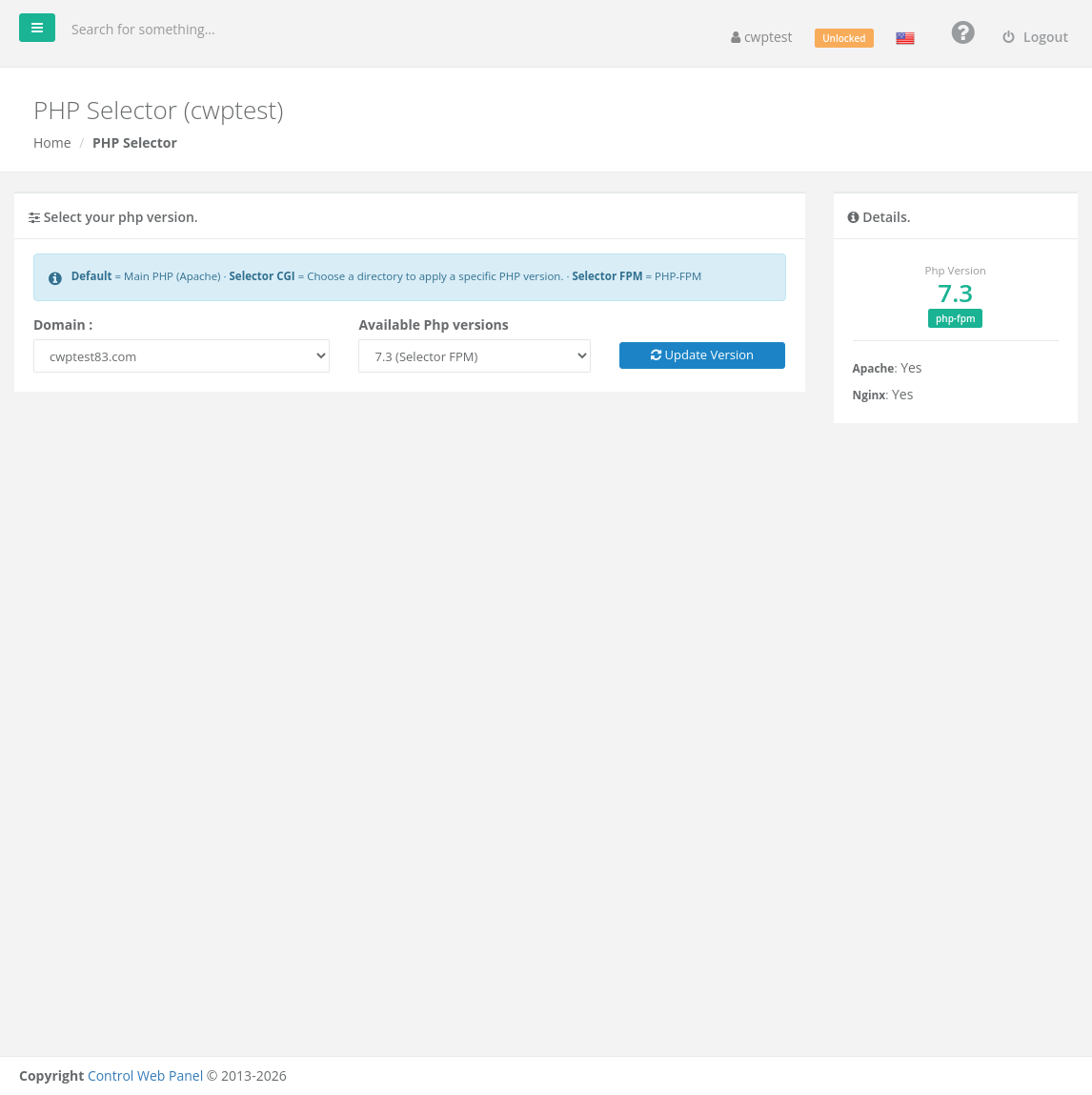
The change takes effect within a few seconds. Open your site and check that it works; to confirm the version, create a file info.php containing <?php phpinfo(); in the site folder, open it in the browser, then delete it again.
To remove a folder-specific CGI version, select the folder again and use Remove the php version for this directory.
Before you switch
- Check the requirements of your application (WordPress, Joomla, Magento, Laravel…) — they list supported PHP versions.
- Update your CMS, plugins and themes before moving to a newer PHP version; old plugins are the most common cause of errors after an upgrade.
- PHP settings such as
memory_limitare set per domain in Edit php.ini and are kept when you change versions.
Common problems
| Problem | Solution |
|---|---|
| Blank page or 500 Internal Server Error after switching | The code is not compatible with the new version. Switch back, then check the Log Viewer for the exact error. |
| The site still shows the old version | An old AddHandler line in .htaccess forces another version. Remove it or run Remove AddHandler in Fix Account Issues. |
Call to undefined function … (for example mysqli_connect, imagecreatetruecolor) | The required PHP extension is not available for that version. Ask your provider, or choose another version. |
| The version you need is not in the list | Only versions installed by your provider are shown. Ask them to install it. |