Directory Protection puts a password on a folder of your website. Visitors who open any page in that folder must enter a username and password first. It is useful for admin areas, staging sites or private downloads.
Where to find it: File Management → Directory Protection.
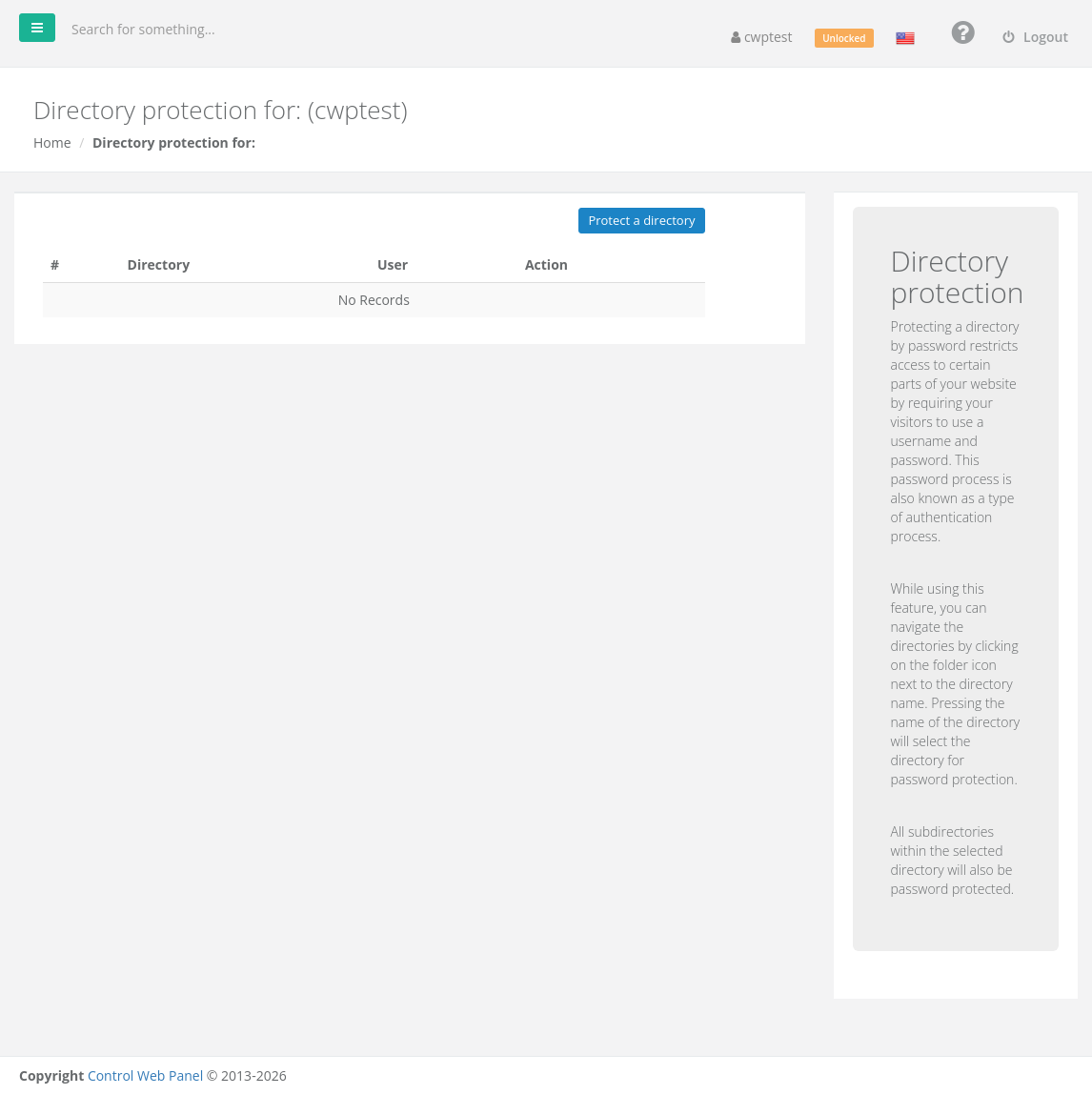
All sub-folders of a protected folder are protected too.
Protect a folder
- Click Protect a directory.
- Enter the User name visitors will use to log in.
- Enter the Password twice.
- Choose the folder:
• Manual — type the path after/home/youraccount/, for examplepublic_html/admin.
• To explore — browse your folders: click the folder icon to open a folder and click a folder name to select it. - Click To protect.
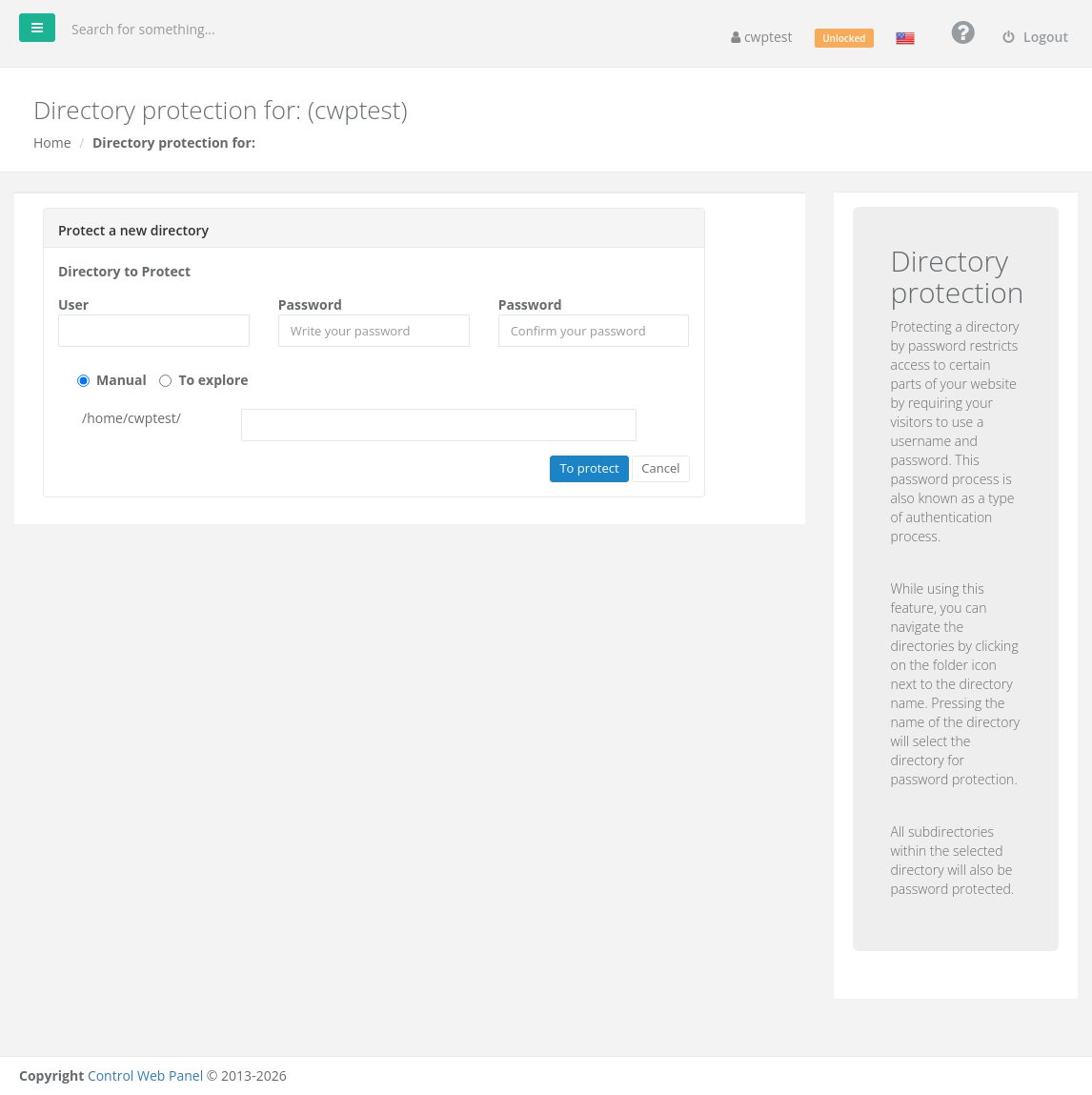
The folder now appears in the list. Open it in your browser to check: you should see a login window.
Add more users
Click Add New User next to a protected folder to let more people in, each with their own username and password.
Remove protection
Click Delete next to the folder (or next to a single user) and confirm. The files stay; only the password protection is removed.
Note: The browser remembers the login until it is closed. To test again, use a private/incognito window.
Common problems
| Problem | Solution |
|---|---|
| No login window appears | Check the path: it must be the folder that is actually served, for example public_html/admin, not admin. Clear the browser cache or use a private window. |
| The password is always rejected | Usernames and passwords are case-sensitive. Delete the user and create it again. |
| Website shows 500 Internal Server Error after protecting | An .htaccess file in the folder contains invalid rules. Check it in the File Manager or run Fix Account Issues. |
| Protection does not work with Nginx-only setups | Password protection uses .htaccess, which is read by Apache. Ask your provider if your domain is served by Nginx without Apache. |