Disk Usage shows how much space your account uses and which folders use the most. Use it when you are close to your disk quota or want to find large files to clean up.
Where to find it: File Management → Disk Usage (also Disk Space Usage in the left menu).
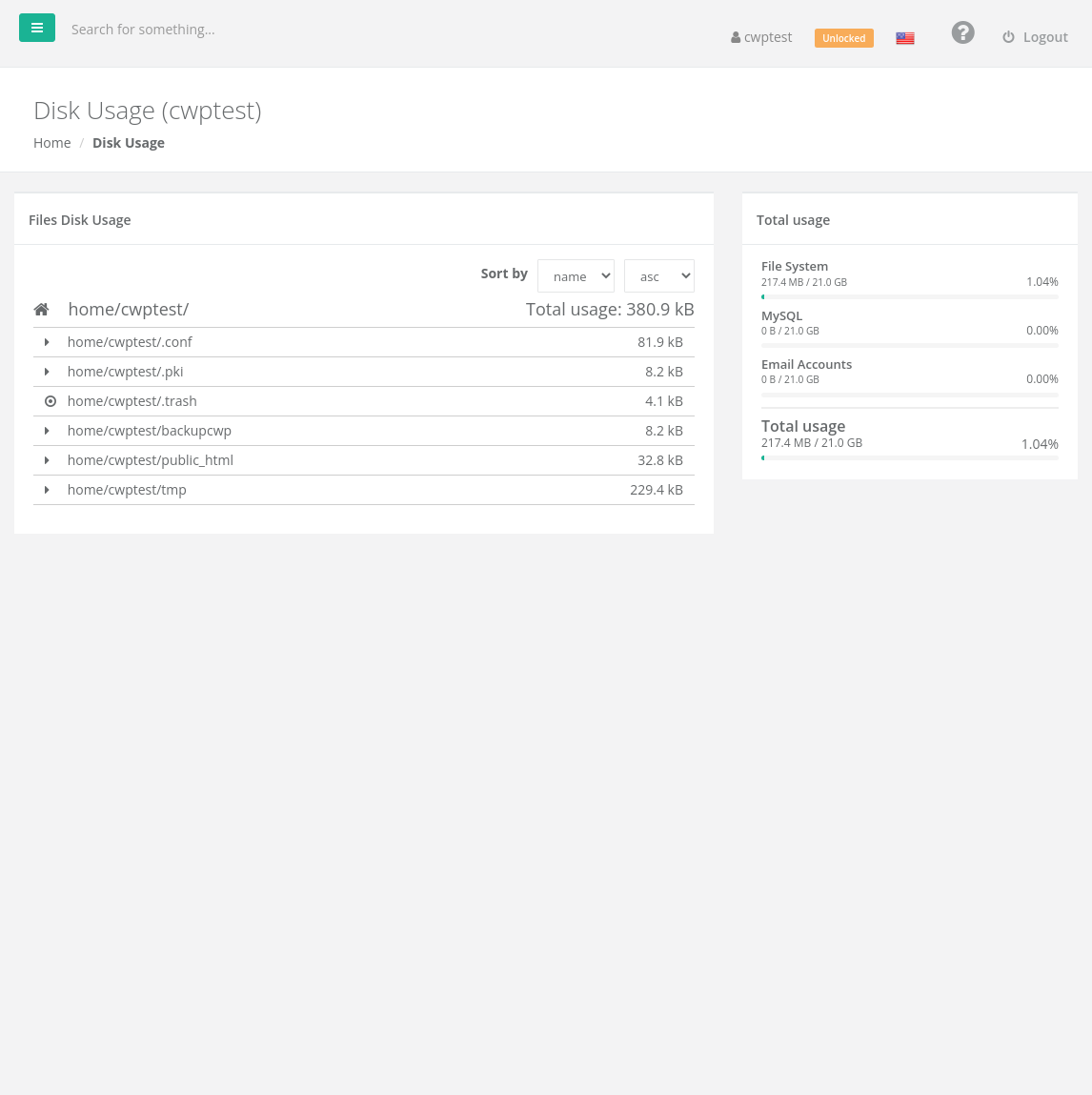
Files Disk Usage
The main box lists the folders in your home directory with the size of each, and the Total usage at the top. Click the ▸ arrow next to a folder to open it and see its sub-folders. Use Sort by to order the list by name or size, ascending or descending.
Typical folders:
| Folder | Contains |
|---|---|
public_html | Your websites |
backupcwp | Backups created in the Backup page |
.trash | Files deleted in the File Manager |
tmp | Temporary files, sessions and caches |
.conf, .pki | Panel and certificate settings — do not delete |
Total usage
The box on the right shows how your quota is split between File System, MySQL and Email Accounts, and the overall Total usage compared with your package limit.
Free up space
- Delete old backups in Backup or in
backupcwp— they are often the biggest item. - Empty the trash in the File Manager (View Trash).
- Clean mailboxes: delete old messages, especially in Trash, Spam and Sent folders, or lower the quota of unused mailboxes in Email Accounts.
- Clear caches: many CMS plugins keep large caches in
public_html/wp-content/cacheor similar folders. - Drop unused databases in MySQL Manager.
Note: The numbers are calculated periodically, so a change can take a little while to appear.
Related
- Dashboard
- Backup
- Notifications — get warned before your disk is full