The File Manager lets you work with the files of your account directly in the browser: upload, edit, move, compress and extract files, and change permissions — no FTP program needed.
Where to find it: File Management → File Manager. It opens in a new browser tab.
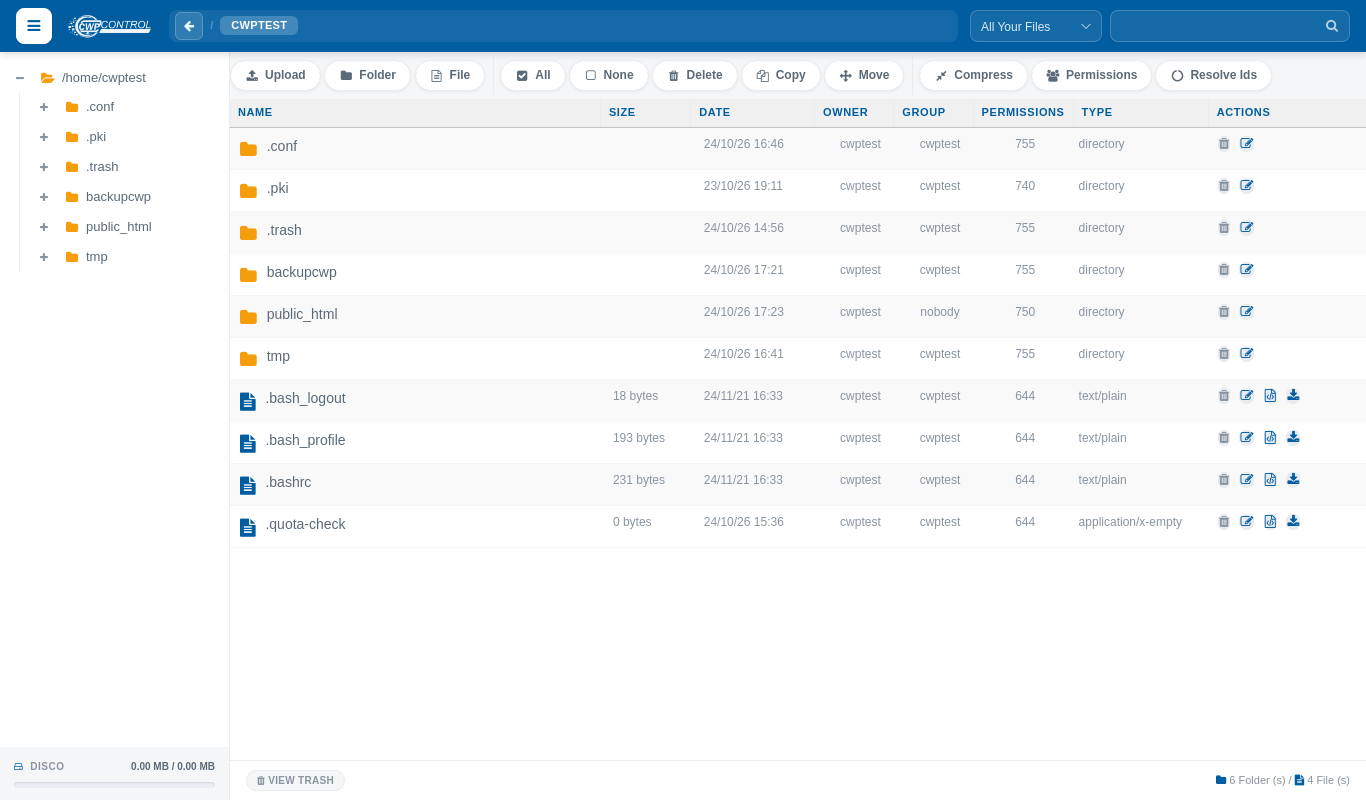
Layout
| Area | What it shows |
|---|---|
| Left tree | The folders of your account, starting at /home/youraccount. Click + to expand a folder. |
| Top toolbar | Actions for the selected files (see below) |
| Path bar | The current folder. Click the ← button to go up one level. |
| All Your Files / Current Directory and search box | Search for files by name in the whole account or only in the current folder |
| File list | Name, size, date, owner, group, permissions and type of every item, with action icons on the right |
| Disk bar (bottom left) | Disk space used by your account |
| View Trash (bottom) | Files you deleted. You can restore them from here. |
Note: Your websites live in public_html. The main domain uses public_html itself; addon domains and subdomains use the folder chosen when they were created (shown in Domains and Subdomains).
Toolbar actions
| Button | What it does |
|---|---|
| Upload | Upload files from your computer. Drag and drop files into the window or click to choose them. The window shows the maximum allowed size per file. |
| Folder | Create a new folder in the current location |
| File | Create a new empty file, for example index.html or .htaccess |
| All / None | Select or unselect every item in the list |
| Delete | Move the selected items to the trash |
| Copy / Move | Copy or move the selected items to another folder |
| Compress | Pack the selected items into a Zip, Tar, Tar.gz or Tar.bz2 archive |
| Permissions | Change the permissions of the selected items, optionally for all sub-folders |
| Resolve Ids | Repairs owner/group IDs shown as numbers. Use it if files show a number instead of a username. |
Actions on a single file
The icons on the right of each row:
- Bin — delete the item.
- Pencil — rename it.
- Edit (text files only) — open the file in the built-in code editor. Click Save when you are done.
- Download — download the file to your computer.
Right-click a file or archive for more options, such as Decompress for .zip and .tar.gz files.
Common tasks
Upload a website
- Open the
public_htmlfolder (or the folder of your domain). - Compress the website on your computer into a single
.zipfile. - Click Upload and drop the
.zipfile into the window. - Right-click the uploaded file and choose Decompress.
- Delete the
.zipfile when the files are extracted.
Uploading one archive is much faster than uploading thousands of small files.
Restore a deleted file
Click View Trash at the bottom, select the file and choose Restore File. Files deleted with Delete all files permanently skipping trash cannot be restored.
Set the correct permissions
The usual permissions are 644 for files and 755 for folders. Configuration files with passwords (for example wp-config.php) can use 640. Never use 777: it lets other processes change your files and is a common reason for hacked sites. To reset everything at once use Fix Account Issues.
Common problems
| Problem | Solution |
|---|---|
| Upload fails for large files | The file is bigger than the allowed upload size shown in the Upload window. Upload a compressed archive, use FTP, or ask your provider to raise the limit. |
| Permission denied when saving or deleting | The file belongs to another user (often root or nobody) or is locked. Unlock the File System Lock and run Fix Account Issues. |
| Nothing can be changed at all | The File System Lock is on. Unlock it first. |
| Disk full error | Your disk quota is used up. Empty the trash and delete old backups. See Disk Usage. |