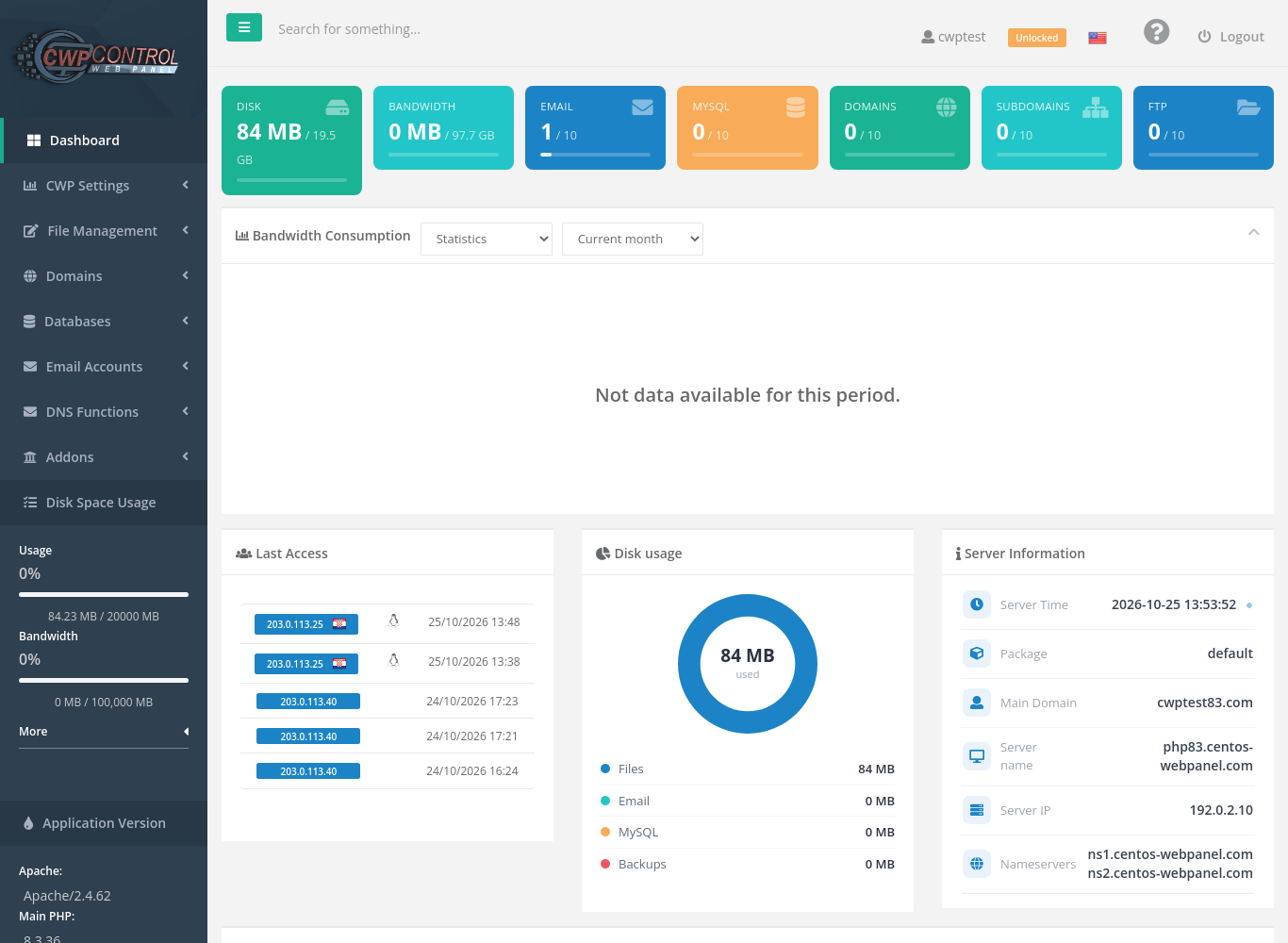
The Dashboard is the first page you see after logging in. It shows how much of your hosting package you are using, recent logins, server details and shortcuts to every tool in the panel.
Where to find it: click Dashboard at the top of the left menu, or the CWP logo.
Usage tiles
The coloured tiles at the top show what you have used compared with what your package allows. A thin bar under each number fills up as you approach the limit.
| Tile | What it counts |
|---|---|
| Disk | Space used by your files, email, databases and backups |
| Bandwidth | Data transferred by your websites this month |
| Mailboxes created / allowed | |
| MySQL | Databases created / allowed |
| Domains | Addon domains created / allowed |
| Subdomains | Subdomains created / allowed |
| FTP | FTP accounts created / allowed |
When a tile reaches its limit you cannot create more of that item. Delete something you no longer need or ask your provider for a bigger package.
Bandwidth Consumption
A graph of your website traffic. Use the two menus to choose the type of data and the period (for example Current month). New accounts show Not data available for this period until traffic has been recorded.
Last Access
The most recent logins to your panel, with IP address, country flag and time. Check it now and then: if you see a login you do not recognise, change your password immediately and switch on two-factor authentication.
Disk usage
A chart showing how your disk space is split between Files, Email, MySQL and Backups. To find out which folders take the most space, open Disk Usage.
Server Information
| Item | Meaning |
|---|---|
| Server Time | The current time on the server. Cron jobs and logs use this time. |
| Package | The name of your hosting package |
| Main Domain | The main domain of your account |
| Server name | The server hostname. Useful for email app settings and support requests. |
| Server IP | The IP address your websites use. Point your domain’s A record here if your DNS is hosted elsewhere. |
| Nameservers | The nameservers to set at your domain registrar if the server hosts your DNS |
Tool shortcuts
Below the information boxes, every section of the left menu (CWP Settings, File Management, Domains, Databases, Email Accounts and so on) is repeated as a group of large buttons. Click the arrow on the right of a group to collapse it.
Top bar

| Item | What it does |
|---|---|
| ☰ (menu button) | Collapses or expands the left menu |
| Search for something… | Type part of a tool name (for example mail or ssl) to jump to it |
| Your username | Opens the account menu: change password, configuration, theme and dark mode. See Account settings. |
| Locked / Unlocked | Shows whether the File System Lock is on. Unlocked means files can be changed normally. |
| Flag | Changes the panel language |
| ? | Opens this documentation |
| Logout | Ends your session |
Left menu
Besides the tool sections, the bottom of the left menu shows your disk usage and bandwidth as a percentage of your package. More opens extra information, and Application Version shows the versions of Apache, PHP and MySQL/MariaDB on the server. These are useful when an application has minimum requirements.