The Email Accounts page is where you create and manage the mailboxes for your domains, for example info@example.com. Every mailbox has its own password and storage quota and can be used from webmail (Roundcube) or from any email app on your computer or phone.
Where to find it: in the left menu open Email Accounts → Email Accounts.
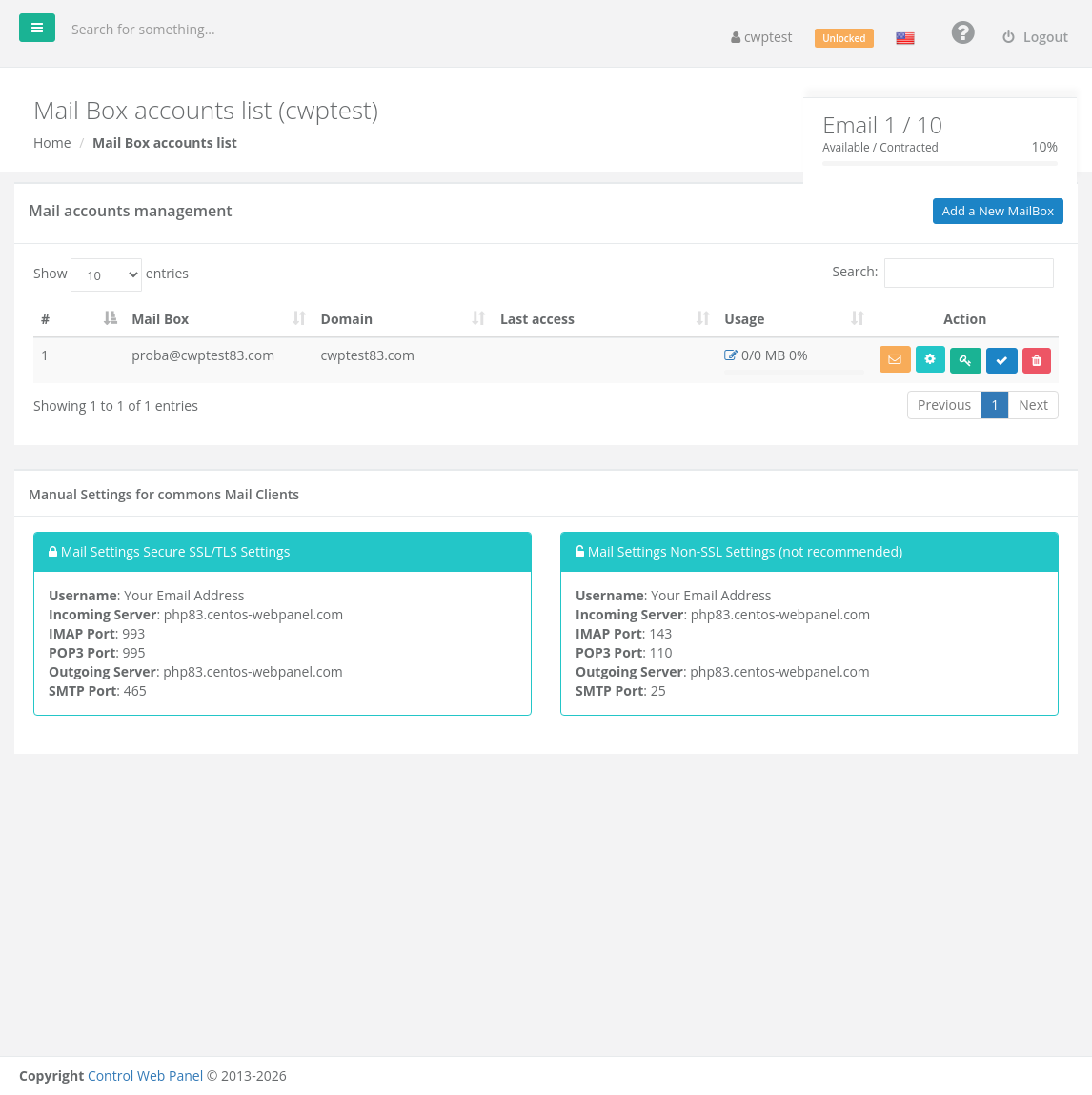
How many mailboxes can I create?
The box in the top-right corner shows how many mailboxes you have and how many your hosting package allows, for example Email 1 / 10. If your package is unlimited, the limit is shown as ∞.
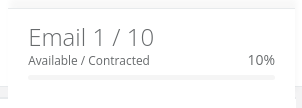
When you reach the limit, the Add a New MailBox button is disabled. To get more mailboxes, delete one you no longer need or ask your hosting provider for a bigger package.
Create a mailbox
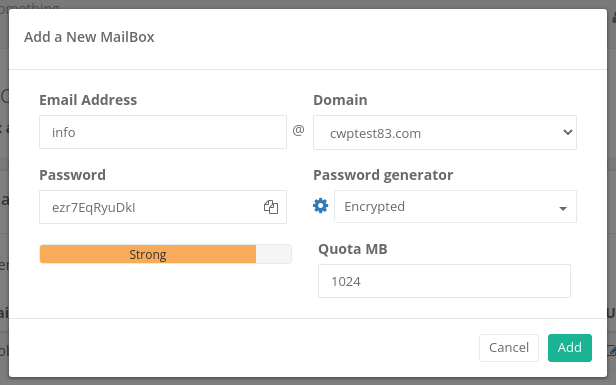
- Click Add a New MailBox.
- In Email Address type the part before the @, for example
info. Capital letters are converted to lower case automatically. - In Domain choose the domain. The list contains your main domain, your addon domains and your subdomains.
- A strong Password is already filled in for you. Copy it with the copy icon in the field and keep it safe, or type your own password.
- In Quota MB enter the maximum size of the mailbox in megabytes, for example
1024for 1 GB. Enter0for no limit. - Click Add.
The new mailbox appears in the list and can receive email straight away.
Password generator
Click the gear icon next to Password generator to create a new random password. Open the Encrypted menu to choose the password length (7 to 15 characters) and the type: Alphabetical, Alphanumeric or Alphanumerics + Symbols. The bar under the password shows how strong it is.
The mailbox list
All your mailboxes are listed under Mail accounts management. Use Search to find a mailbox and Show … entries to change how many rows are shown per page.
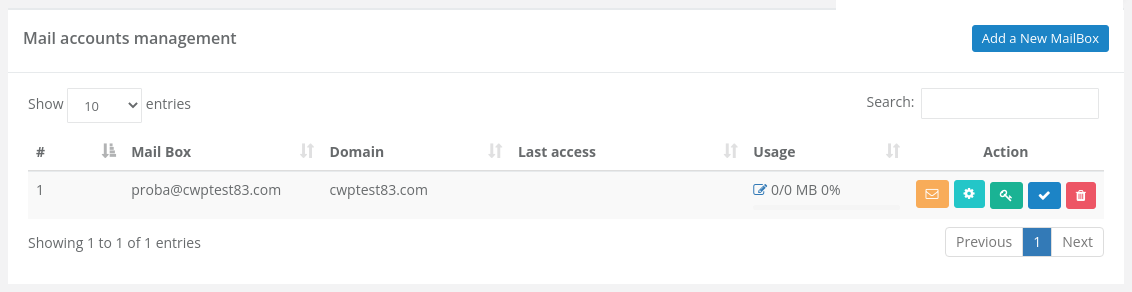
| Column | Meaning |
|---|---|
| Mail Box | The full email address. |
| Domain | The domain the mailbox belongs to. |
| Last access | When someone last logged in to the mailbox. |
| Usage | Space used / quota in MB and as a percentage. The bar turns orange above 50% and red above 75%. A quota of 0 means the mailbox has no size limit. |
| Action | Buttons for managing the mailbox, described below. |
Mailbox actions
| Button | What it does |
|---|---|
| Orange envelope | Autologin: opens Roundcube webmail for this mailbox in a new tab, without typing the password. |
| Light blue gear | Downloads a ready-made setup file for Windows Live Mail (see Set up an email app below). |
| Green key | Change Password of the mailbox. |
| Blue tick / orange ban sign | Suspend or activate the mailbox. Blue tick = active; orange = suspended. |
| Red bin | Delete the mailbox. |
Change the password
- Click the green key next to the mailbox.
- Type the new password in New Password and again in Confirm New Password, or click the gear icon to generate one.
- Click Save changes.
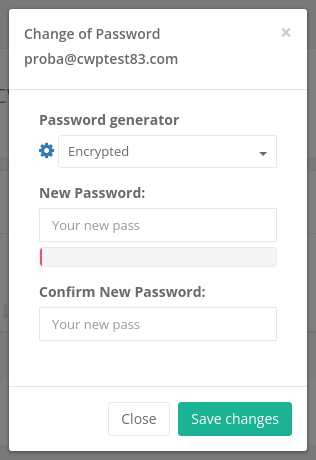
Remember to update the password in every email app and phone that uses this mailbox, otherwise they will stop receiving mail.
Change the mailbox size (quota)
- Click the pencil icon in the Usage column.
- Enter the new size in MB in New size (MB). Enter
0for no limit. - Click Save Change.
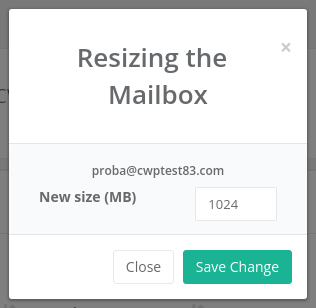
When a mailbox is full, new messages to it are rejected. Increase the quota, or delete old messages (including Trash and Sent) in webmail.
Suspend a mailbox
Click the blue tick to suspend a mailbox without deleting it. A suspended mailbox cannot log in and does not receive new mail, but its existing messages are kept. Click the button again (now orange) to activate it.
If you see Account suspended by administrator, the mailbox was suspended by your hosting provider and only they can activate it again.
Delete a mailbox
- Click the red bin next to the mailbox.
- Check the address shown and click YES.
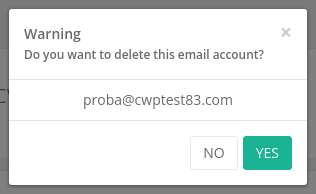
Warning: deleting a mailbox permanently removes all of its messages, its autoresponder and its forwarding. This cannot be undone. If you need the messages, download them first with an email app or ask your provider about a backup.
Set up an email app (Outlook, Thunderbird, phone)
At the bottom of the page, Manual Settings for commons Mail Clients shows the server names and ports for your account. Use the Secure SSL/TLS settings whenever possible.
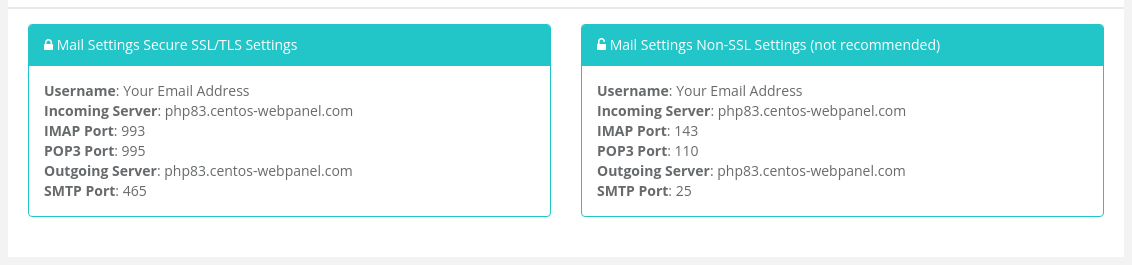
| Setting | Secure (recommended) | Non-SSL |
|---|---|---|
| Username | The full email address, e.g. info@example.com | |
| Password | The mailbox password | |
| Incoming server | As shown on the page: mail.yourdomain if your domain has its own mail SSL certificate, otherwise the server hostname | |
| IMAP port | 993 (SSL/TLS) | 143 |
| POP3 port | 995 (SSL/TLS) | 110 |
| Outgoing (SMTP) server | Same as the incoming server | |
| SMTP port | 465 (SSL/TLS) | 25 |
| SMTP authentication | Required: use the same username and password | |
IMAP or POP3? Choose IMAP if you read mail on more than one device: messages stay on the server and every device sees the same folders. POP3 downloads messages to one device and is only useful if you want to keep mail off the server.
Windows Live Mail setup file
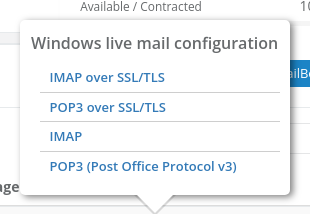
Click the light blue gear next to a mailbox and choose a connection type. Your browser downloads a small .vbs script that creates the account in Windows Live Mail automatically. Choose IMAP over SSL/TLS unless you have a reason not to.
Common problems
| Message or problem | Cause and solution |
|---|---|
| Your mail accounts quota is exhausted / Add button disabled | You have reached the number of mailboxes your package allows. Delete an unused mailbox or ask for a bigger package. |
| Email account already exists | A mailbox with this address already exists. Pick another name or manage the existing one. |
| All fields are required | Fill in the address, domain, password and quota. |
| Your passwords are different | The two password fields do not match. Type the password again. |
| Account suspended by administrator | Your hosting provider suspended the mailbox. Contact them. |
| Email app cannot log in | Use the full email address as the username, check the password, and use the ports from the table above. Make sure SMTP authentication is switched on. |
| Senders get “mailbox full” | The mailbox reached its quota. Increase it or delete old messages. |
| Certificate warning in the email app | Use exactly the server name shown on the page. If the warning remains, ask your provider to issue an SSL certificate for mail.yourdomain. |