The support desk handles tickets from the client area, from e-mail, and from visitors without an account. Staff see the tickets of their departments, answer with predefined replies, write notes that only staff can see, and see live who else is working on a ticket.
Where to find it: Tickets in the left menu. Departments, Statuses and Predefined replies are under the settings.
Departments
| Field | Meaning |
|---|---|
| Name, description | The description is shown to clients when they open a ticket. |
| Replies are sent from this address, and e-mails to it become tickets (piping). | |
| Hidden from clients | For staff only, for example Alerts for the security monitor. |
| Only logged-in clients | Guests cannot open tickets in this department. |
| Colour, order |
Staff see only the departments of their role, unless they have See tickets of all departments.
The ticket list
The list shows, for each ticket, the client (a click opens the client, with the permission to view clients), the department, status, last reply and the service the ticket is about. When a ticket is not linked to a service, the list shows the service named in the subject or the client’s only active service, marked ≈; new tickets get that service linked automatically.
Working on a ticket
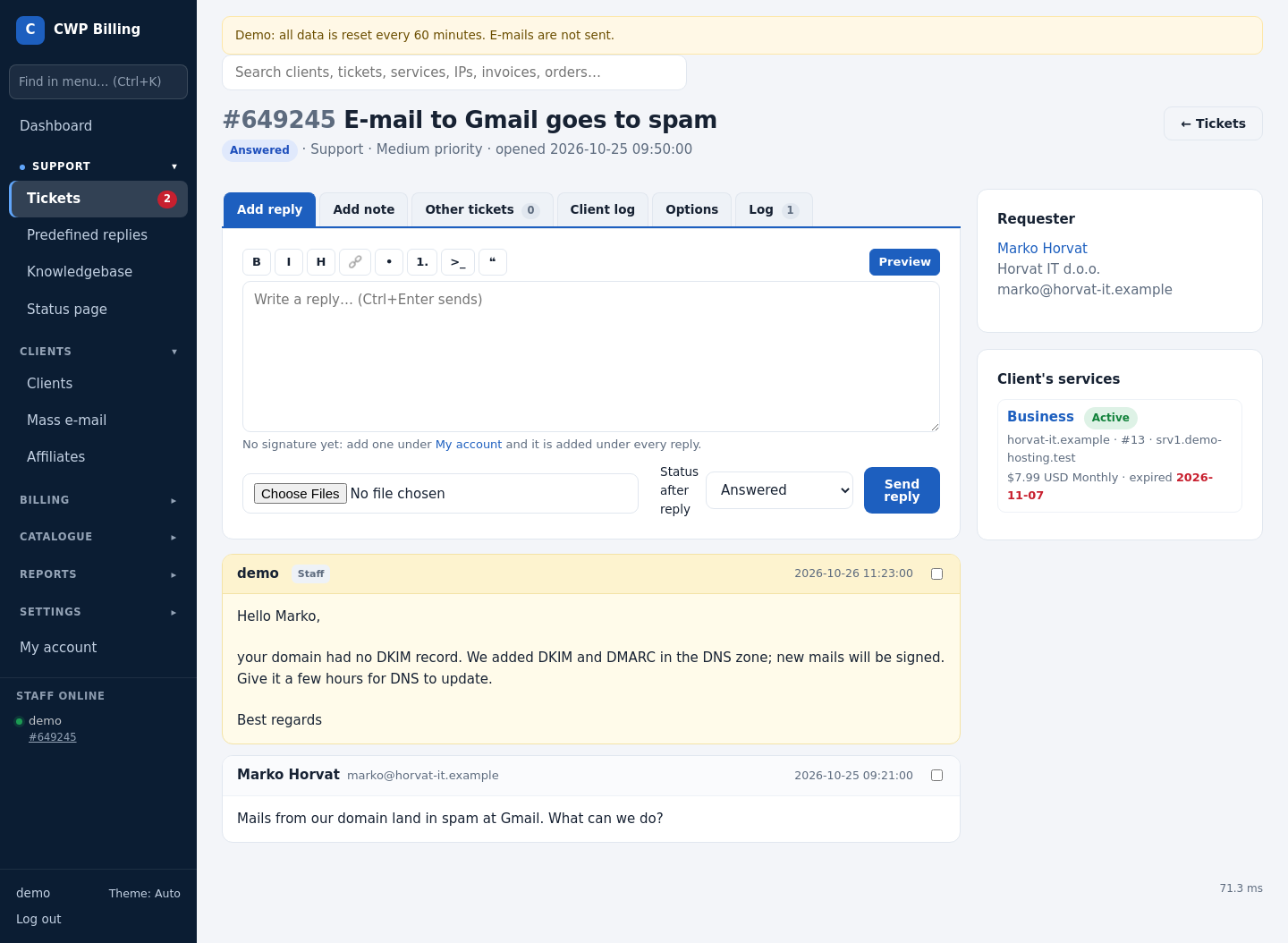
The ticket page shows the conversation, with the client’s services next to it. Sticky notes of the client are shown above the ticket. Below the conversation are tabs:
| Tab | What you can do |
|---|---|
| Add reply | Answer the client. Insert a predefined reply and attach files. Status after reply defaults to Answered. |
| Add note | A note that only staff see. It is never sent to the client and never shown in the client area. |
| Other tickets | The other tickets of this client, with department and status |
| Client log | The client’s recent activity: logins, changes, orders, payments |
| Options | Department, status, priority, Assigned to, related service; Merge into another ticket number, or split selected messages into a new ticket |
| Log | Every change of the ticket, with time and staff member |
The Server credentials box shows passwords that the client sent through the vault.
Writing a reply or note:
- The formatting toolbar adds bold, italic, headings, links, lists, code and quotes (Markdown; Ctrl+B and Ctrl+I work too). Preview shows the message as the client will see it.
- Attachments: choose several files, or choose again to add more; each file can be removed before sending. A screenshot pasted with Ctrl+V into the message is attached as an image.
- Your reply signature (My account) is added below every reply automatically and stored with it.
Open a ticket for a client
Open new ticket on the client page or under Tickets opens a ticket from staff: choose the client (or enter an e-mail address and name for someone without an account), the department, the priority, the related service, the subject and the message. Your signature is added under it. The client gets it as an e-mail and sees it in the client area. Use it to report a problem, ask for information, or start a conversation the client has to answer.
Live: the ticket list and the open ticket update by themselves. You see who else has the ticket open and whether they are typing a reply, so two staff members don’t answer at once.
Clients choose the order of replies (newest or oldest first) on the ticket page. They can jump straight to the latest reply, and they can rate the support.
Statuses, priorities and SLA
- Statuses: Open, Answered, Customer-Reply, On Hold, In Progress, Closed, plus your own. Each has a colour and can count as awaiting a staff reply (shown in the queue) or as closed for auto-close.
- Priorities: Low, Medium, High.
- SLA (General settings → Tickets): the hours to the first reply per priority. Tickets over the SLA show an SLA +hours badge in the list.
- Auto-close: close tickets that wait for the client this many hours after the last staff reply.
- Attachments: the allowed file types and the maximum size.
E-mail piping
E-mails to a department address become tickets, and replies to ticket e-mails become ticket replies. Forward each address to pipe.php:
# /etc/aliases (Postfix), or a forwarder "pipe to a program" in your mail server
support: "|php -q /home/user/billing/pipe.php"
[Ticket ID: 123456]in the subject makes the e-mail a reply to that ticket, if the sender is its client, a user of the client, the guest who opened it, or a staff member.- Otherwise the e-mail opens a new ticket in the department whose address is the recipient.
- An address of another of your domains with the same mailbox name finds its department too, for example
support@example.orgwhen the department address issupport@example.com(if only one department matches). - These e-mails are ignored: auto-replies (also recognised by the subject), mailing lists, mail from the billing’s own addresses, and more than 10 e-mails per sender in 15 minutes.
- Other helpdesks answering by machine are recognised even without an auto-reply header, so they cannot start a ticket loop: a sender (not a client) that repeats the subject of a mass e-mail we sent them without “Re:”, or that answers our “ticket opened” e-mail within 30 minutes with a your request has been opened / received text (in any of the common languages). The mail is ignored, the sender is added to No ticket e-mails and removed from mass e-mails, and the audit log records it (
mail.helpdesk_echo). A person replying with “Re:” still opens a ticket. - No automatic e-mail goes to
no-replysenders, or to the senders listed under General settings → Tickets → No ticket e-mails to these senders (for example monitoring alerts). Their mails still open tickets. - Any language and character set is accepted. Quoted history is cut off; a mail that is only a quote is kept whole. Allowed attachments are saved.
- A mail that cannot be imported is kept in
storage/mail/failed/. After fixing the cause, import it again withphp bin/console pipe:retry. - The log is in
storage/logs/pipe-YYYY-MM.log.
Vault: passwords in tickets
Clients often have to send a root or panel password. In the ticket they use Server credentials instead of writing the password in the message:
- The credentials are stored encrypted with the app key.
- Only staff with the permission Receive and reveal customer server credentials, who also have access to the ticket’s department, can reveal them with one click.
- Every reveal is logged, and the client sees it.
- The credentials are deleted when the ticket closes, or after
vault_ttl_days(7 by default). Staff can extend this up tovault_max_days(30). - Clients can delete them at any time.
- Instead of a password, the client can add your public SSH key (
support_ssh_keyin config.php) to the server.
AI assistant
The AI assistant helps staff answer tickets and, where you allow it, answers customers by itself. It works with ChatGPT (OpenAI), Claude (Anthropic), DeepSeek, Gemini, or any other OpenAI-compatible API (Mistral, Grok, OpenRouter, a local Ollama). You decide everything under Settings → AI assistant; it is off until you switch it on.
Set it up:
- Get an API key from the provider and enter the provider, model and key. Test connection sends one tiny request.
- Enter the model’s prices per 1 million tokens, a monthly budget and calls per day. When a limit is reached, the AI stops until the next day or month, and tickets wait for staff as usual.
- Choose per department: Off, Assist staff or Assist + answer by itself.
- For automatic replies and sorting, create a staff member such as AI Assistant with a role that has only the departments the AI may work in, and choose it as the AI staff account. Its name and signature are on the AI’s replies, and every change it makes is logged under it. Without it, the AI only writes drafts.
- Give the staff who may use it the role permission Use the AI assistant in tickets. The settings page needs AI assistant settings.
What staff get (the AI tab of a ticket):
- Suggested reply in the customer’s language, with the AI’s confidence. Add instructions (for example ask for the server IP), then Use in reply puts it into the reply box to check and send.
- Summary of a long ticket, and a translation of the last customer message into the staff language.
- Sorting of new tickets: department, priority, language, and flags such as angry, chargeback or security. Suggest shows it to staff with Apply; Apply lets the AI account move the ticket by itself.
- Optionally, a draft is written for every new customer message, so it is ready when staff open the ticket.
Automatic replies are sent only in departments set to answer by itself, and only when all of these allow it:
- the AI’s confidence is at least the minimum (85 by default) and it does not ask for a person;
- the ticket has had fewer AI replies than the limit (2 by default);
- staff did not answer during the waiting time (10 minutes by default);
- the subject or message contains none of the blocked words (refund, chargeback, cancel, lawyer … by default);
- the ticket has no server credentials, and the message has no attachments;
- the time rule: always, only when no staff member is online, or only outside working hours;
- the customer has an account (visitors only if you allow it).
Otherwise the reply stays a draft for staff, with the reason. A note under AI replies tells the customer that the AI wrote it (you can change or remove the text). The status after an AI reply is Answered by default.
What the AI may read you tick in the settings: the client’s name, company and country, services, unpaid invoices, other tickets’ subjects, knowledgebase articles and predefined replies. It always gets the ticket’s subject and messages. It never gets staff notes, server credentials from the vault, saved cards, e-mail addresses or phone numbers. Passwords, card numbers, private keys and API tokens are removed from messages before they are sent. Choose a provider whose data terms suit you and your customers.
Usage: the settings page shows this month’s calls, tokens and cost, the automatic replies, the last calls with errors, and the queue. New customer messages are handled by the cron (every 5 minutes).
Internal tasks
Support → Internal tasks is a task list for the staff: someone gives a team a bug, a feature request or any other task, with a detailed description and attachments. Clients never see internal tasks, and their e-mails go only to staff.
- Teams (Settings → Task teams): Development and Support come ready; add your own, for example Sales or Billing, choose the members and a colour. Members see all tasks of their team. Staff with See internal tasks of all teams see every team; everyone else also sees the tasks they created or are assigned to.
- Types are set on the same page: Bug, Feature and Task by default; for sales, for example Lead, Offer, Follow-up.
- Statuses: Open, Approved, In progress, Resolved, Cancelled. Approved means the proposal is accepted and work can start; only staff with the permission Approve tasks can set it or move an approved task back to Open (give it to the owner or the lead who decides what gets built). Priorities: Low, Medium, High, Urgent. A due date is optional; overdue tasks are marked red in the list.
- The task page reads as its history: the description, comments, and every change of status, team, assignee, priority or type with who made it and when. A comment can also set the next status (Then: set Resolved).
- From a client ticket: the box Internal tasks on the right of a ticket lists its tasks and opens a new one with the ticket linked. When the task is resolved or cancelled, the ticket gets a staff note with the link, so whoever answers the client knows.
- E-mails: a new task goes to the assignee, or to the team’s members while nobody is assigned. Comments and changes go to the assignee and the creator. Nobody gets an e-mail about their own change.
- Menu counter: Internal tasks shows how many open tasks are assigned to you.
Permissions (Staff → Roles): See internal tasks, See internal tasks of all teams, Create internal tasks and comment, Change status, team, assignee…, Delete internal tasks, Manage task teams. Roles that could see tickets get the first and third after the update; roles that could manage tickets also get the fourth. The assignee may move their own task along (status) without the manage permission, and the creator may correct the title and description.
AI assistants and scripts use the staff API: they can read tasks, open them, comment and set the status; cancelling is left to staff.
Guests and the contact form
Visitors without an account can open a ticket at /tickets/new and use the contact form at /contact (General settings → Contact form). They follow the ticket through the link in the e-mail. Use a captcha against spam.
Common problems
| Problem | Cause and solution |
|---|---|
| E-mails don’t become tickets | Test it: php pipe.php < message.eml as the mail user. Check storage/logs/pipe-*.log, storage/mail/failed/, and whether the sender hit the limit or the e-mail is an auto-reply. |
| A pasted screenshot is not attached | The image type (png, jpg) is not in the allowed attachment types, or it is larger than the maximum size. |
| A staff member does not see a ticket | The ticket’s department is not in that staff member’s role. |
| Server credentials button missing for staff | The role lacks Receive and reveal customer server credentials. |
| Attachment refused | Its type or size is not allowed (General settings → Tickets), or PHP’s upload_max_filesize is too low. |