Invoices are created automatically for orders and renewals, or by staff. Clients pay them in the client area with any active payment gateway or with account credit. A paid invoice is never changed. Corrections and refunds are made with credit notes.
Where to find it: Invoices, Transactions and Billing settings in the left menu.
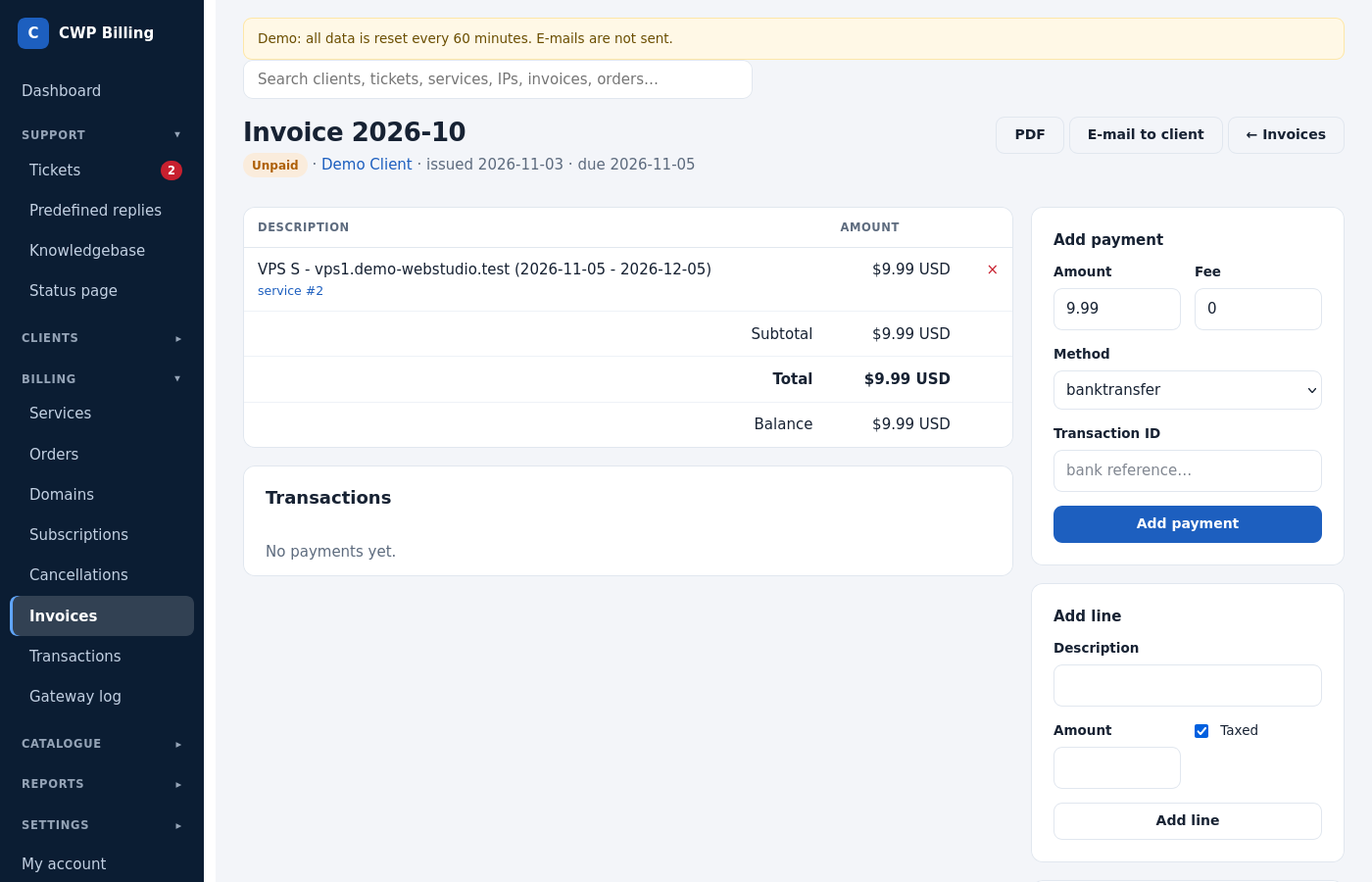
The invoice page
| Box | What you can do |
|---|---|
| Status | Unpaid, Paid, Cancelled, Refunded (and Collections for imported WHMCS invoices) |
| Due date | Change the due date. |
| Payment method | The gateway preselected for the client. Change (updates the gateway fee). |
| Add line | Add a description and an amount (incl. tax) to an unpaid invoice. |
| Add payment | Record a payment received outside the billing, for example a bank transfer: amount, method, transaction ID, fee. |
| Apply credit | Pay the invoice, or part of it, from the account credit. |
| Credit note | Issue credit note: the amount and reason; optionally refund it at the gateway or put it on the account credit. |
| E-mail to client | Send the invoice again. |
The PDF invoice uses the company details from Billing settings → Invoice issuer, with your logo and the footer. By default, invoice e-mails have the PDF attached.
Create an invoice by hand
Invoices → New invoice: enter the client ID, the due date and one line per item as Description | amount.
Payments and refunds
Gateway payments are recorded automatically (webhook or callback). Every payment is a transaction under Transactions, with the gateway fee if you set one.
Refund: open the invoice and issue a credit note with Refund at the gateway. Stripe and PayPal payments are refunded through their API. The credit note documents the refund. A partial refund is possible.
Account credit
Clients can pay in advance with Add funds (enable it in Billing settings → Account credit). Set the minimum, the maximum per payment and the maximum balance there. Credit comes from these sources:
- add funds;
- downgrades;
- overpayments;
- credit notes.
It is applied automatically to new renewal invoices (setting Apply credit automatically).
Credit notes
A credit note reduces an issued invoice, for example for a refund, a correction or a goodwill credit. It has its own number series, for example CN-2026-17, and is part of the accounting export.
Taxes
The tax of an invoice is decided in this order:
- A tax-exempt client pays 0 % (tick Tax exempt on the client).
- EU reverse charge: if you and the client are in different EU countries and the client’s VAT number is valid in VIES, the rate is 0 % and the invoice carries the reverse-charge note. Your country must be set in Billing settings → Taxes → Seller country.
- Otherwise the rule for the client’s country applies, or the default tax name and rate.
The Note on invoices field adds text such as the legal basis for 0 % VAT.
Invoice numbers
Billing settings → Invoices:
- the number format with
{year},{month}and{n}, for example{year}-{n}→2026-153; - the next number;
- the due days for manual invoices.
Numbers are given in sequence when the invoice is created.
Late fees
Billing settings → Late fees: add a percentage or a fixed amount the given number of days after the due date, with an optional minimum. The fee is added to the invoice once.
Common problems
| Problem | Cause and solution |
|---|---|
| A payment arrived, but the invoice is still unpaid | The webhook did not reach the billing. Check Gateway log, and the webhook URL and secret at the gateway. You can record the payment by hand with Add payment and the gateway’s transaction ID. |
| The invoice has the wrong tax | Check the client’s country and VAT number, and the seller country in Billing settings. VIES must confirm the VAT number. |
| Wrong company data on the PDF | Billing settings → Invoice issuer, or the brand’s own data with several brands. |