Products are what your clients order: hosting packages, VPS, licenses, support plans, or anything else. Each product has prices per billing cycle and can be linked to a server module that creates the account automatically after payment.
Where to find it: Products, Product addons and Promotions in the left menu.
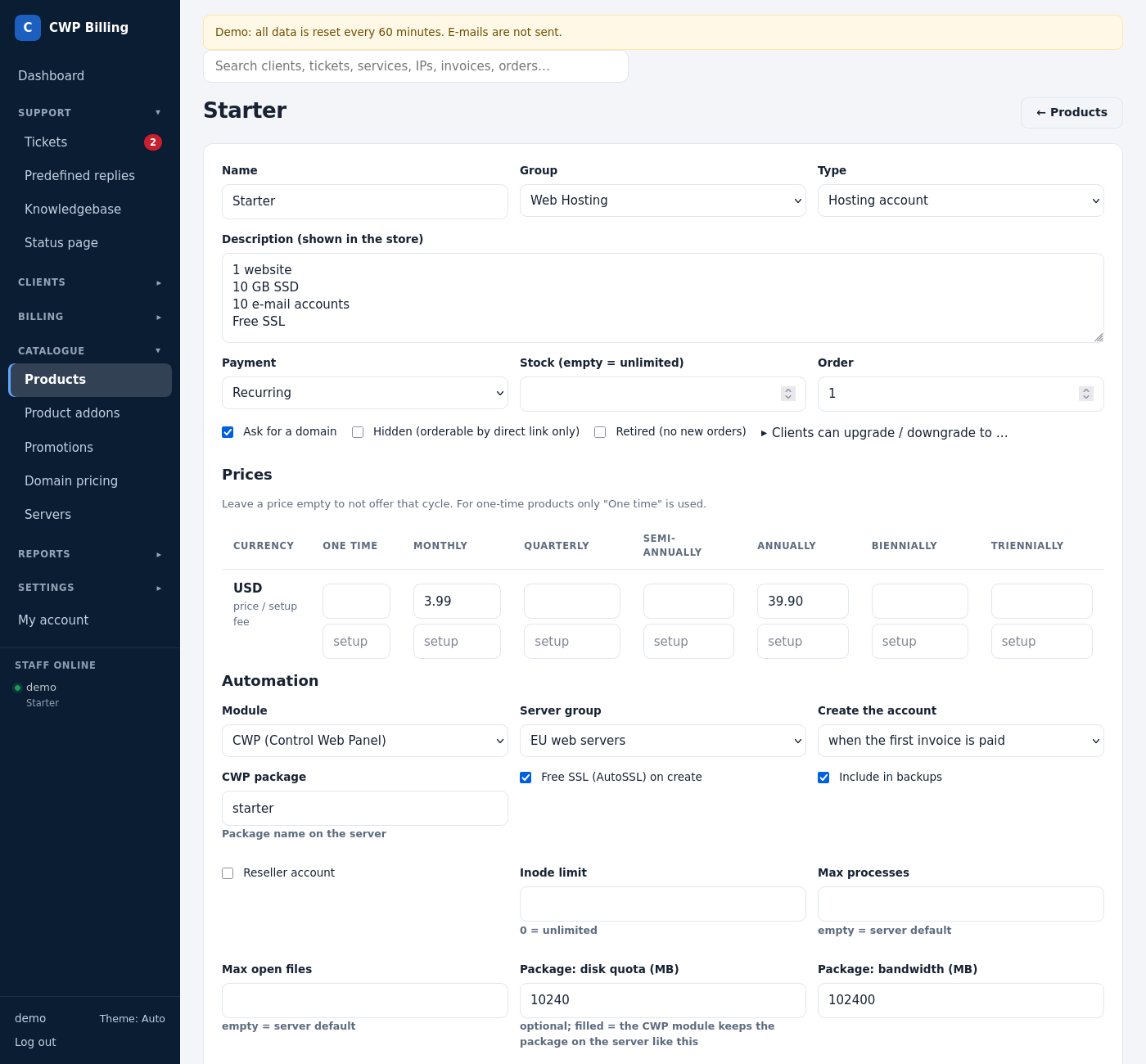
Create a product
- Open Products → Add product.
- Fill in the basics:
| Field | Meaning |
|---|---|
| Name | Shown in the store, on invoices and in e-mails. |
| Group | Product groups are the categories of the store, for example Web Hosting or VPS. |
| Type | Hosting account, license, service / support, or other. |
| Description | Shown in the store. Use one feature per line. |
| Payment | Recurring, one-time or free. |
| Stock | Empty = unlimited. |
| Order | The position in the store. |
| Hidden | Not listed in the store; it can be ordered only by its direct link, and staff can add it to clients. |
- Prices. Enter a price and an optional setup fee for each billing cycle you offer (monthly, quarterly, semi-annually, annually, biennially, triennially) and each currency. Leave a cycle empty to not offer it.
- Automation. Choose the Module (CWP, cPanel, DirectAdmin, Proxmox, or none) and the Server group. Then choose Create the account: when the first invoice is paid, immediately when ordered, or manually (when staff accept the order). Module settings such as the CWP package appear after you choose the module. See CWP servers and the CWP Billing module.
- Click Save product.
Custom fields
Custom fields ask the client for extra information at order time, for example the domain or the operating system. The value is stored on the service.
| Field | Meaning |
|---|---|
| Type | Text, text area, number, drop-down, checkbox, or password (encrypted in the vault). |
| Required / shown on the invoice / admin only | |
| Validation regex | Optional, for example ^[a-z0-9.-]+$. |
| Staff who can see the value | Restricts sensitive values (non-password fields) to some roles. |
Password fields (for example a root password) are stored encrypted in the vault.
Configurable options
Configurable options change the price, for example extra disk space, more RAM or a control panel license. An option can be a drop-down, a radio choice, a yes/no switch or a quantity, with its own price per currency and billing cycle, and the client sees the total while ordering. Configurable options are imported with your WHMCS data and work in orders, renewals and upgrades.
Product addons
Addons are extra services that the client can add to a product, for example backups or a dedicated IP. They have their own price and billing cycle and appear on the same invoice as the product.
Promotions
Promotion codes give a discount in percent or a fixed amount.
| Field | Meaning |
|---|---|
| Code | What the client types in the order form. |
| Type and value | Percentage or fixed amount, for example 20 %. |
| Valid from / until | |
| Maximum uses | 0 = unlimited. |
| Products and cycles | Which products the code works for. |
| Recurring | Ticked: the service keeps the discounted price on every renewal. Otherwise only the first invoice is discounted. |
The store and the order process
Clients order at https://billing.example.com/store.
- They choose a product, a billing cycle, the options and the domain.
- They log in or register.
- They pay the invoice.
New orders appear under Orders, where staff can accept, cancel or mark them as fraud.
- Fraud check. Every order gets a fraud score (0–100) from local signals, and optionally from IPQualityScore (proxy, VPN, Tor, country). With the fraud check on, orders at or above the hold score are held: the invoice can be paid, but the service is activated only after staff accept the order.
- Abandoned carts. Clients who were logged in and left an order page without ordering can get one reminder e-mail. Reports → Abandoned carts shows the order funnel.
Direct order link for a product: https://billing.example.com/store/<product id>. Use it on your own website.
Common problems
| Problem | Cause and solution |
|---|---|
| A product does not appear in the store | It is hidden, it has no price in the client’s currency, or it is out of stock. |
| The account was not created after payment | Create the account is set to “manually”, the order is held by the fraud check, or the server returned an error. Open the service: Server actions → Create shows the error. |
| The promotion code is “not valid” | Check the dates, the maximum uses, and that the product and cycle are selected in the promotion. |