The CWP API lets other software — billing systems such as WHMCS or Blesta, your own scripts, or a mobile app — manage a CWP server automatically: create and suspend hosting accounts, manage packages, domains, email, FTP, databases, SSL certificates and cron jobs, and log users in to their panel.
This page explains how the API works and how to make your first call. The other pages in this section describe every function with real request and response examples.
How it works
- Endpoint:
https://YOUR-SERVER:2304/v1/FUNCTION/, for examplehttps://203.0.113.10:2304/v1/account/ - Method: always
POST, with form fields (application/x-www-form-urlencoded) - Authentication: an API key sent in the
keyfield - Operation: the
actionfield — usuallyadd,udp(update),del,list,susp(suspend) orunsp(unsuspend) - Response: JSON (or XML, chosen per key)
The API runs as its own service on port 2304 with the server’s SSL certificate. Make sure the port is open in the firewall for the IP addresses that will call the API.
Step 1: Create an API key
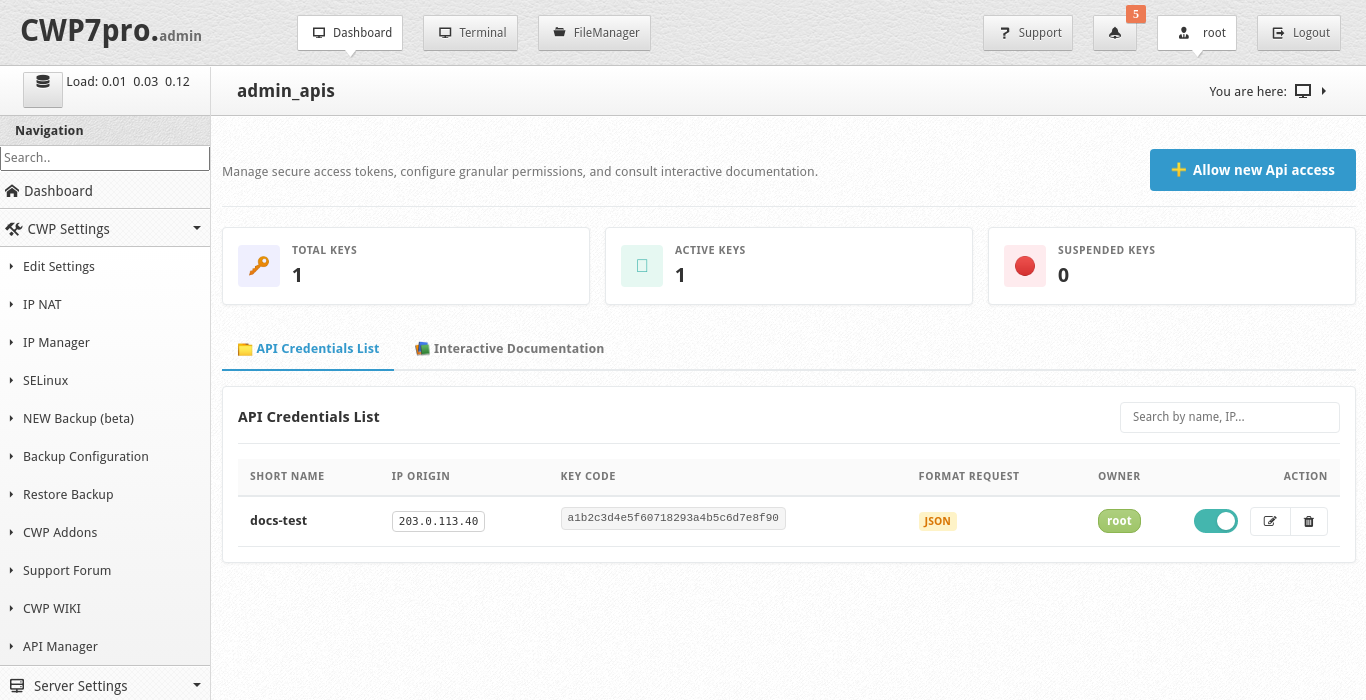
In the CWP admin panel open CWP Settings → API Manager and click Allow new Api access.
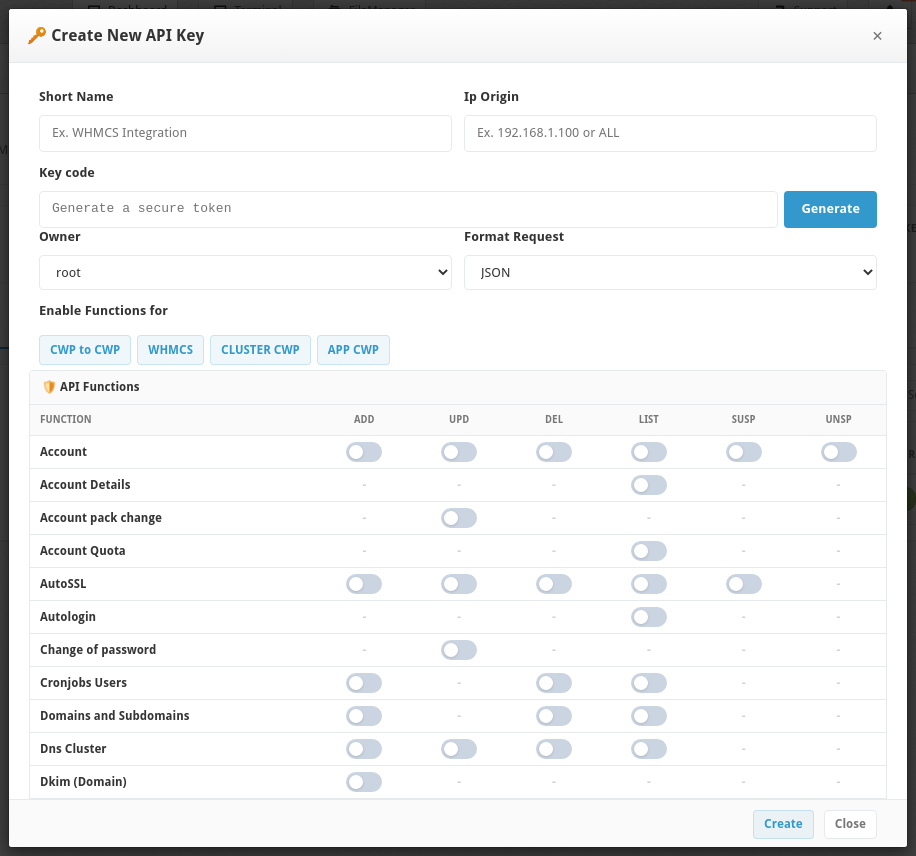
| Field | What to enter |
|---|---|
| Short Name | A label, for example WHMCS Integration |
| Ip Origin | The IP address of the system that will call the API. Only requests from this IP are accepted. ALL (or %) allows any IP — avoid it on production servers. |
| Key code | Click Generate to create a random key. Treat it like a password. |
| Owner | root for full access, or a reseller account — then the key can only manage that reseller’s own customers and packages |
| Format Request | JSON (recommended) or XML |
| Enable Functions for | Presets that switch on the functions typically needed by CWP to CWP transfers, WHMCS, CLUSTER CWP or the APP CWP mobile app |
| API Functions | Switch on exactly the actions this key may use (see the table below) |
Click Create. The key appears in the API Credentials List, where you can switch it off, edit it or delete it. The Interactive Documentation tab shows the parameters of each function inside the panel.
Warning: Give each integration its own key, limited to its IP address and to the functions it really needs. Never put an API key in JavaScript or anywhere a website visitor could see it.
Step 2: Test the connection
curl -k -X POST https://203.0.113.10:2304/v1/testconex/ -d "key=YOUR_API_KEY"Response:
{"status":"OK","result":"Conex Api OK"}-k skips certificate verification and is only needed while the server uses a self-signed certificate. In production, install a valid certificate for the server hostname and call the API by that hostname.
Step 3: Your first real call
List all hosting accounts:
curl -k -X POST https://203.0.113.10:2304/v1/account/ -d "key=YOUR_API_KEY&action=list"{"status":"OK","msj":[{"username":"john","domain":"example.com","email":"john@example.com","package_name":"default","status":"active", ...}]}Functions and permissions
Each function needs its permission to be switched on for the key in API Manager.
| Function (URL) | Actions | API Manager row |
|---|---|---|
account | add, udp, del, list, susp, unsp | Account |
accountdetail | list | Account Details |
account_metadata | list | Metadata Account |
accountquota | list | Account Quota |
quotalimit | list | Quota limit |
changepack | udp | Account pack change |
changepass | udp | Change of password |
user_session | list | Autologin |
packages | add, udp, del, list | Packages |
admindomains | add, del, list | Domains and Subdomains |
email | add, udp, del, list, susp, unsp | |
emailadmin | list | Email Admin Server |
ftp | add, udp, del, list | FTP |
databasemysql | add, del, list, susp, unsp | MySQL Databases |
usermysql | add, udp, del, list | MySQL Users |
autossl | add, del, list, renew | AutoSSL |
dkim | add | Dkim (Domain) |
cronjobsusers | add, del, list | Cronjobs Users |
typeserver | list | Type Server |
testconex | — | always allowed for a valid key |
Security checklist
- Restrict every key to one Ip Origin.
- Enable only the functions the integration needs.
- Use HTTPS with a valid certificate and keep port 2304 closed to the rest of the internet.
- Switch off or delete keys you no longer use.
- All calls are logged on the server in
/var/log/cwp/cwp_api.log(date, key and result) — useful for troubleshooting and auditing.